ZeroBounce Logo

Docs

Language Icon
  • Sign In
  • Sign Up Free

Languages

ZeroBounce ImageGetting Started
ZeroBounce ImageEmail List Validation
ZeroBounce ImageA.I. Email Scoring
ZeroBounce ImageEmail Finder
ZeroBounce ImageDomain Search
ZeroBounce ImageActivity Data
ZeroBounce ImageMulti-file upload
ZeroBounce ImageIntegrations
ZeroBounce ImageUsage Reports
ZeroBounce ImageYour ZeroBounce Account
ZeroBounce ImageEmail Validation API
ZeroBounce ImageEmail Finder API
ZeroBounce ImageDomain Search API
ZeroBounce ImageA.I. Scoring API
ZeroBounce ImageActivity Data API
ZeroBounce ImageList Evaluator API
ZeroBounce ImageApi Dashboard
ZeroBounce ImageApi Endpoints
ZeroBounce ImageApi Rate Limits
ZeroBounce ImageAPI Error Codes
ZeroBounce ImageTLS Support
ZeroBounce ImageDashboard Statistics
ZeroBounce ImageAPI Keys Management
ZeroBounce ImageApproved Integration Vendors
ZeroBounce ImageAPI Wrappers
ZeroBounce ImageAPI Migration
ZeroBounce ImageFAQ
ZeroBounce ImageSecuring Your Account
ZeroBounce ImageAbout ZeroBounce
ZeroBounce ImageDeliverability Tools
ZeroBounce ImageStatus Page
  • Email Validation Homepage
  • Separator
  • Docs
  • Separator
  • API Dashboard
  • Separator
  • Dashboard Statistics
API Dashboard

DASHBOARD STATISTICS

Need detailed info about your email validationⓘ API usage? You’ll find it in your API dashboard.

Your API Dashboard is located in your account off the left-hand menu. Every-time you make a call to the API, it will record the email validationⓘ results. This way, you can quickly see a big picture overview of your credits usage and your results. No emails are saved, just a count of the results.
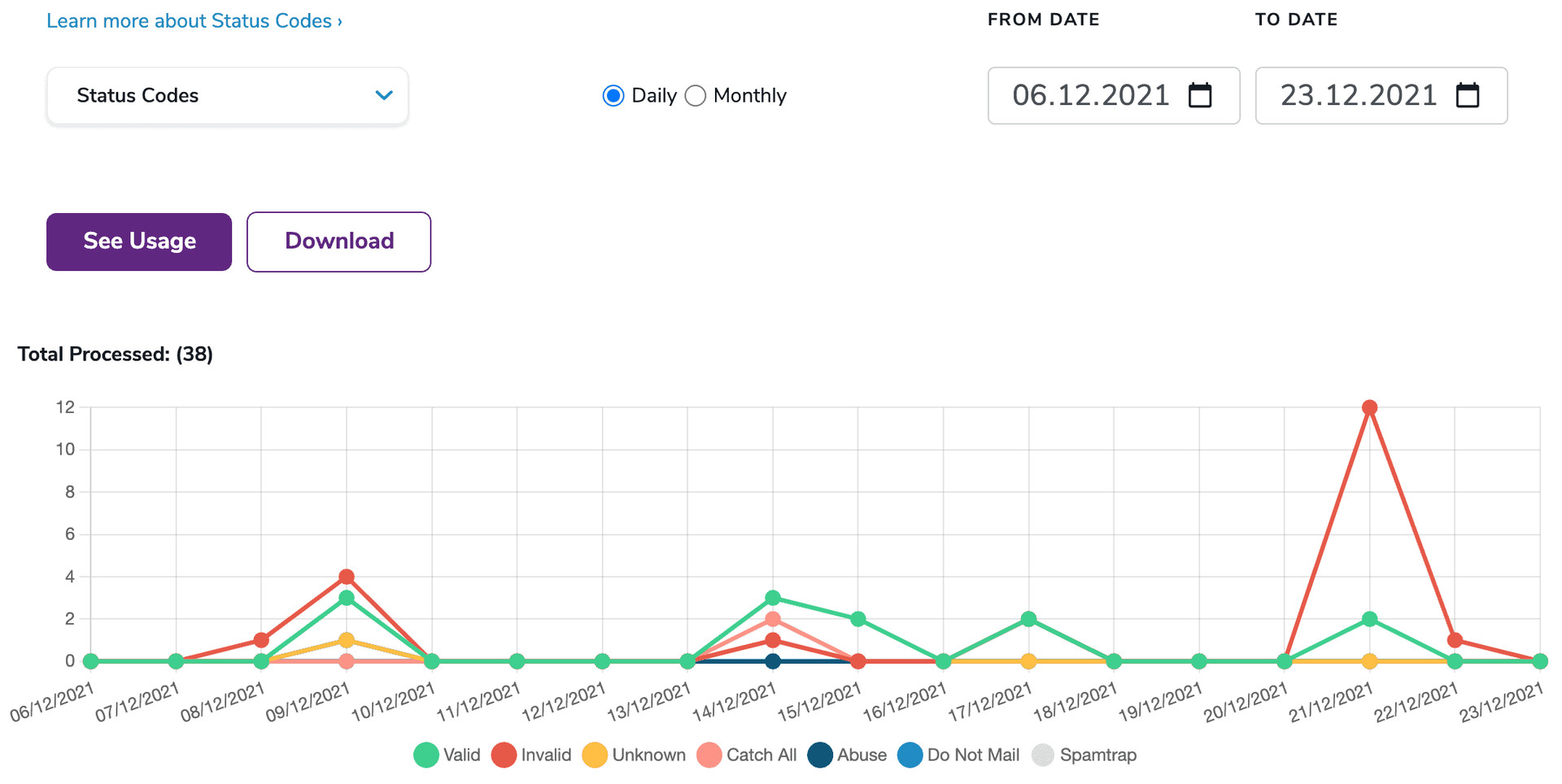
Status Codes

In the API Dashboard, as seen above, you will have a drop-down the drill into the details of the invalids, do not mail, and unknown status codes. Also, you will be able to graph by daily or monthly trends to get a more in-depth look into your email validations. This gives you a better perspective on how ZeroBounce has helped improve your email list.
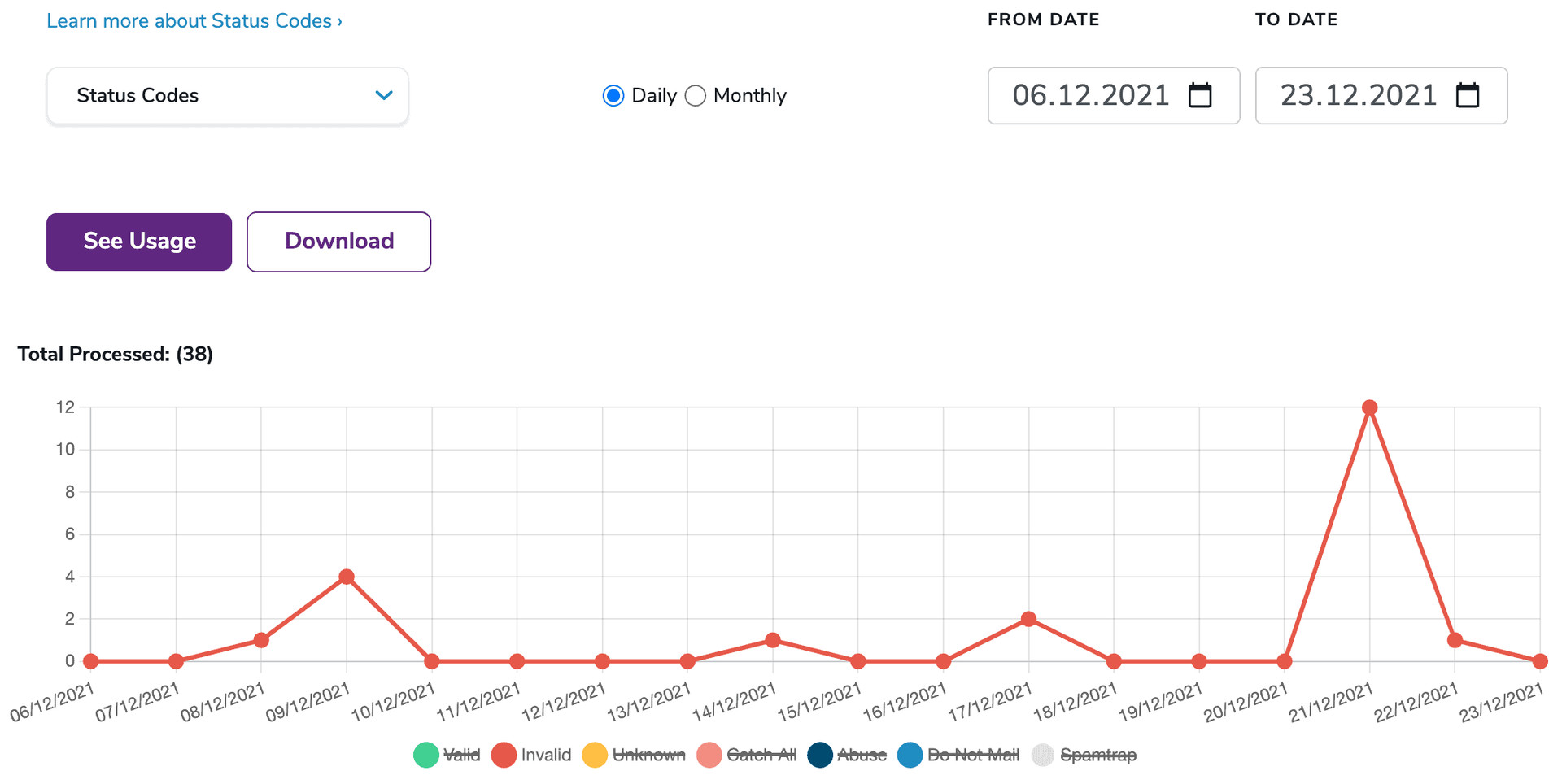
Status Codes

In the above image, I clicked on the status I didn't want to show, leaving just the trend of the invalids. To get further details about the invalid results, change the menu on top to “Invalids by Sub_Status.”
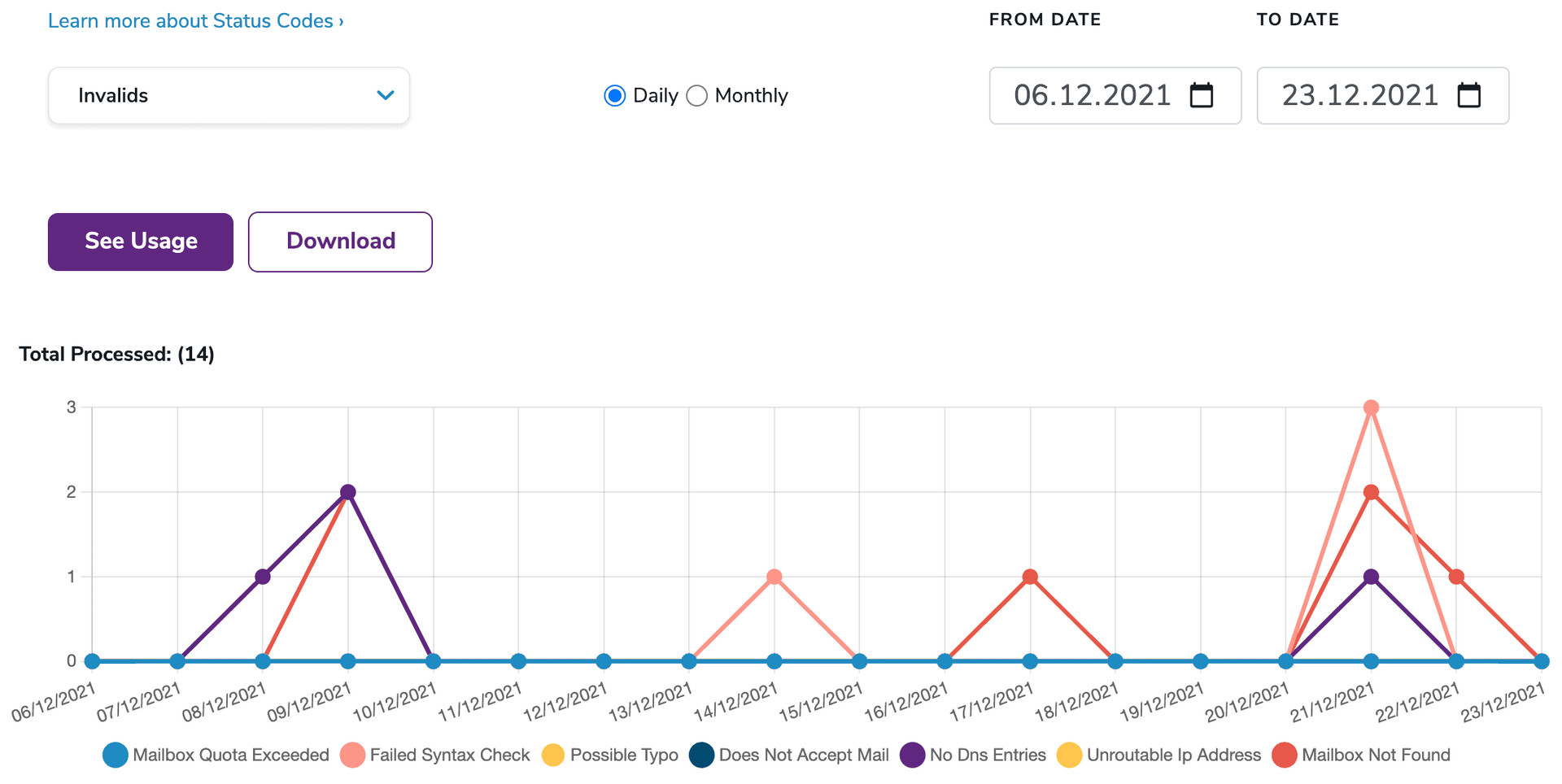
Status Codes

Now you can see the sub_status breakdown of the "Invalids" emails. It's a very powerful tool that allows you to see usage summary by day, months, and even years, with a visual representation of the health of the emails you are passing through the API.