
Docs
Docs
ZeroBounce Deliverability Dashboard gives senders a centralized view of their email reputation and inbox performance across major mailbox providers. By bringing together Google Postmaster insights and Microsoft SNDS data, the dashboard helps teams monitor key deliverability signals such as domain reputation, IP reputation, spam complaint trends, delivery errors, and provider-specific sending health. Instead of switching between separate postmaster tools, users can review Gmail and Microsoft/Outlook performance in one place, identify reputation issues early, and take action to improve inbox placement and protect sender trust.
The Deliverability Dashboard allows you to connect your Google Postmaster account to ZeroBounce, giving you access to key reputation and deliverability metrics for your sending domain. By centralizing this data within ZeroBounce, you can monitor performance and make informed decisions to improve your email deliverability.
This feature is available exclusively to users with a ZeroBounce One subscription.
Once your Google Postmaster account is connected, the Deliverability Dashboard provides the following metrics:
Track the percentage of emails marked as spam by recipients. A high spam rate can negatively impact your sender reputation and inbox placement.
Understand how mailbox providers view your sending domain. Reputation levels typically range from bad to high, and directly influence email deliverability.
Monitor the reputation of your sending IP address. Poor IP reputation can lead to emails being filtered or blocked.
Identify issues that prevent your emails from being successfully delivered, such as temporary failures or permanent bounces.
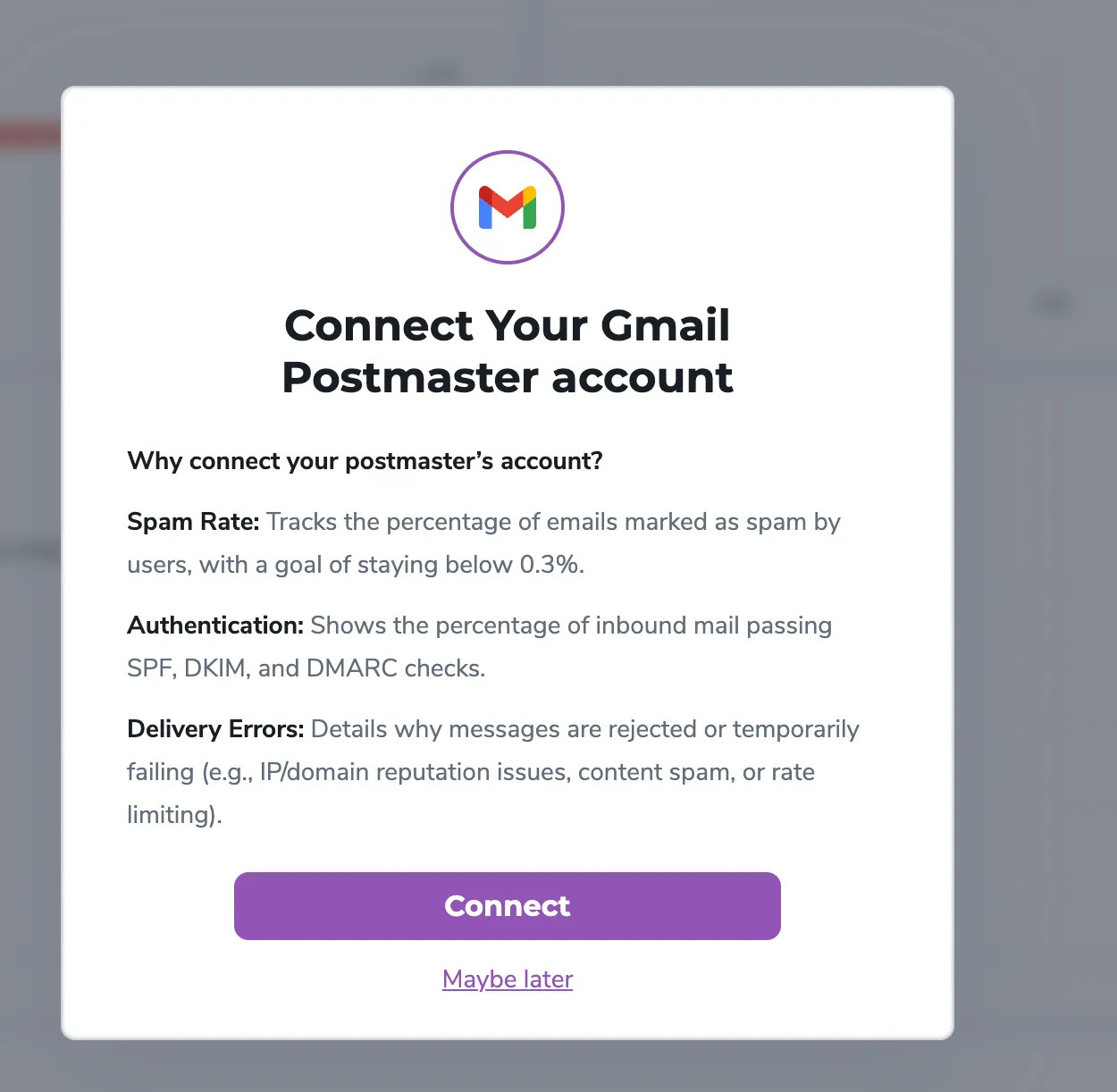
1. Navigate to the Deliverability Section and connect your Google Postmaster Account to ZeroBounce
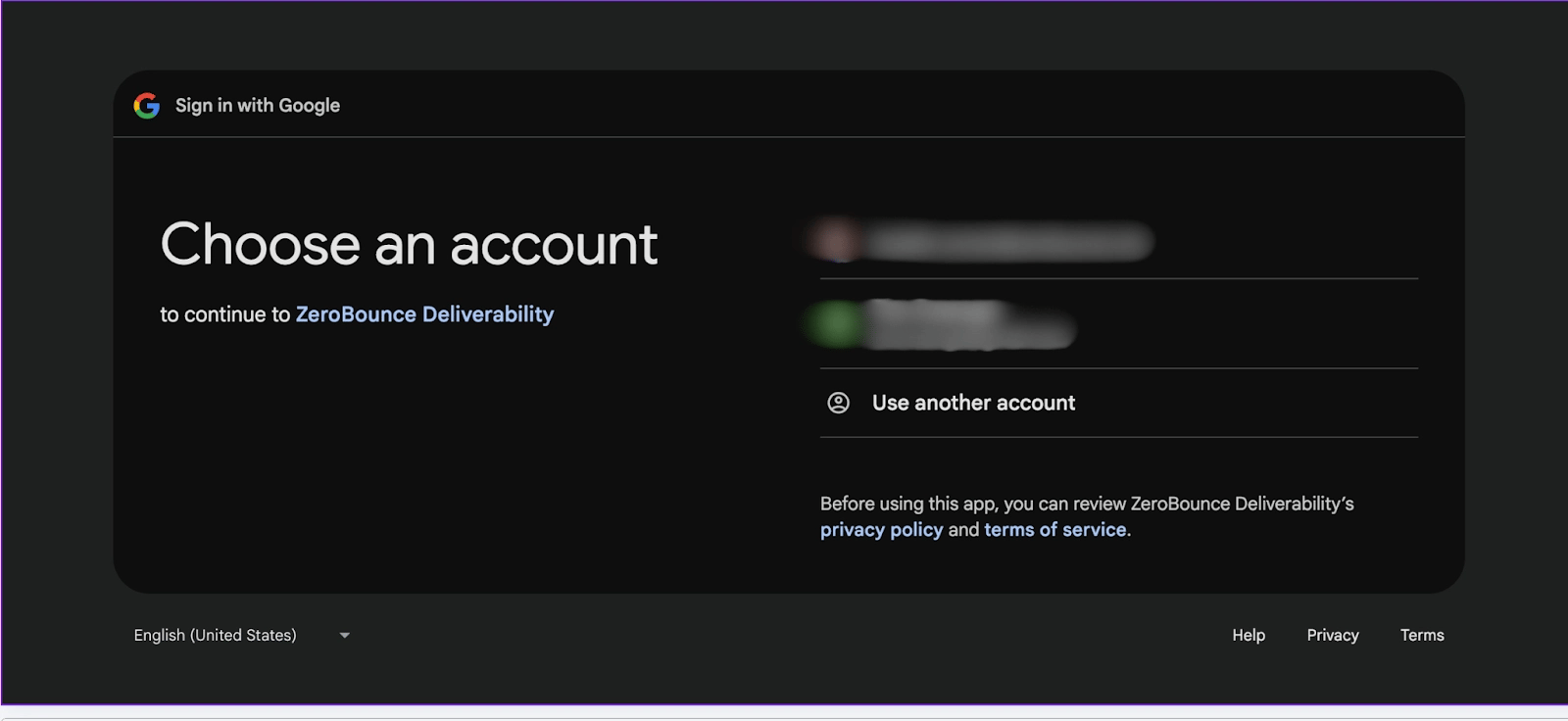
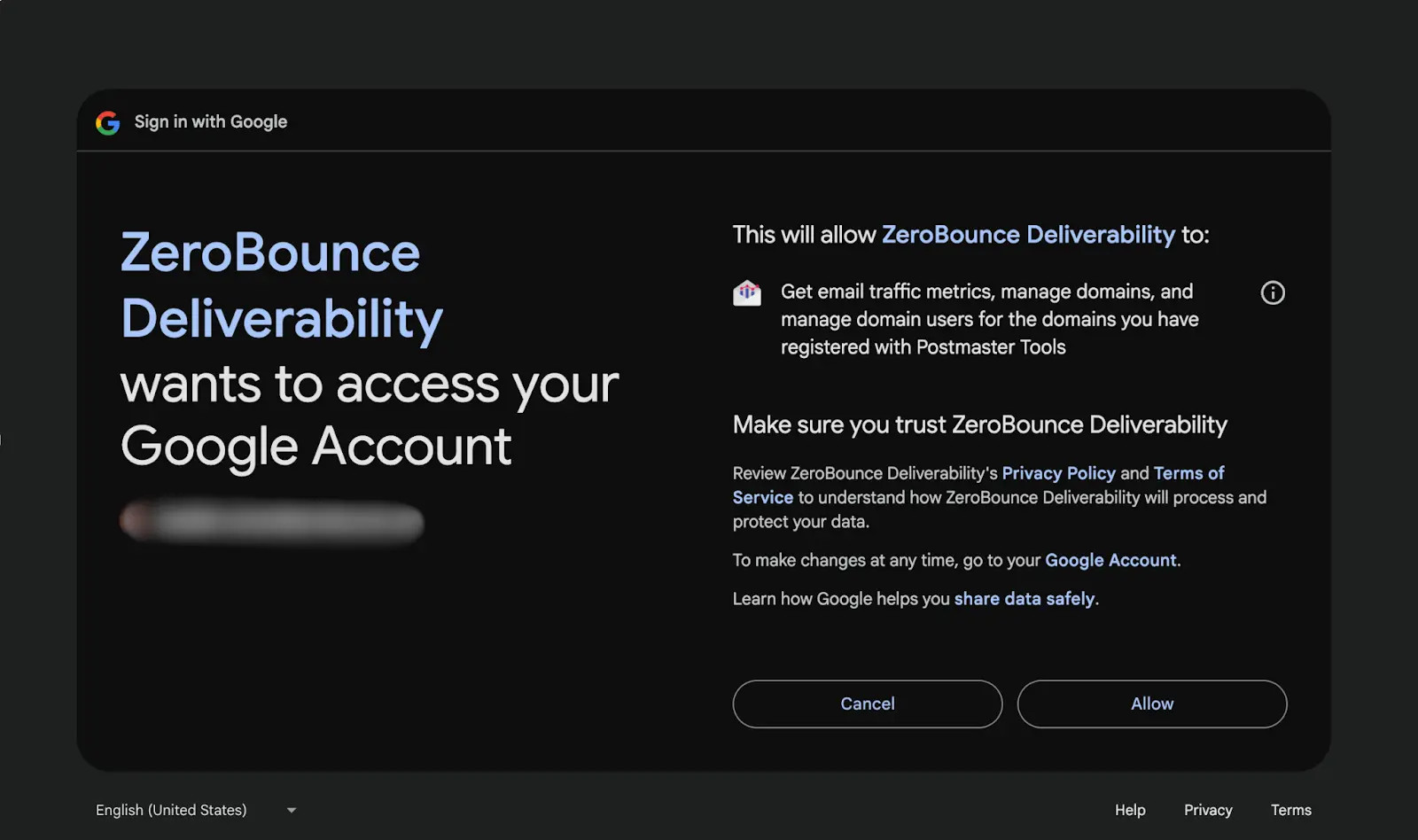
2. Authorize access to your domain data
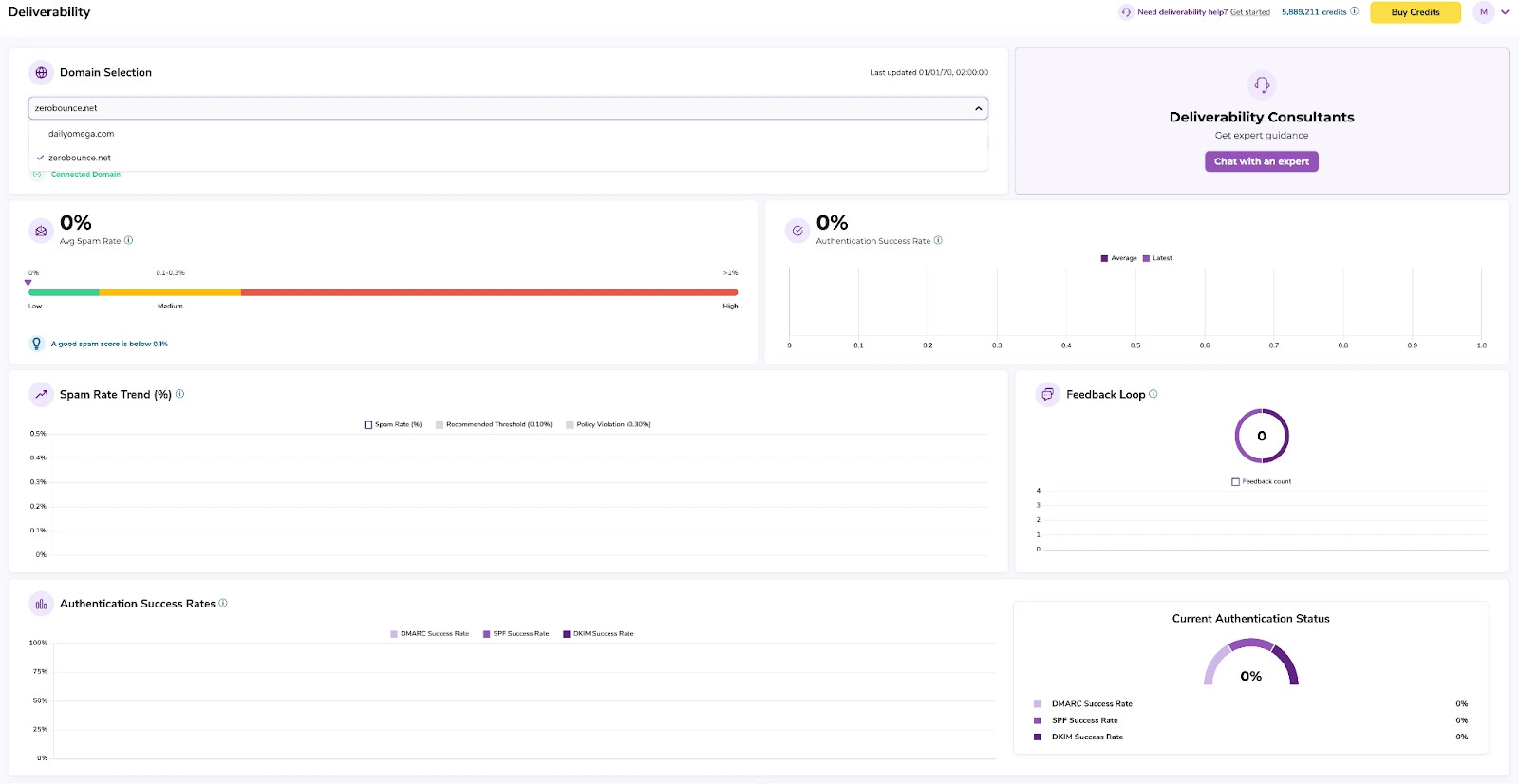
3. View and analyze your deliverability metrics in real time
The Microsoft SNDS tab in the ZeroBounce Deliverability Dashboard allows you to view Microsoft Smart Network Data Services data directly inside ZeroBounce. This gives you access to key IP-level reputation and deliverability metrics for sending IPs that send mail to Microsoft and Outlook.com recipients. Microsoft describes SNDS as a service that helps senders understand and improve their Outlook.com reputation by providing detailed data about individual sending IPs.
By centralizing Microsoft SNDS data inside ZeroBounce, you can monitor your sender health, identify deliverability issues early, and make informed decisions to improve inbox placement and sender reputation. This follows the same centralized Deliverability Dashboard approach used by ZeroBounce for reputation and performance monitoring.
To use the Microsoft SNDS dashboard, you need:
Microsoft SNDS requires users to request access to the IPs they are responsible for before data can be viewed.
1. Log in to your ZeroBounce account.
2. Go to the Deliverability Dashboard.
3. Select the SNDS tab next to Postmaster.
4. Choose a sending IP from the IP dropdown.
5. Select the desired date range, such as Last 7 Days.
6. Click Display data to load the available Microsoft SNDS metrics.
7. Click Resync to refresh the available data.
8. Click Disconnect if you want to remove the Microsoft SNDS connection.
The IP Reputation Check section gives you a quick summary of the selected IP's Microsoft SNDS performance.
This section includes:
When data is available, ZeroBounce displays the message:
Showing available Microsoft SNDS data.
The SNDS Data section provides a detailed breakdown of Microsoft-reported activity for the selected IP.
The Spam Trap Hits card shows the total number of spam trap hits reported for the selected IP.
A healthy result is:
0 spam trap hits
When no trap hits are detected, ZeroBounce displays a clear status indicator. The chart below the metric shows trap hit activity by date, helping you identify whether the issue is isolated or recurring.
Spam trap hits may indicate issues such as:
If trap hits appear, review the sending source, list origin, and recent campaigns associated with the selected IP.
The Complaint Rate card shows the percentage of Microsoft recipients who marked messages as junk or spam.
This section includes:
A low complaint rate is a positive deliverability signal. A sudden spike may indicate that recipients are not expecting your messages, your content is not aligned with their expectations, or your list contains unengaged subscribers.
To reduce complaint rates:
Microsoft recommends using SNDS data to keep mailing lists clean and monitor the IPs you control for unusual behavior.
The SMTP Health section shows how Microsoft handled mail from the selected IP over the selected date range.
The chart compares:
Below the chart, ZeroBounce displays summary metrics:
The acceptance rate is calculated as:
Accepted ÷ Processed × 100
A lower acceptance rate or an increase in deferred traffic may indicate reputation problems, traffic spikes, authentication issues, filtering concerns, or other deliverability problems.
The Microsoft SNDS dashboard may also display a Deliverability Consultants panel.
This section gives users access to expert deliverability guidance. If you are interested in speaking with a deliverability consultant, follow the instructions shown in the dashboard to contact your agency or consultant.
A healthy Microsoft SNDS profile usually includes:
If the selected IP shows Poor reputation, review the supporting metrics in the dashboard. Poor reputation may be related to complaint activity, trap hits, high deferrals, low engagement, or sending patterns that Microsoft considers unusual.
Recommended actions:
If the acceptance rate is low, Microsoft is not accepting a significant portion of the processed traffic.
Recommended actions:
Spam trap hits should be treated as a high-priority issue.
Recommended actions:
The Postmaster tab displays Google Postmaster-related deliverability data. The SNDS tab displays Microsoft SNDS data for sending IPs associated with Microsoft and Outlook.com traffic.
Microsoft SNDS focuses on data for individual sending IPs. This helps senders monitor the reputation and activity of the IPs they control.
The Resync button refreshes the available Microsoft SNDS data in ZeroBounce. After resyncing, review the Last Updated timestamp to confirm when the latest sync occurred.
SNDS data may not appear if Microsoft does not have data for the selected IP and date range, if the IP is not authorized in SNDS, or if the IP has not sent enough relevant Microsoft traffic.
The Disconnect button removes the Microsoft SNDS connection from the Deliverability Dashboard. After disconnecting, SNDS metrics will no longer be available in ZeroBounce unless the integration is connected again.
