
Docs
Docs

Warmup is a tool designed to help your emails reach the Inbox and avoid the Spam folder.
Complementing the Email Deliverabilityⓘ Toolkit, Warmup helps you build and maintain a strong sender reputation and ensure optimal email deliverabilityⓘ. You can leverage the Warmup service by subscribing to the Email Deliverabilityⓘ Toolkit at the ‘Team’ tier or higher.
Warmup is like a friendly coach for your new or existing email address or domain. The email warmupⓘ tool gradually interacts with your outgoing emails by opening, clicking, favoriting, replying, etc. Warmup emulates authentic engagement through an automated process so that it appears legitimate to email service providers.
As you continue to build trust with providers through positive engagement, your emails are less likely to land in Spam and more likely to reach your recipients’ inboxes.
This documentation is divided into two easy-to-follow parts:
You can use Warmup using one of two methods:

By using the Warmup AI Assistant Wizard, we’ll walk you through the necessary steps to warm up your account for optimal email deliverabilityⓘ. You’ll receive a series of questions designed to help the Warmup AI Assistant recommend the best configuration for your Warmup account.
1. From your ZeroBounce dashboard, click on Tools. Then, click on Warmup.
2. Click on + New Warmup Account.
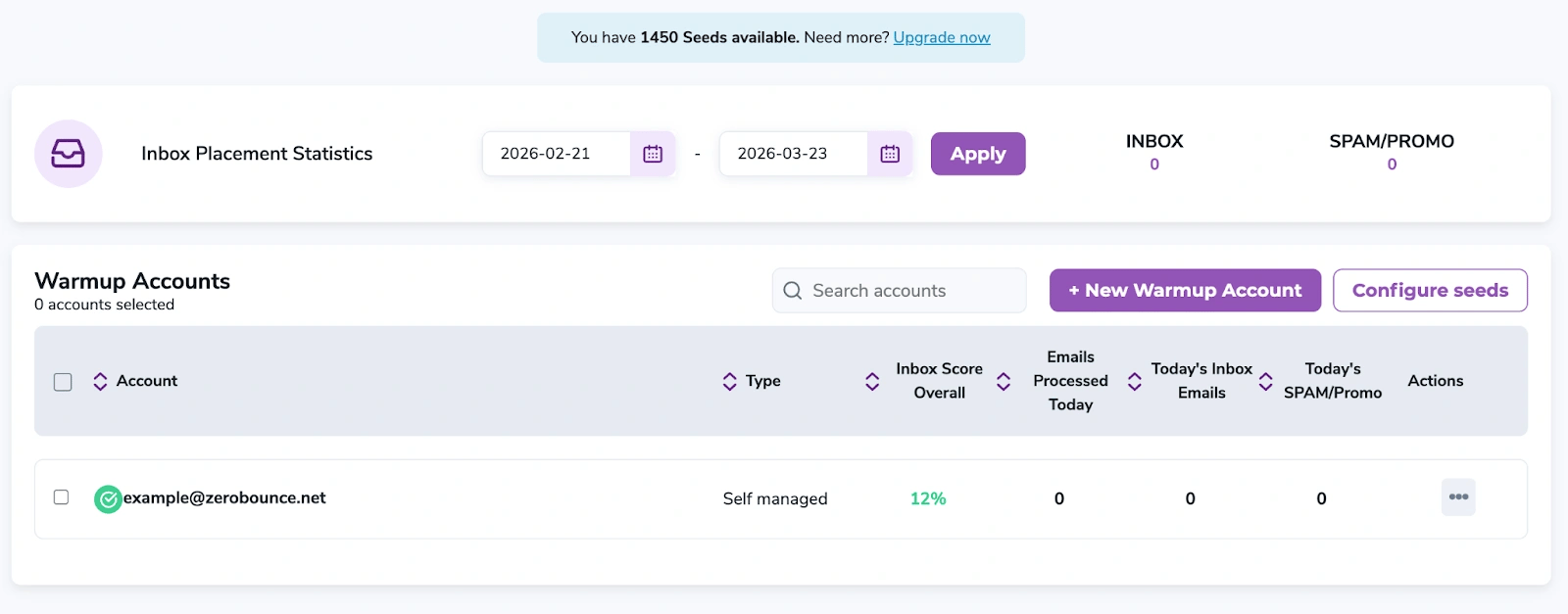
3. From Set Up Your Warmup Account, choose Start the Wizard.
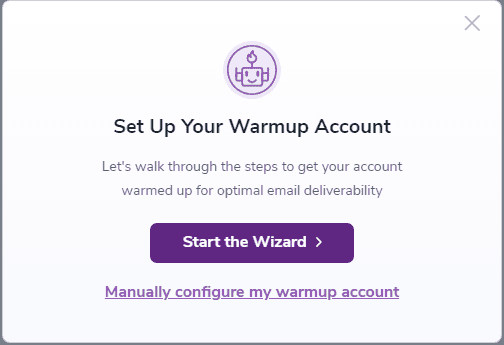
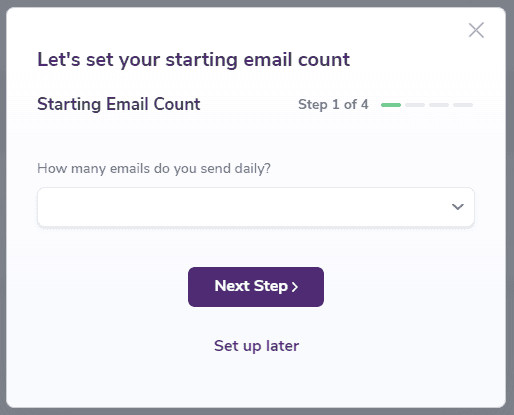
4. Set up your starting email count by selecting how many emails you send on a daily basis. Then, click Next.
The Wizard will ask you to estimate the number of emails you send daily, which is critical to ensure accuracy. Based on this information, the system will start the Warmup process by sending emails equivalent to approximately 0.1%* of your total daily email volume.
Why 0.1%? Major email service providers (ESPs) consider 0.1% as an acceptable threshold for negative engagement (such as emails being marked as spam). By starting with this small percentage, Warmup helps offset potential negative engagement with positive interactions, gradually improving your email reputation before scaling up further.
* The volume may differ based on your subscription, engagement rules, and our analysis of email reputationⓘ.
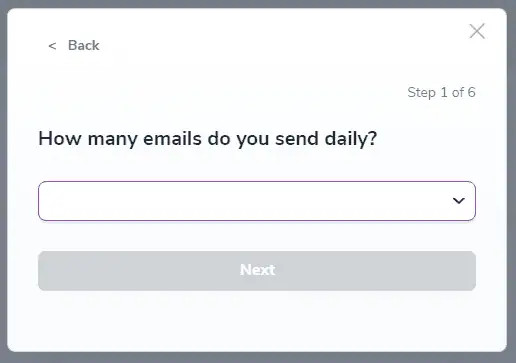
5. Choose the type of authentication method that you want to use.
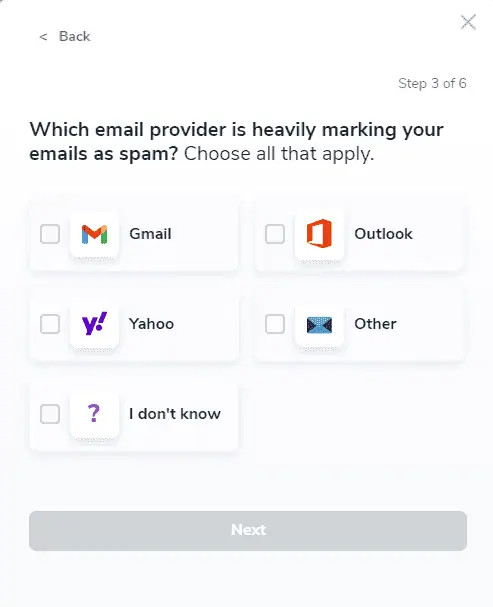
6. Choose all email providers that are heavily marking your emails as spam and click on Next.
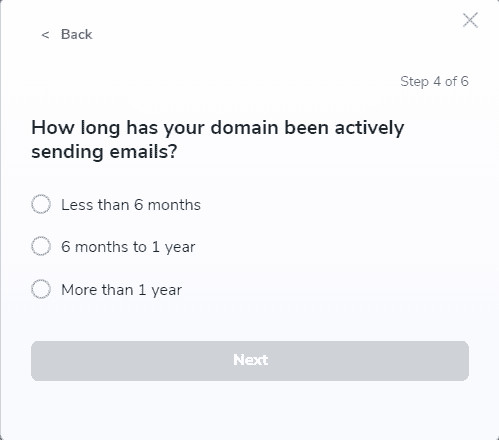
7. On the next step, choose how long your domain has been actively sending emails and click on Next.
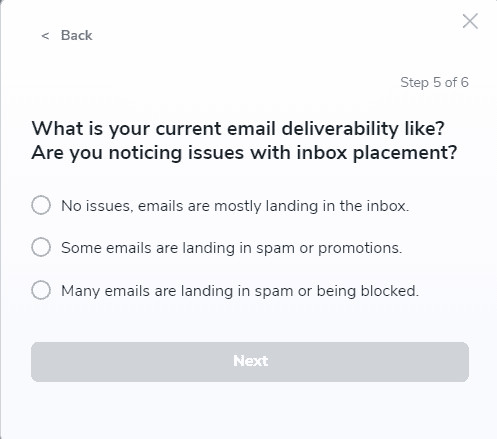
8. In the next step, select the option that best reflects your current email deliverability and if there are any noticeable issues with the inbox placement. After selecting the best option, click on Next.
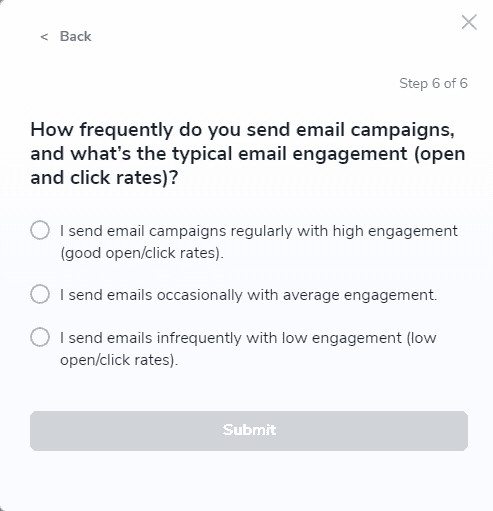
9. On the final step slide, you’ll be asked to select the option that best reflects the typical email engagement (open and click rates) and how frequently you send email campaigns. After selecting the best option, click on Submit.
10. Based on your choices from the wizard flow, the Warmup AI Assistant will generate a Summary Report that will highlight the best configuration approach for your Warmup account setup. You can inspect the chosen settings by the Warmup AI Assistant, and you may continue the setup with this configuration by selecting the Continue with these settings option. Alternatively, you can continue by manually configuring the Warmup account by selecting the Manually configure my warmup account option.
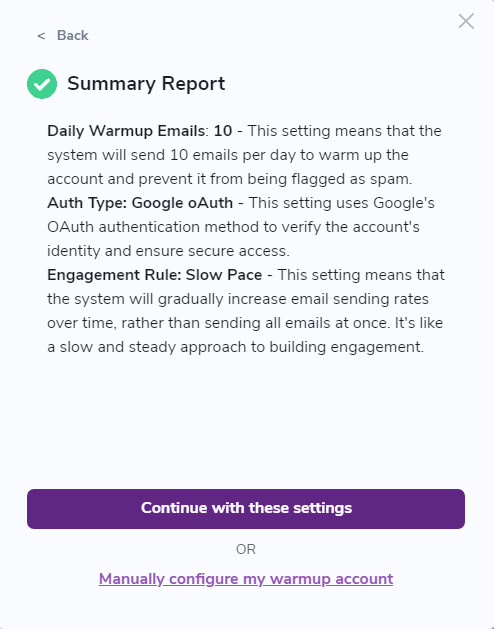
If you choose to continue the setup with the recommended settings by the Warmup AI Assistant, depending on the recommended authentication type, you’ll be prompted to continue with either Google OAuth, Outlook OAuth, SMTP, or the self-managed approach. We will use previously selected data from the Warmup AI Assistant Wizard to facilitate the next steps in setting up the Warmup account. Keep in mind that your consent is necessary, and the wizard will continue by checking the box on the consent form that acknowledges that ZeroBounce is authorized to send emails on your behalf to our seed list.
After the consent has been recorded, the final steps of the Warmup account setup will be reached.
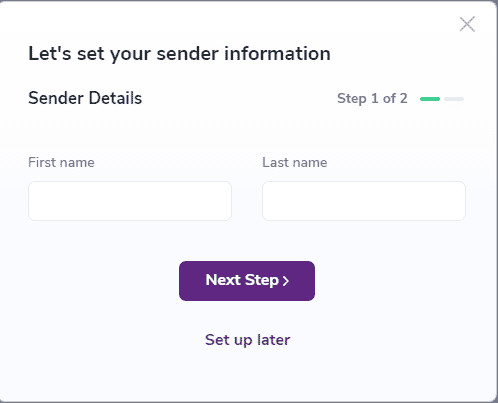
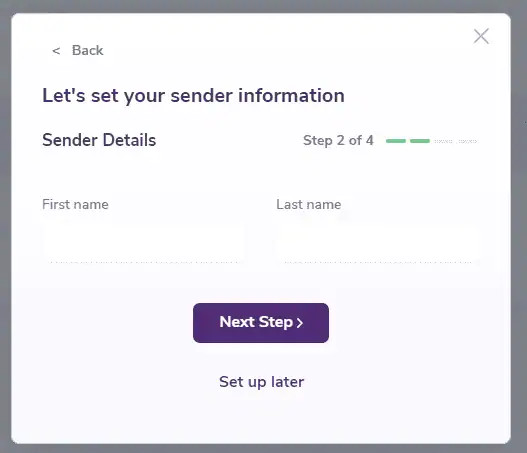
1. Sender information (First and last name) will be required. After filling in the required information, click on Next Step.
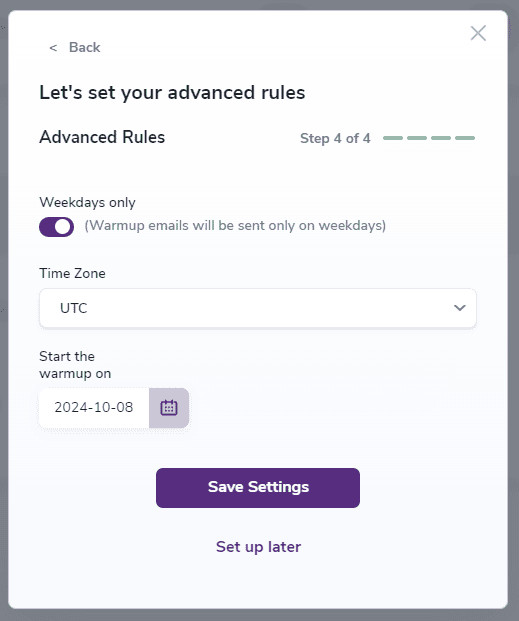
2. In the final step, you will need to set up your Advanced rules.
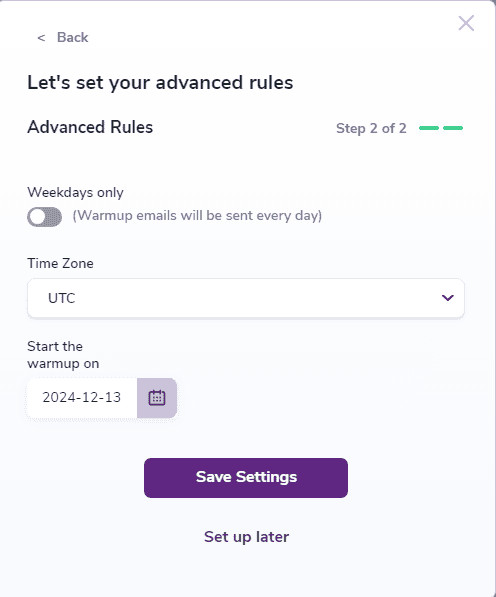
3. Click on Save Settings, and the Warmup account will be successfully added!
You can use Warmup using one of two methods:

1. Choose oAuth or App Password for your preferred authentication method.
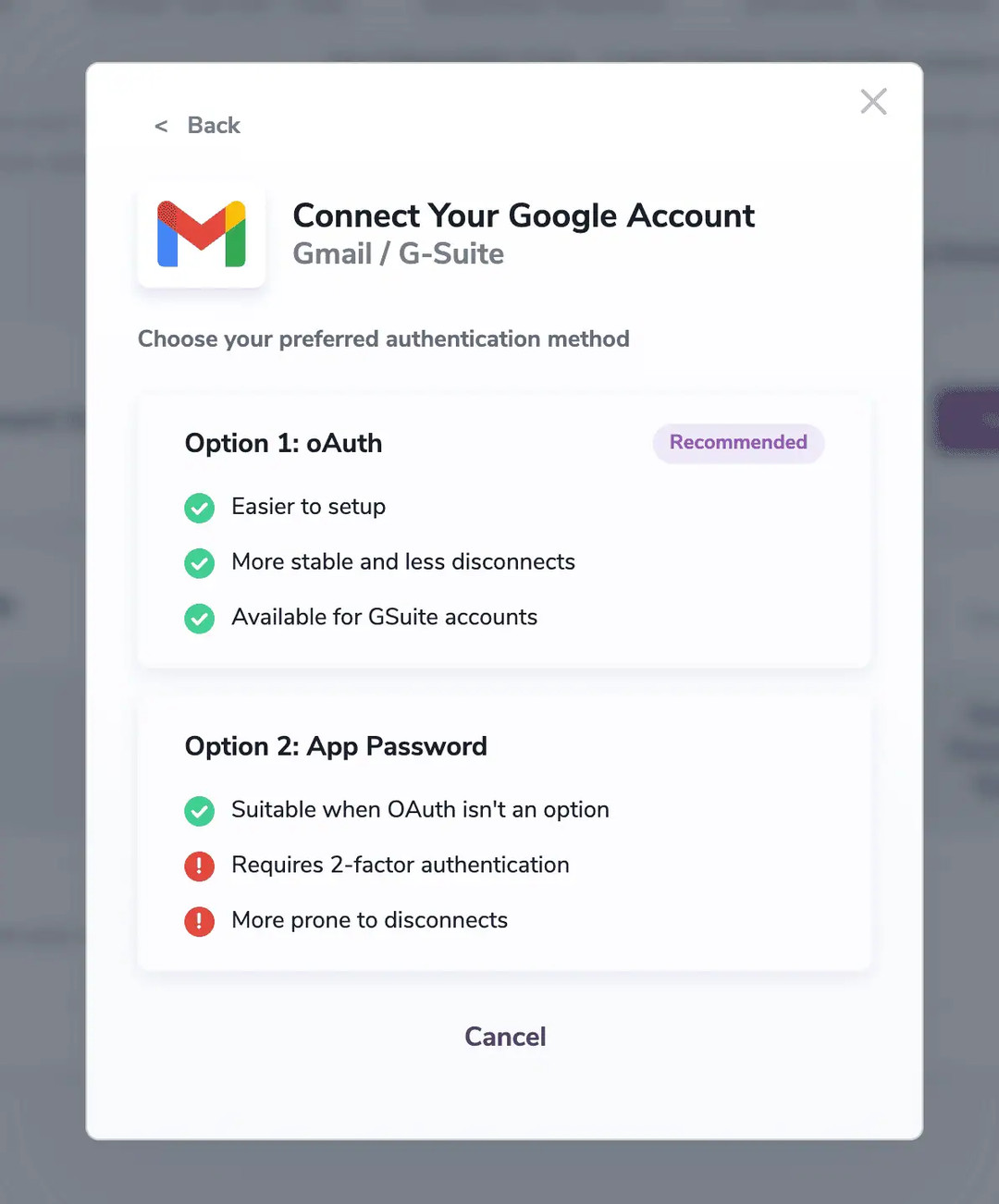
Section 1a - Using oAuth authentication
1a. Login to your desired account and be redirected to the next step.
2a. Check the box on the consent form that acknowledges that ZeroBounce is authorized to send emails on your behalf to our seed list. Click Continue.
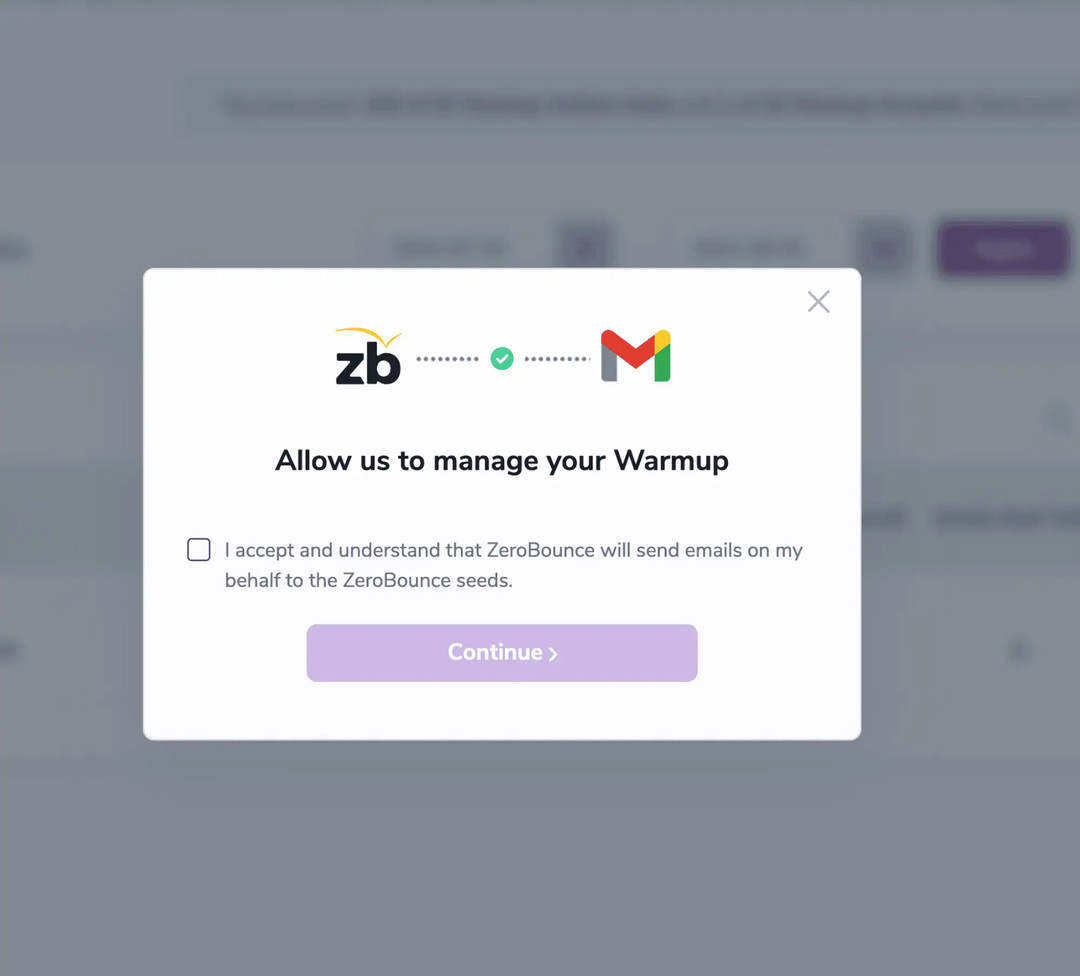
3a. Continue on to configure your starting email count in Step 5.
Section 1b - Using a Google App Password
1b. Follow the on-screen prompt to generate an App Password. Then, click I have created the App Password to continue.
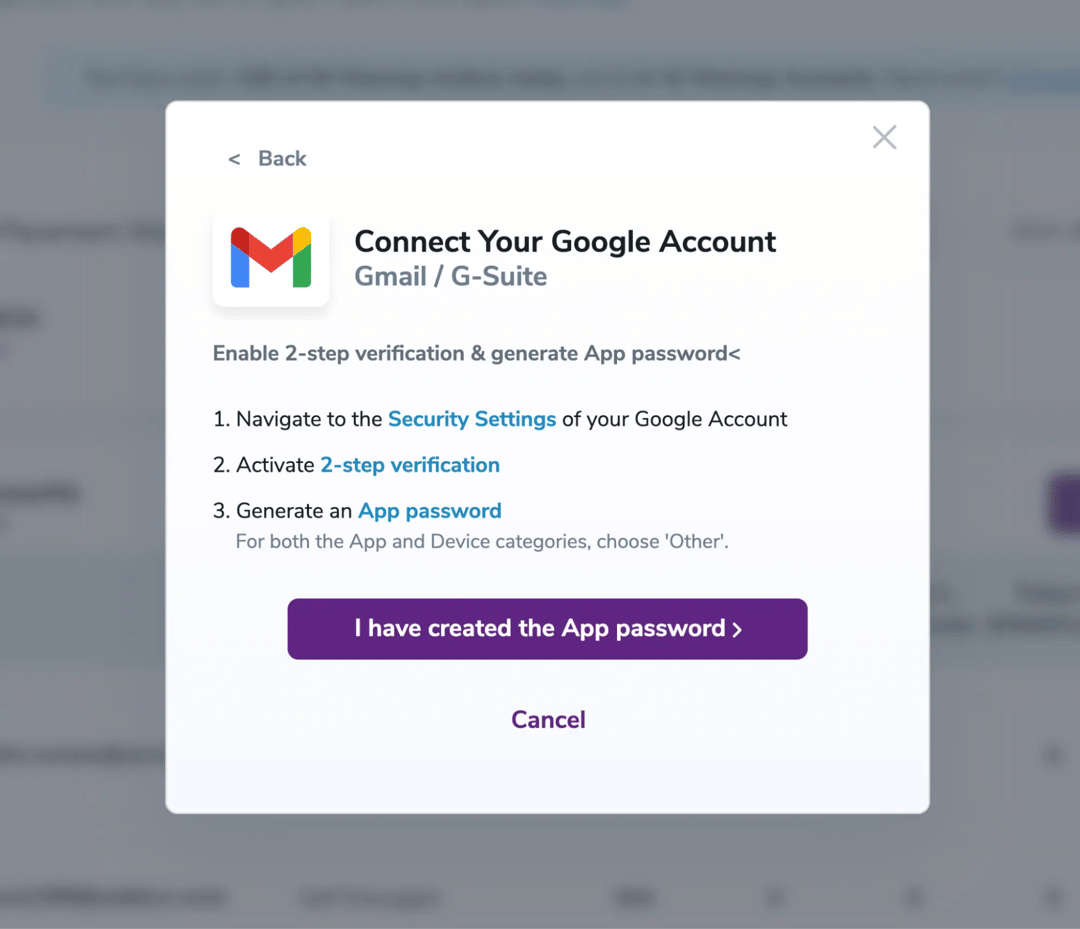
2b. Enter your email and App Password.
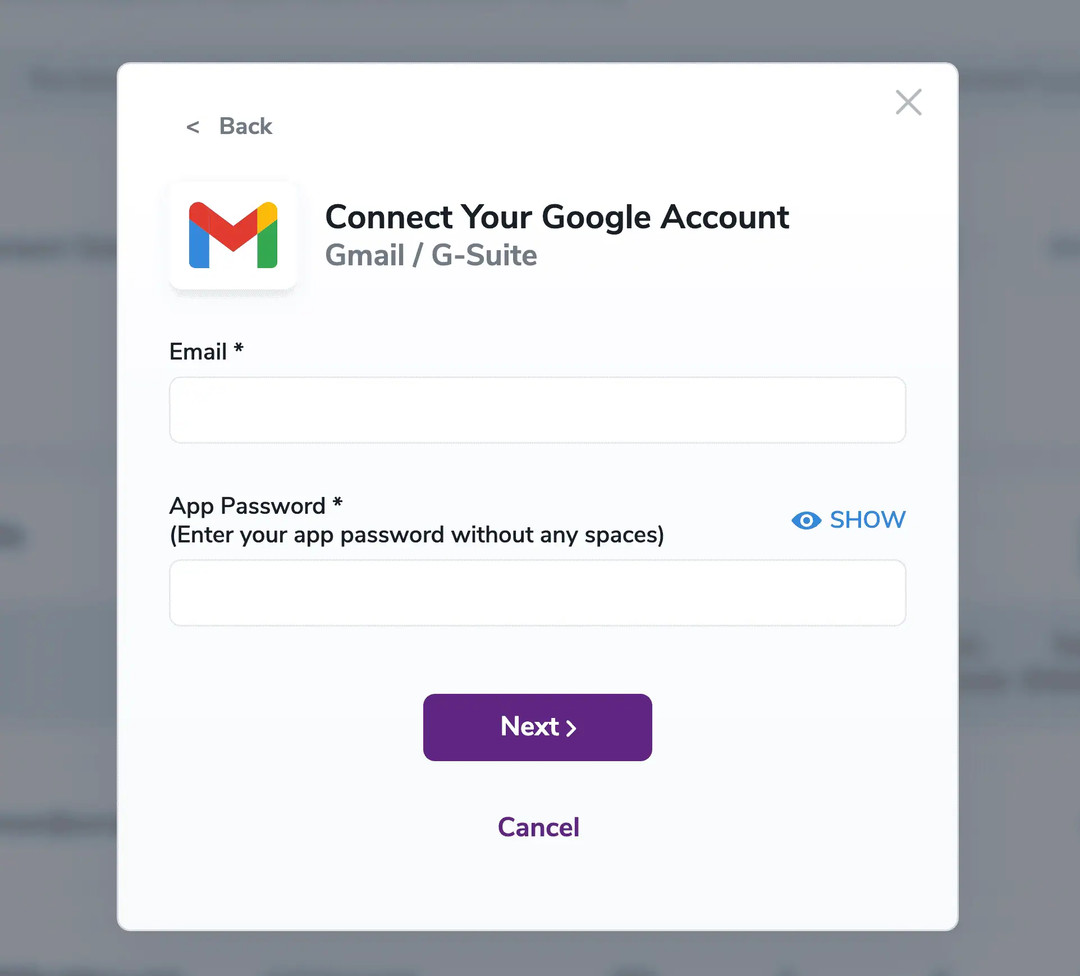
3b. Check the box on the consent form that acknowledges that ZeroBounce is authorized to send emails on your behalf to our seed list. Click Continue.
4b. Continue to configure your starting email count in Step 5.
1. Log in to your Microsoft account and click Next.
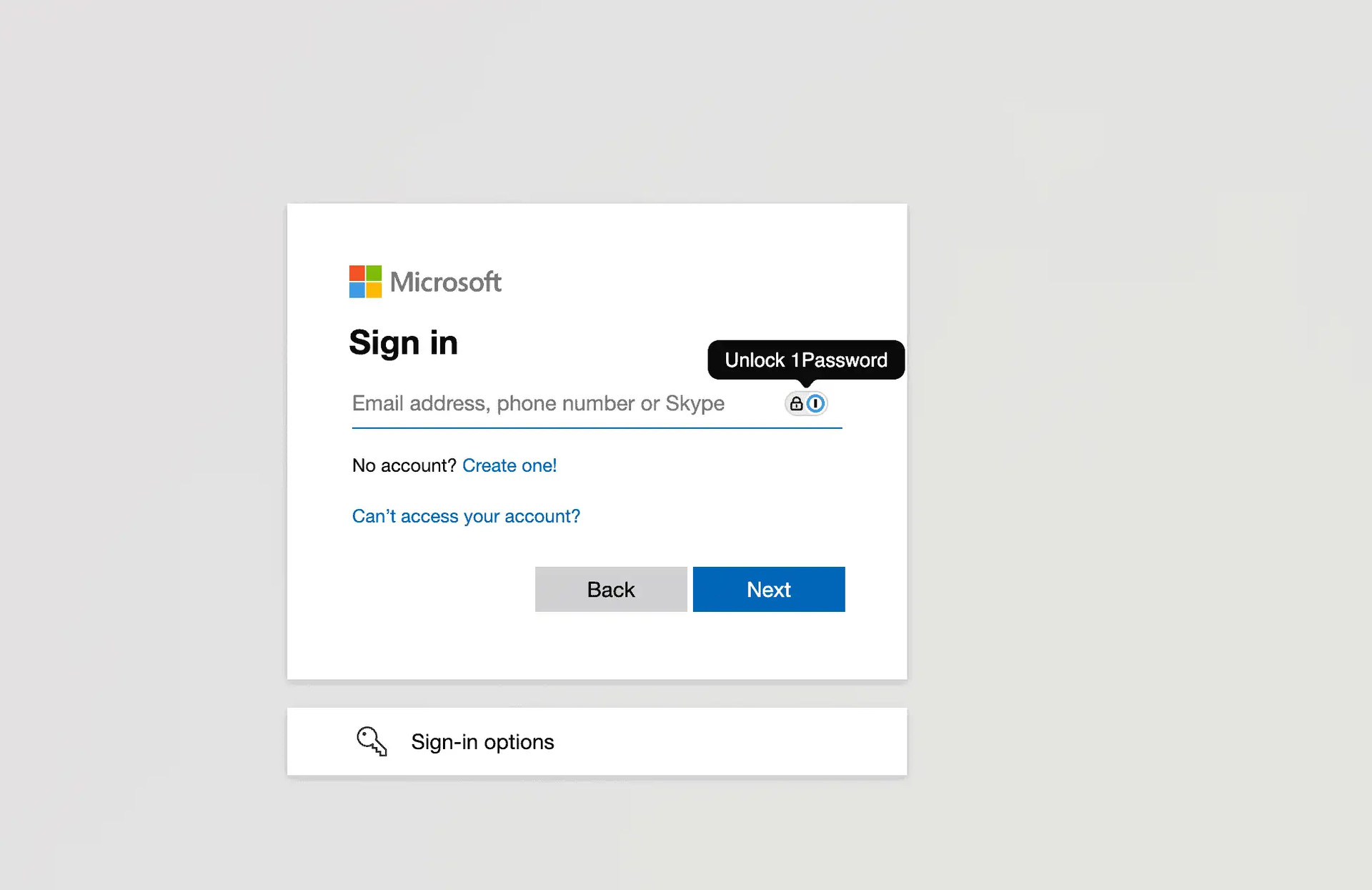
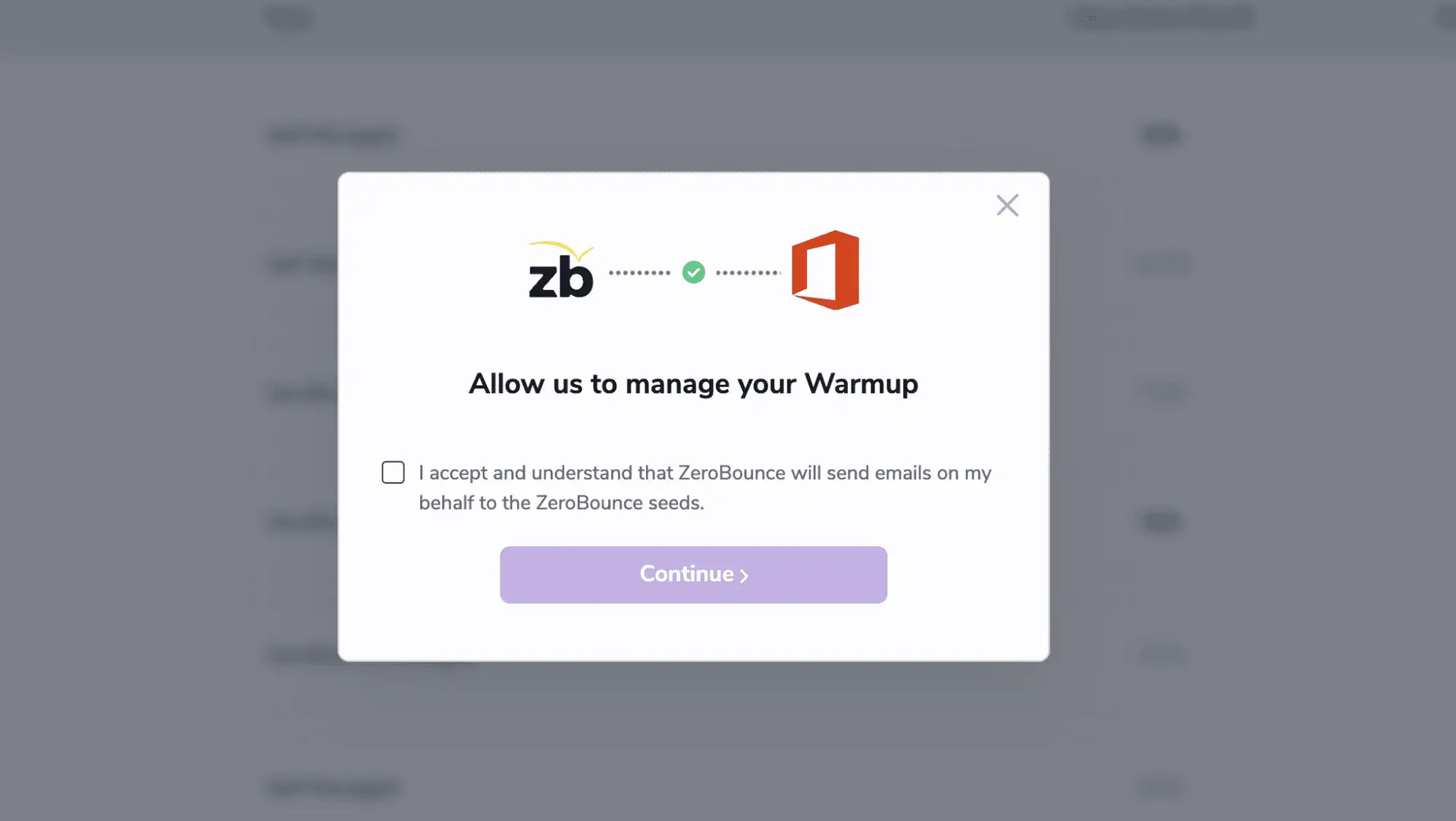
2. Please check the box on the consent form acknowledging that ZeroBounce is authorized to send emails on your behalf to our seed list. Then click Continue.
3. Continue to configure your starting email count in Step 5.
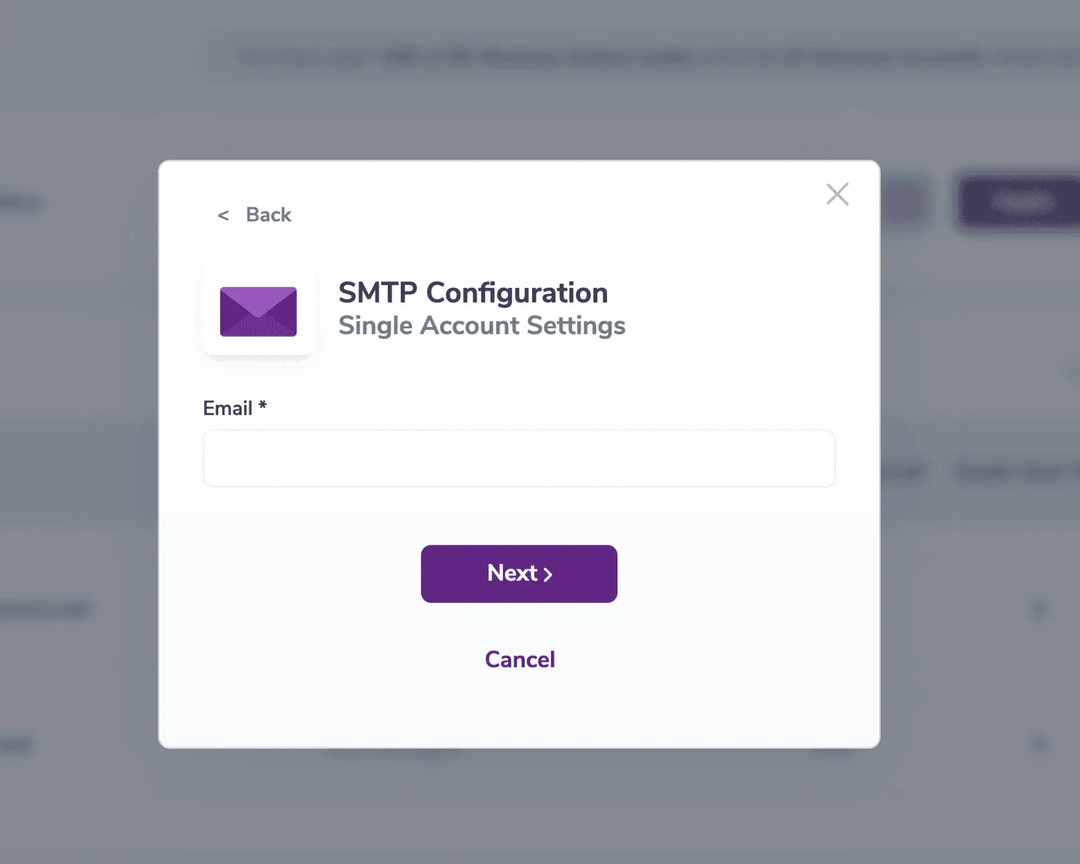
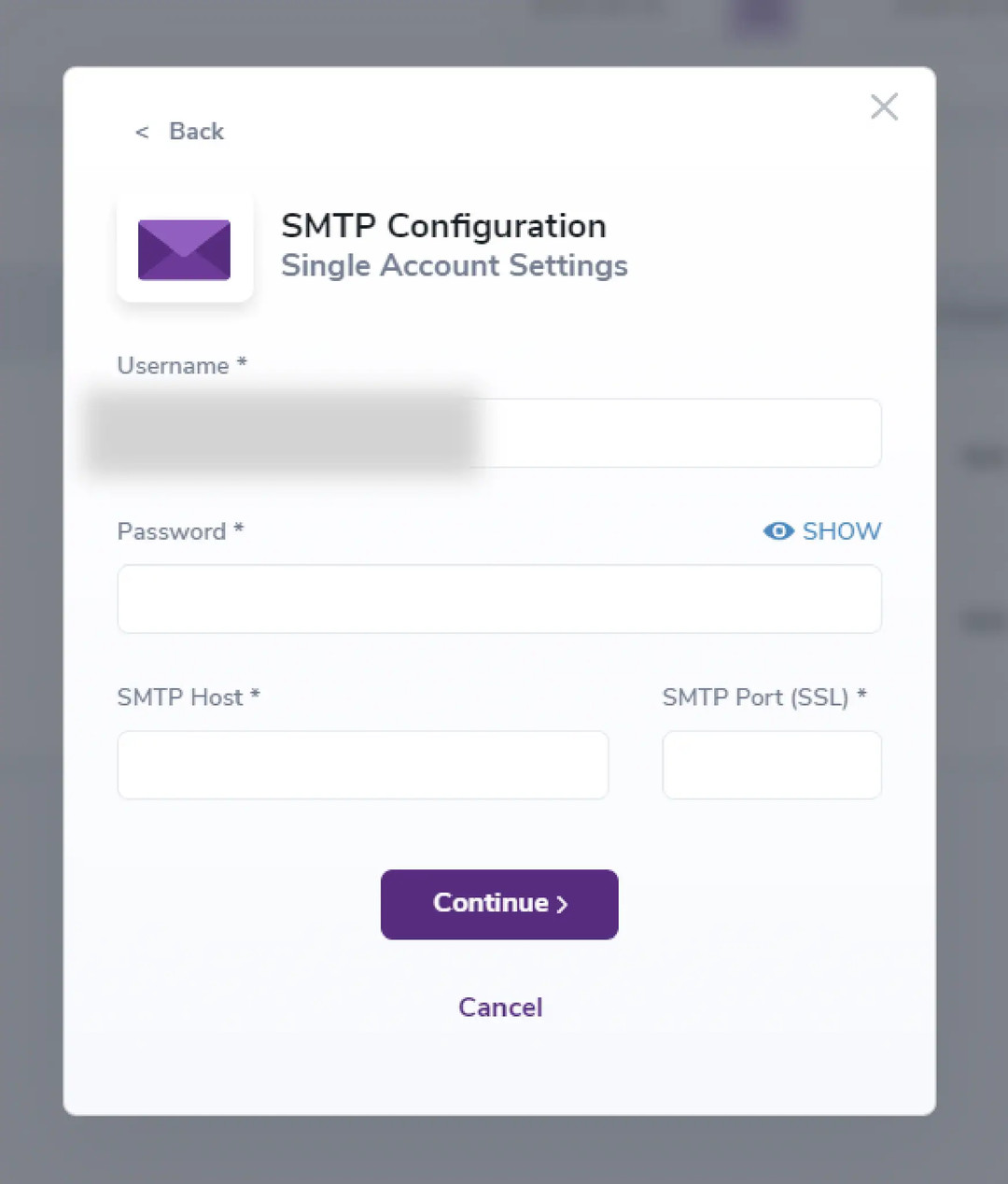
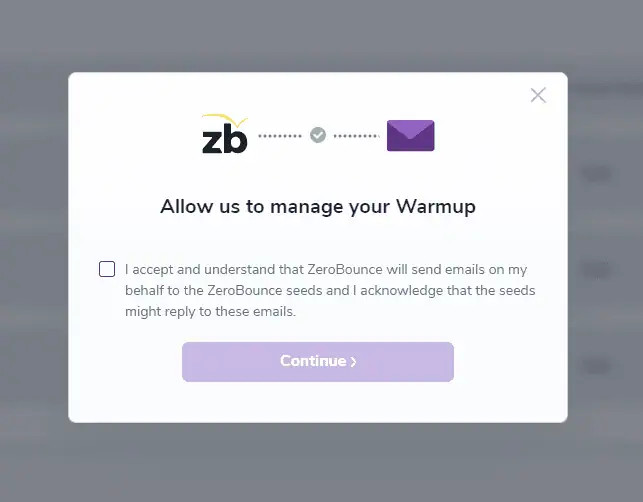
The system will ask you to provide an estimate of the number of emails you send daily, which is critical to ensure accuracy. Based on this information, the system will start by sending emails equivalent to approximately 0.1%* of your total daily email volume. Why 0.1%? Major email service providers (ESPs) consider 0.1% as an acceptable threshold for negative engagement (such as emails being marked as spam). By starting with this small percentage, Warmup helps offset potential negative engagement with positive interactions, gradually improving your email reputation before scaling up further.
* The volume may differ based on your subscription, engagement rules and our analysis of email reputationⓘ.
1. From your ZeroBounce dashboard, click on Tools. Then, click on Warmup.
2. Click on + New Warmup Account.
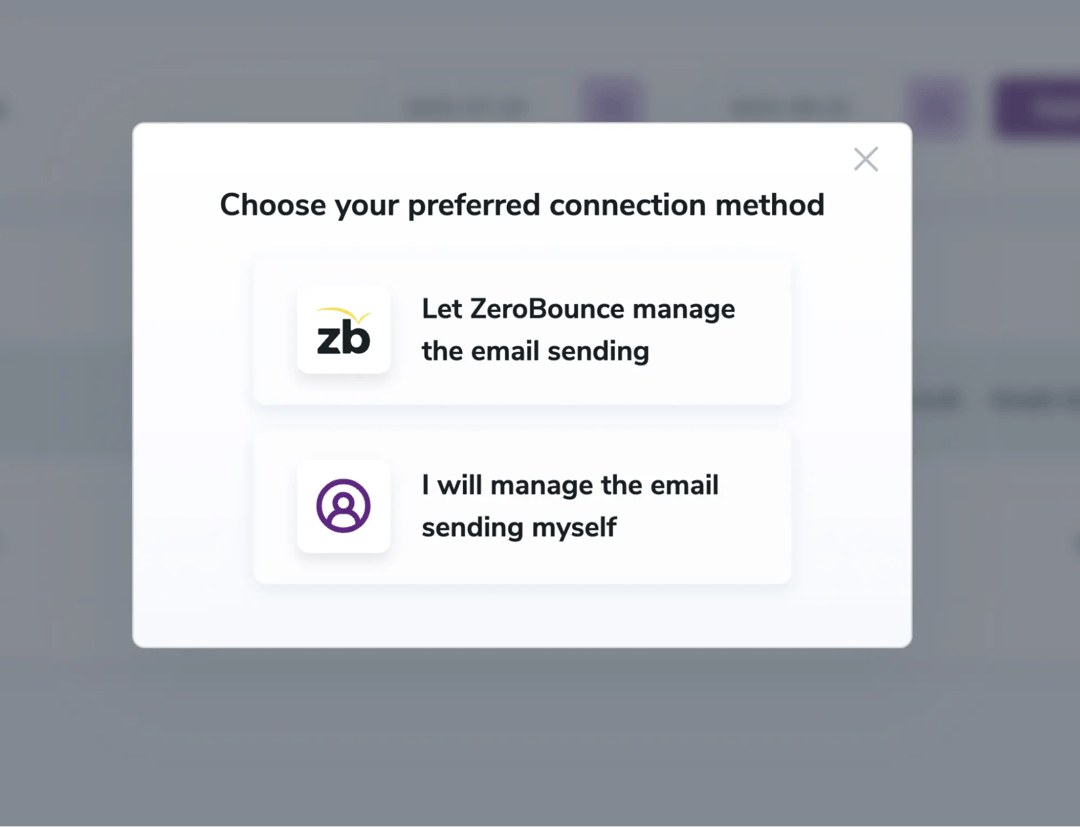
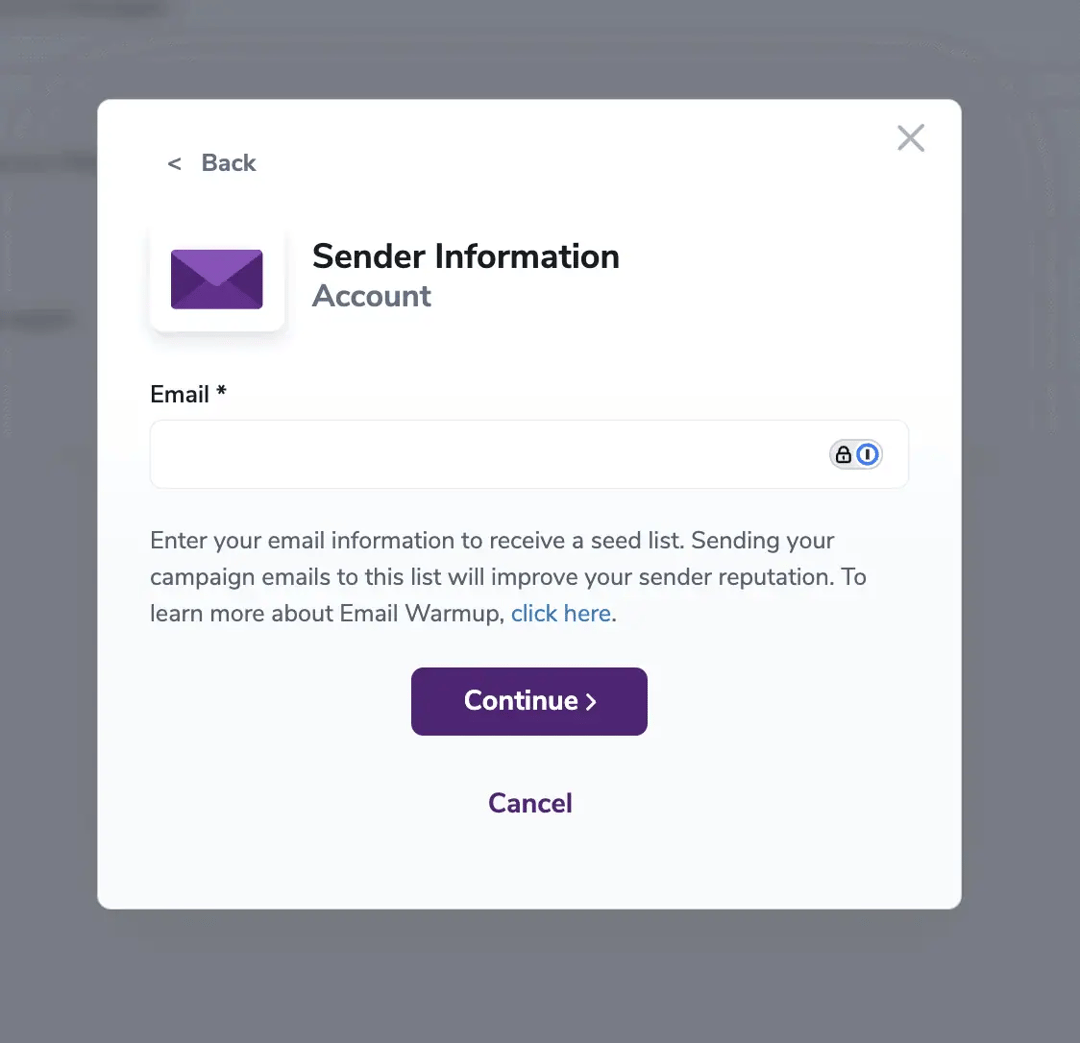
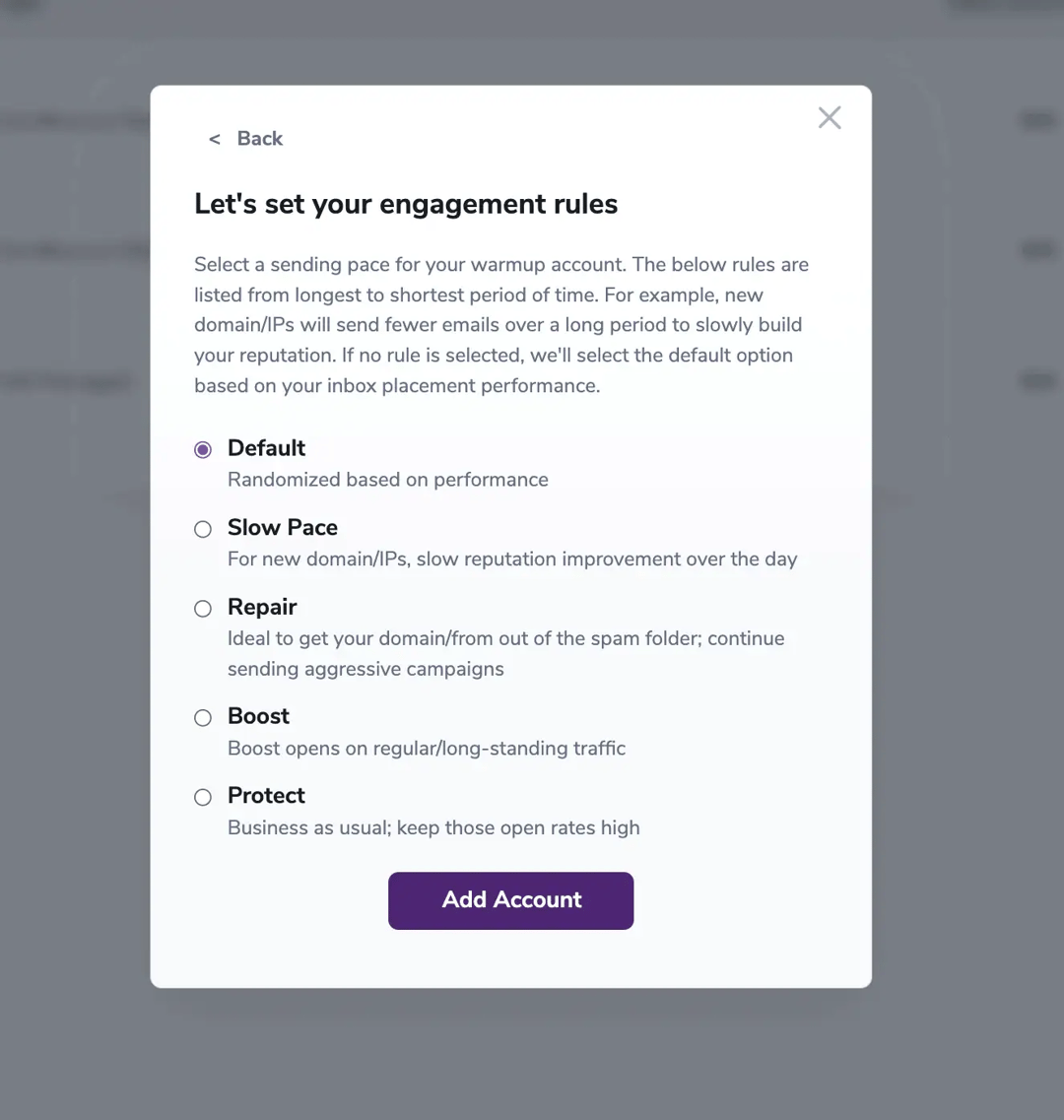
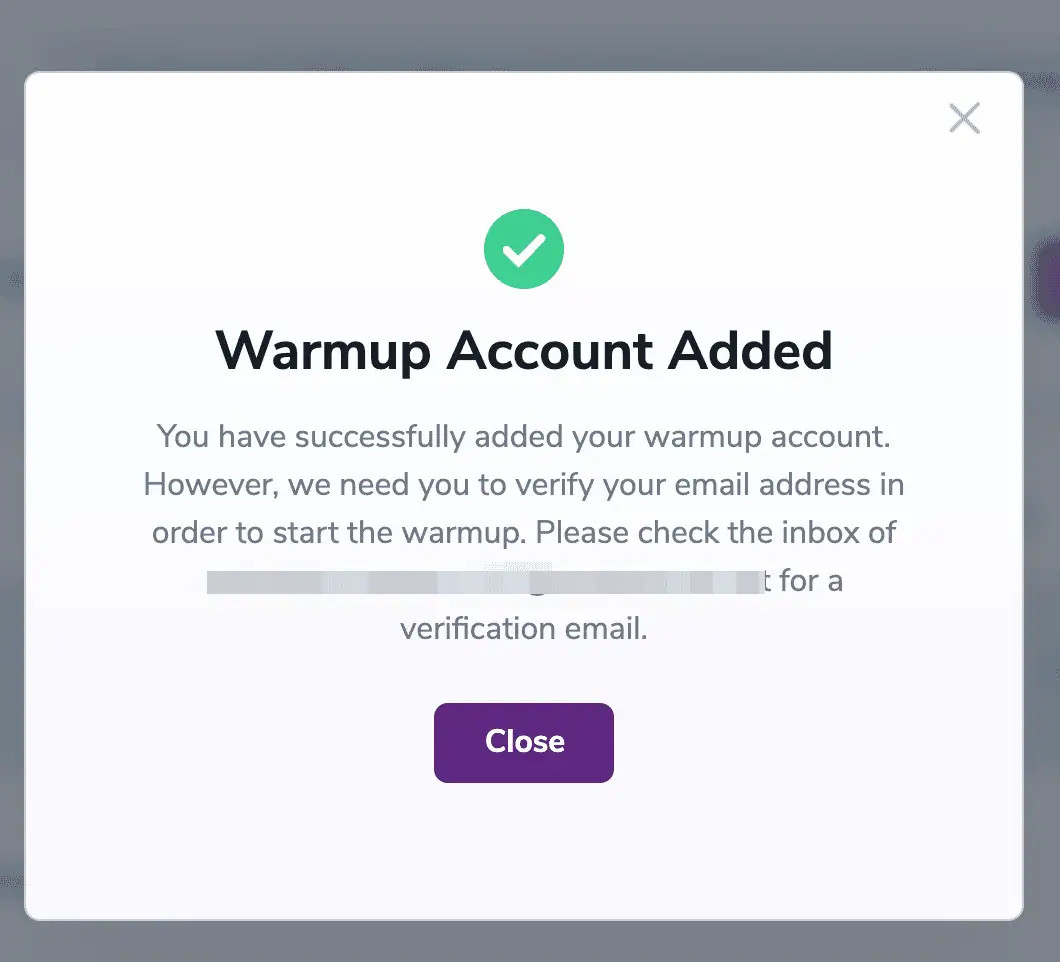
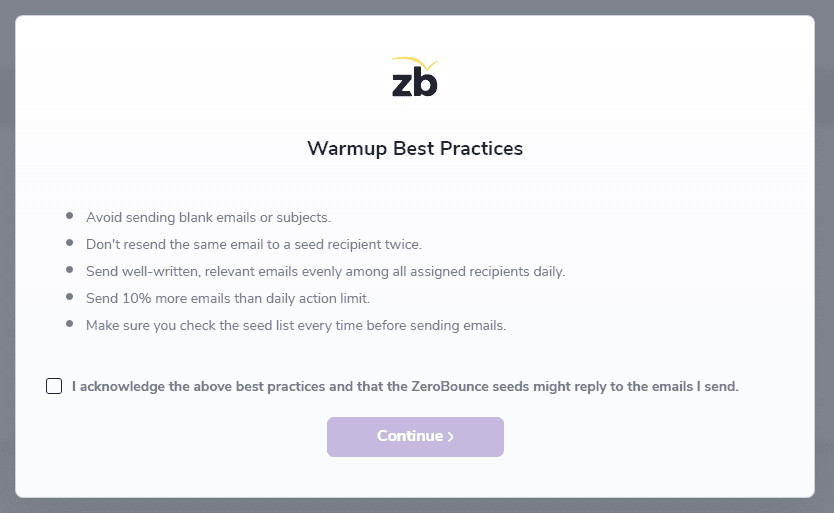
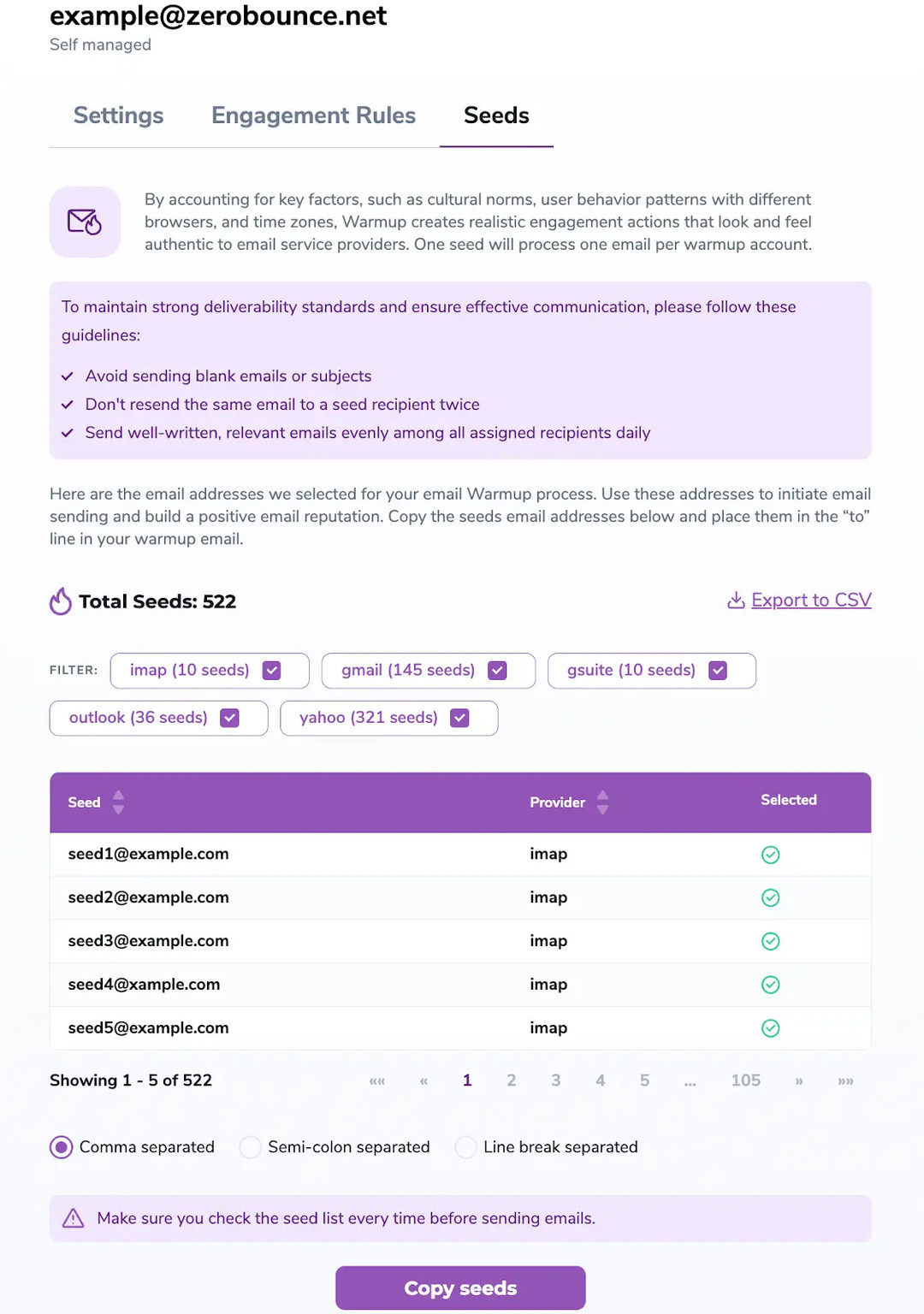
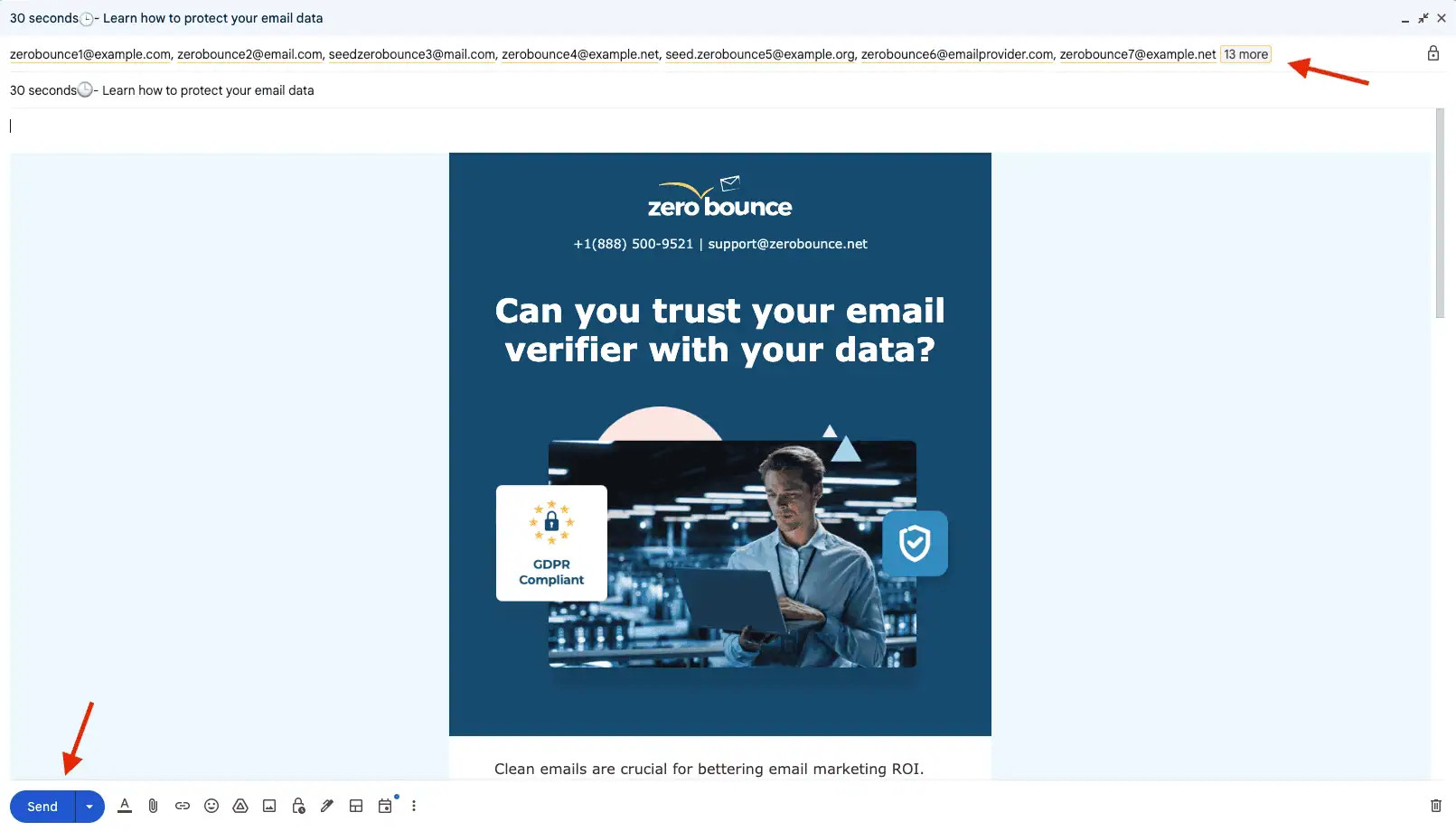
You should start by estimating the number of emails you send daily, as this is crucial for ensuring accuracy. Based on this estimate, you should initially send emails equivalent to approximately 0.1%* of your total daily volume. Why 0.1%? Major email service providers (ESPs) consider 0.1% as an acceptable threshold for negative engagement (such as emails being marked as spam). By starting with this small percentage, you can offset potential negative engagement with positive interactions, gradually improving your email reputation before increasing your email volume further.
Make sure you don’t send more emails than 1 per seed daily.
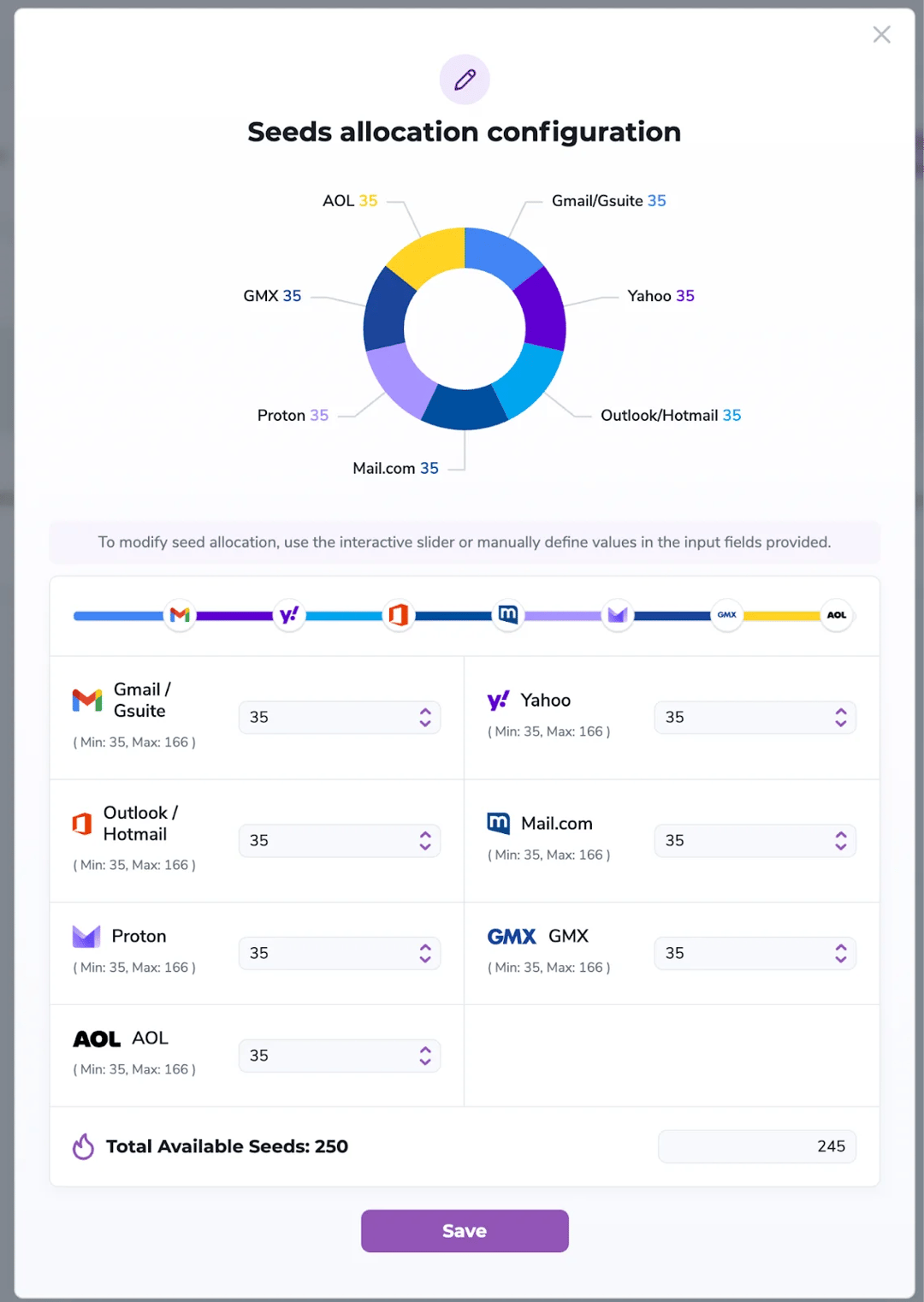
In this step, you define how your total seeds are distributed across each email provider. Adjust the allocation using the slider or by entering values manually.
Each provider has a minimum and maximum limit, and you must assign an exact number of seeds within that range. The sum of all allocations must equal the Total Available Seeds—otherwise, you won’t be able to save your configuration.
When using ZeroBounce Managed, you grant us access to your mailboxes to send emails on your behalf. We strictly use these permissions for sending emails only — your emails are never read or accessed for any other purpose. Below is a breakdown of the permissions we request:
In your Warmup dashboard, you’ll find the following features and reporting metrics:
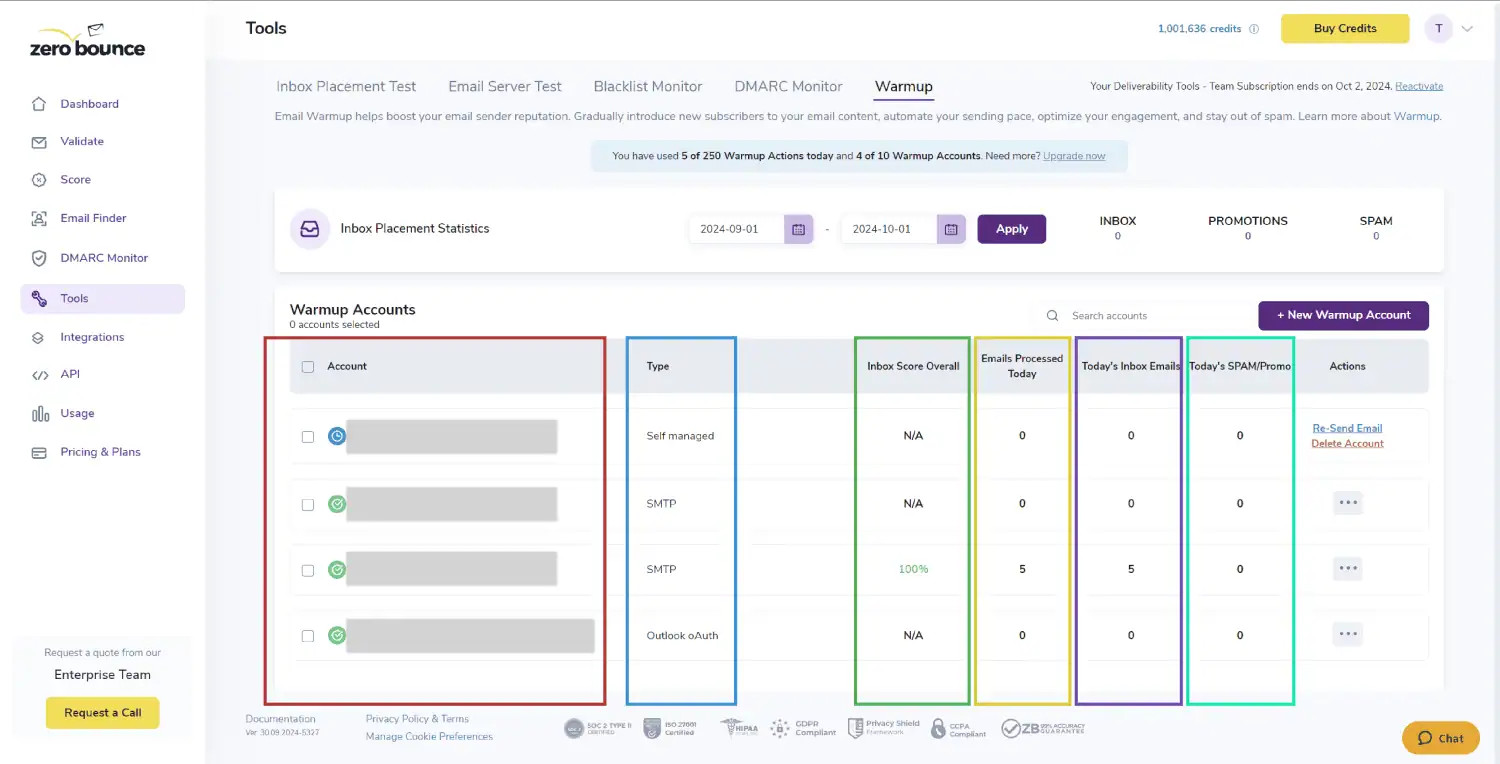
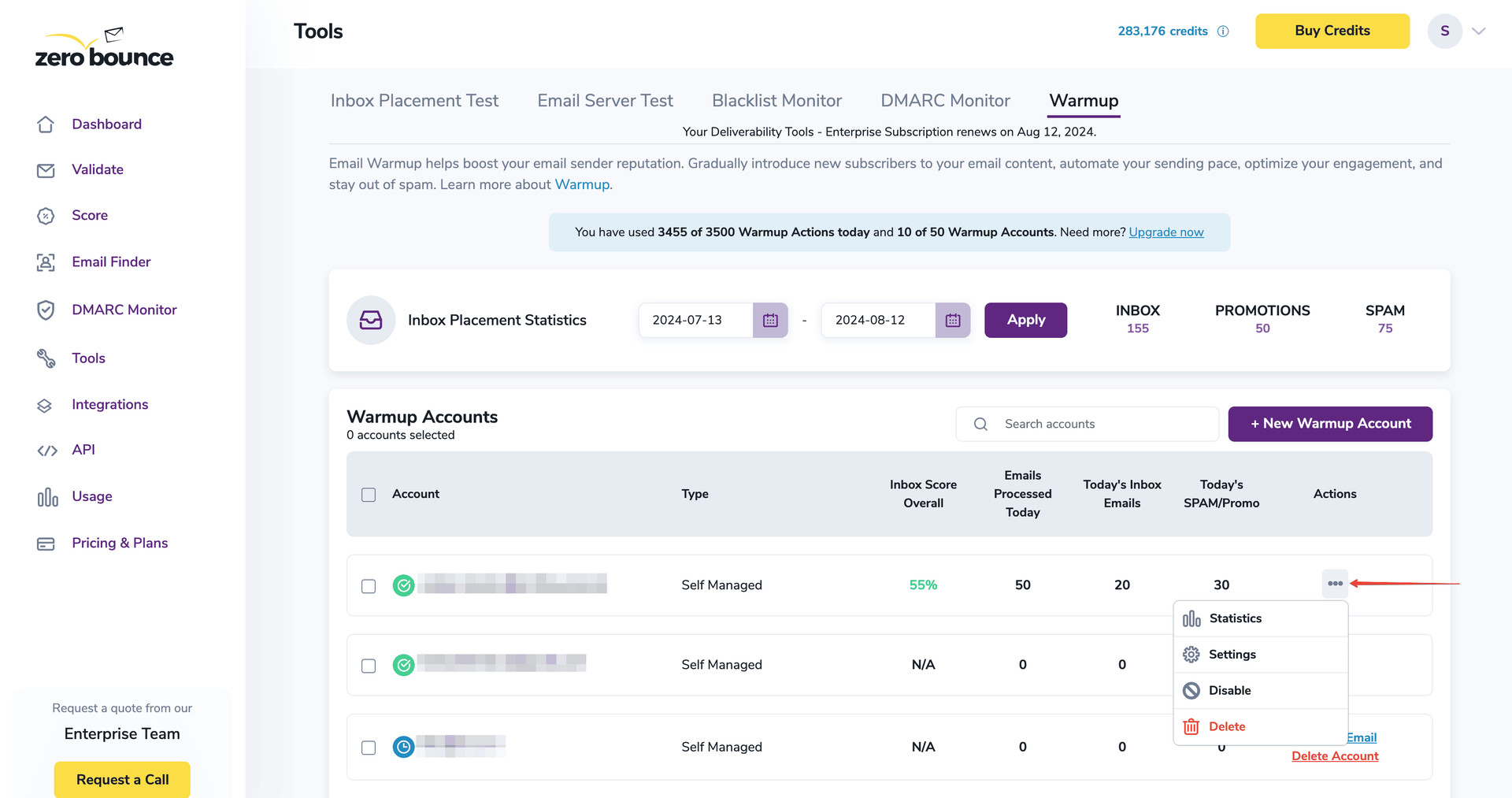
To access your Warmup statistics:
The Statistics modal provides a comprehensive overview of all data collected since the initiation of your Warmup journey. You can customize how these statistics are displayed by using the dropdown menu pictured below.
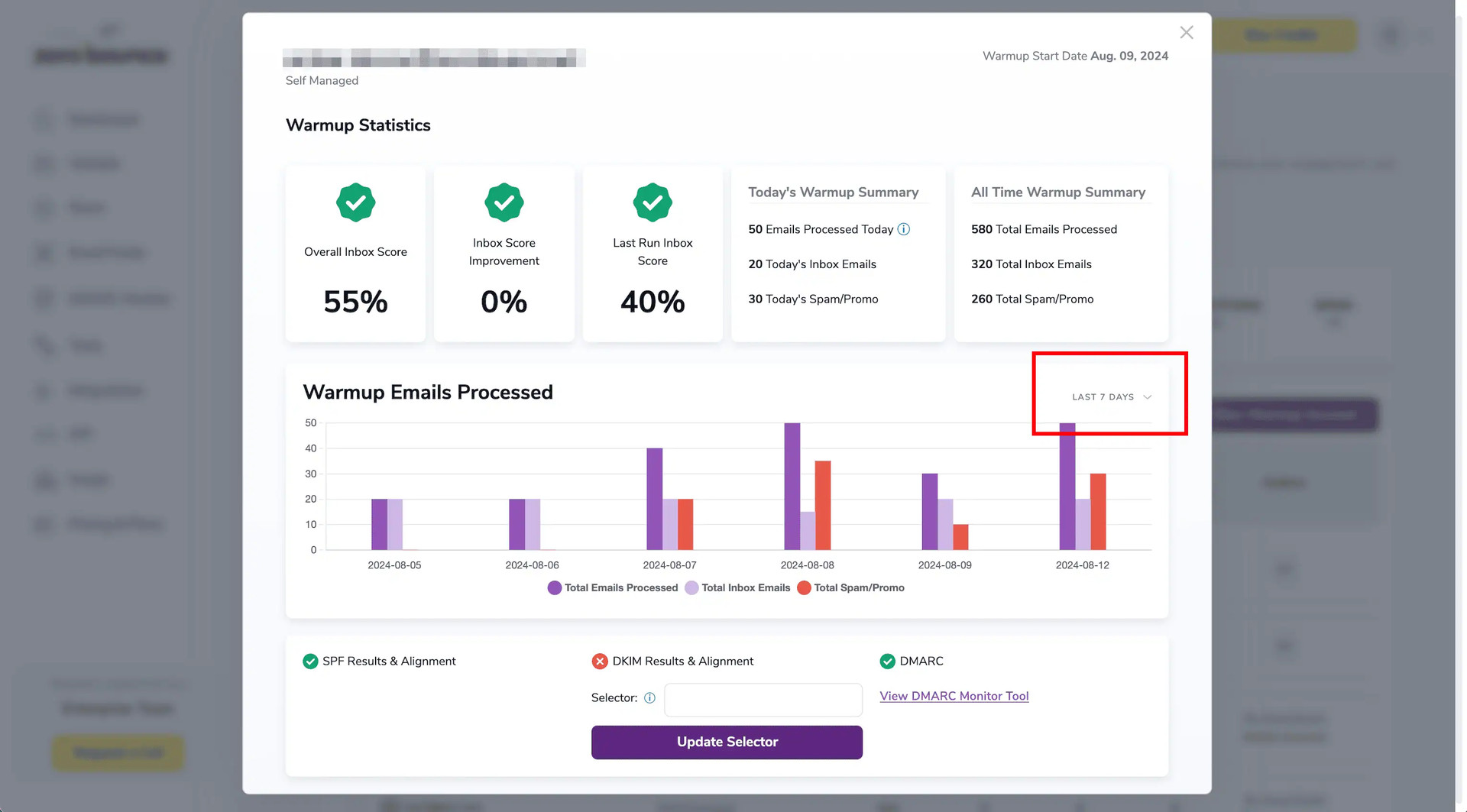
Here’s a brief rundown of each Warmup statistic available:
You can also use the Selector feature to update the selector used for your DMARC policy established with DMARC Monitorⓘ.
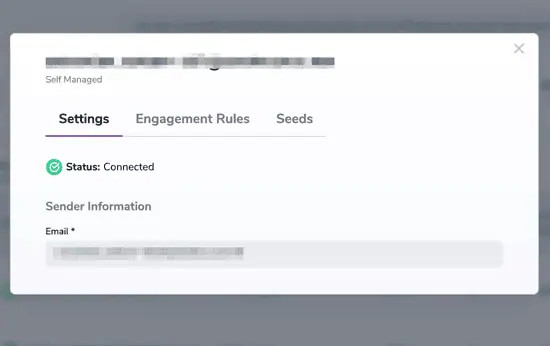
Here’s a brief rundown of what you can modify in the Settings modal:
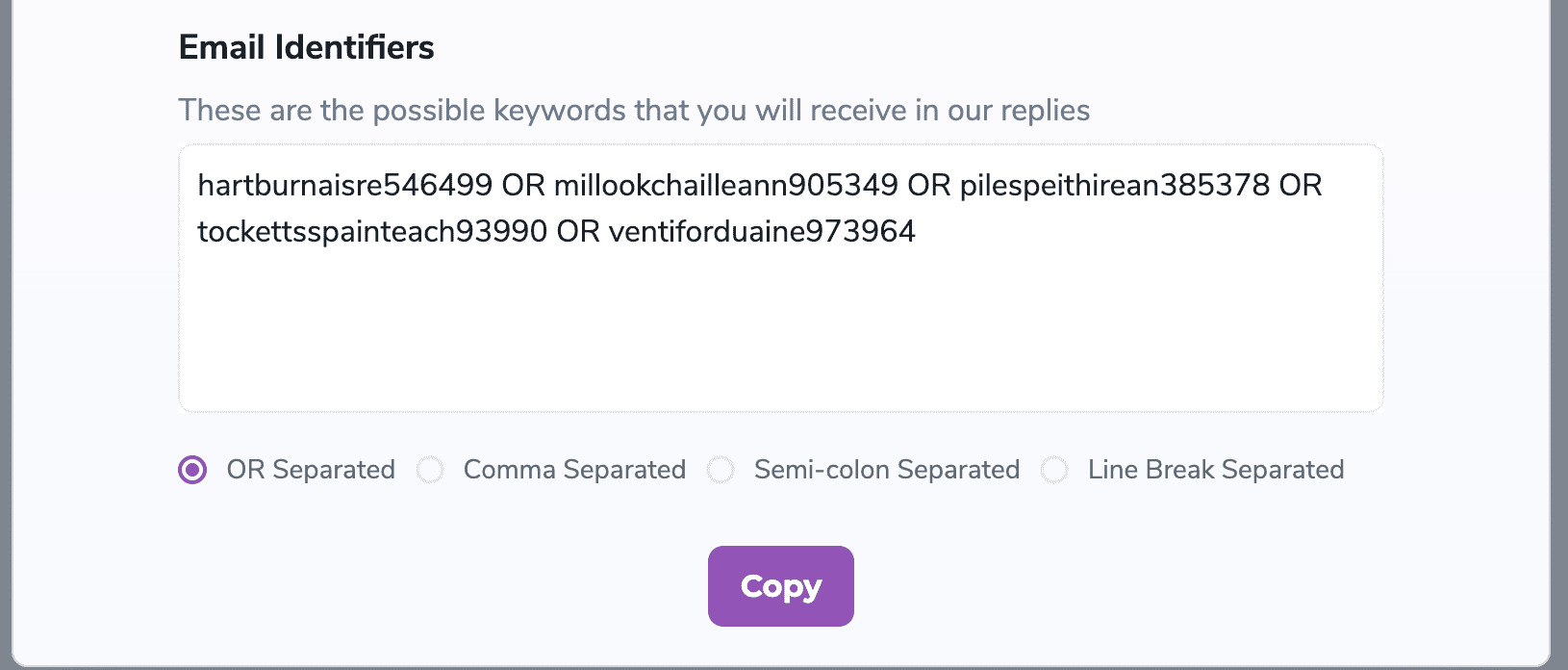
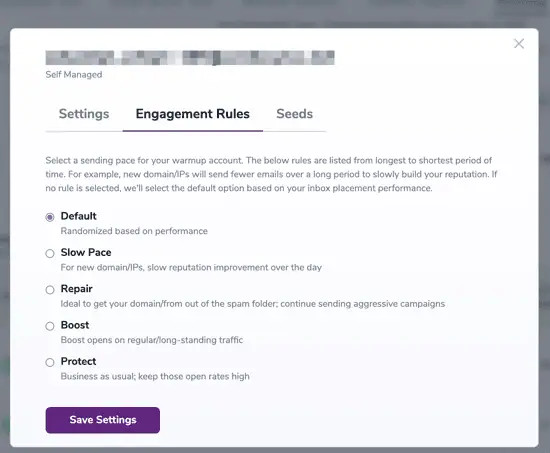
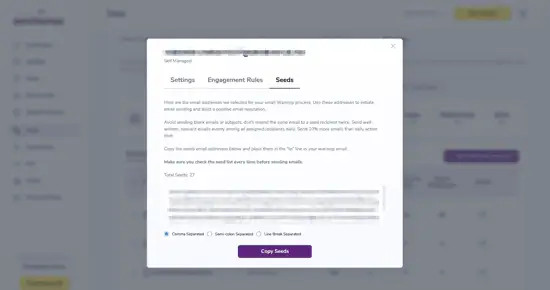
If you want to disable or temporarily suspend the Warmup process for an account, follow these steps:
If you want to re-enable a previously disabled Warmup account, follow these steps:
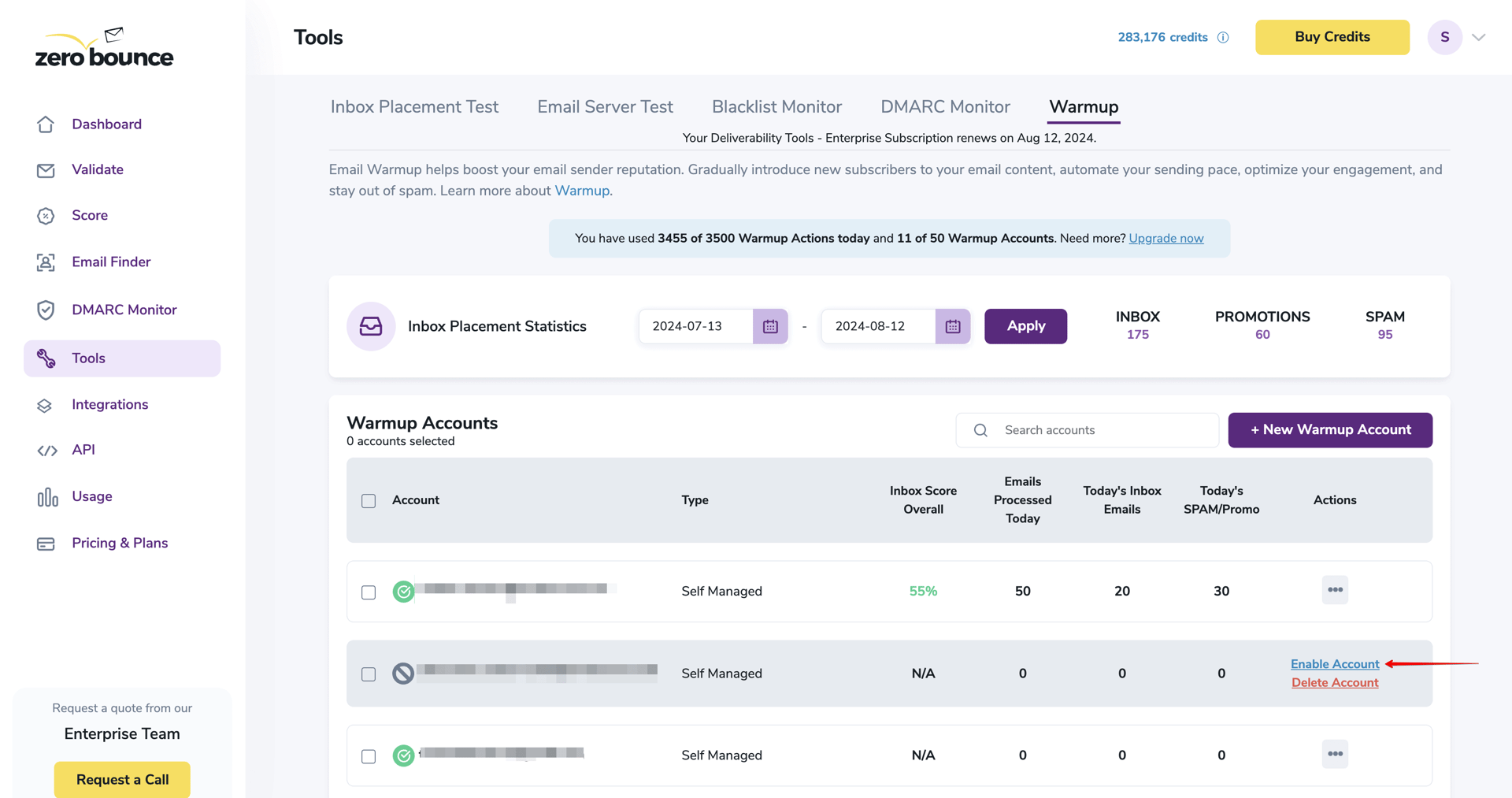
If you want to delete a Warmup account, follow these steps:
Custom Email Content ensures your warmup emails reflect your business's real communication style, industry, and tone.
Goal: Simulate realistic communication behaviour to help build an authentic mailbox reputation.
Warmup emails:
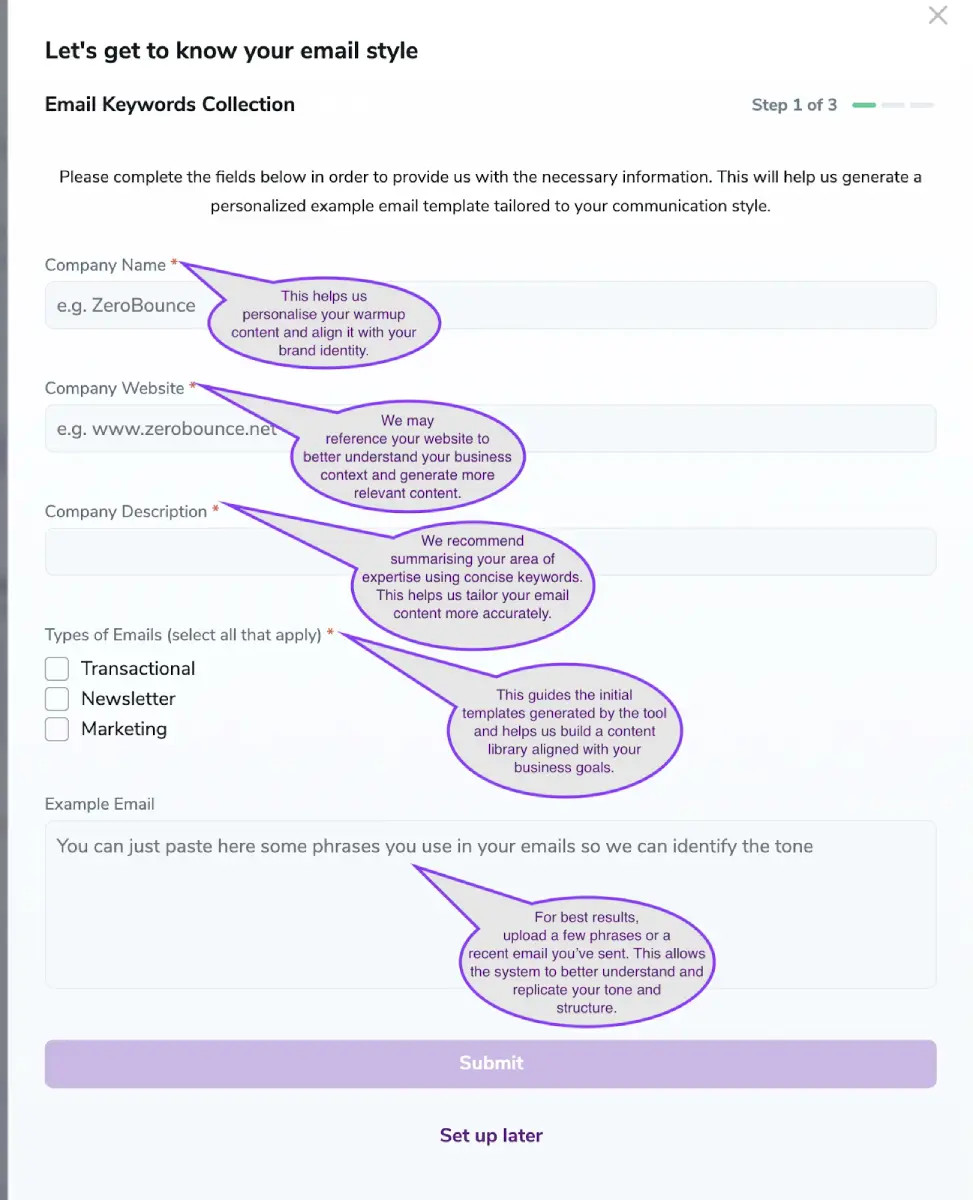
When adding a new sending address (via wizard or manual setup), you will complete the Custom Email Content wizard.
You'll answer structured questions about:
Based on your responses, the system generates warmup templates aligned with your real communication style.
Once saved, the configuration becomes active immediately.
Content refreshes every daily to:
This structured variation helps prevent behavioural uniformity.
All content is generated in English to maintain:
Real people don't send perfectly identical emails.
To simulate authentic behaviour, the system may include:
These variations:
Mailbox providers expect human inconsistency - not robotic perfection.
Mailbox providers analyse behavioural patterns; not just volume and engagement.
Highly repetitive, identical content across accounts can:
By introducing structured variation and business-aligned messaging, Warmup simulates:
This helps your mailbox build a reputation profile that mirrors real-world usage.
Your warmup emails reflect how your business actually communicates.
A B2B SaaS company shouldn't sound like a lifestyle blog.
An ecommerce brand shouldn't sound like a law firm.
Custom Email Content aligns warmup behaviour with your real industry and tone.
Content rotates automatically, reducing repetition and creating more realistic sending patterns.
All content is generated in English to maintain consistent standards and behavioural reliability.
Real communication includes small imperfections.
Warmup intentionally introduces subtle variation and occasional minor typos to mirror authentic human behaviour.
Content refreshes daily from when you make changes.
All content is generated in English to maintain consistent quality, structure, and reliable behavioural modelling.
This is intentional. The system simulates real human behaviour, including minor imperfections. Small typos do not harm reputation or deliverability and can reinforce authenticity signals.
It supports deliverability indirectly by strengthening behavioural realism. Overall deliverability still depends on factors like infrastructure, volume control, engagement behaviour, DNS setup, and sending patterns.
No. You will be asked to complete the Custom Email Content wizard when you set up your sending account. You won't have to amend this again unless you'd like to change the content generated to something different than the original instructions.
