
Docs
Docs
The Klaviyo integration allows you to use ZeroBounce’s email validationⓘ and Scoring services for your Klaviyo email lists. This guide will explain the following:
Prerequisites
Ensure you possess an active Klaviyo account before you proceed with the integration process below.
How to set up the Klaviyo integration:
Step 1:
Sign in to your ZeroBounce account.
Step 2:
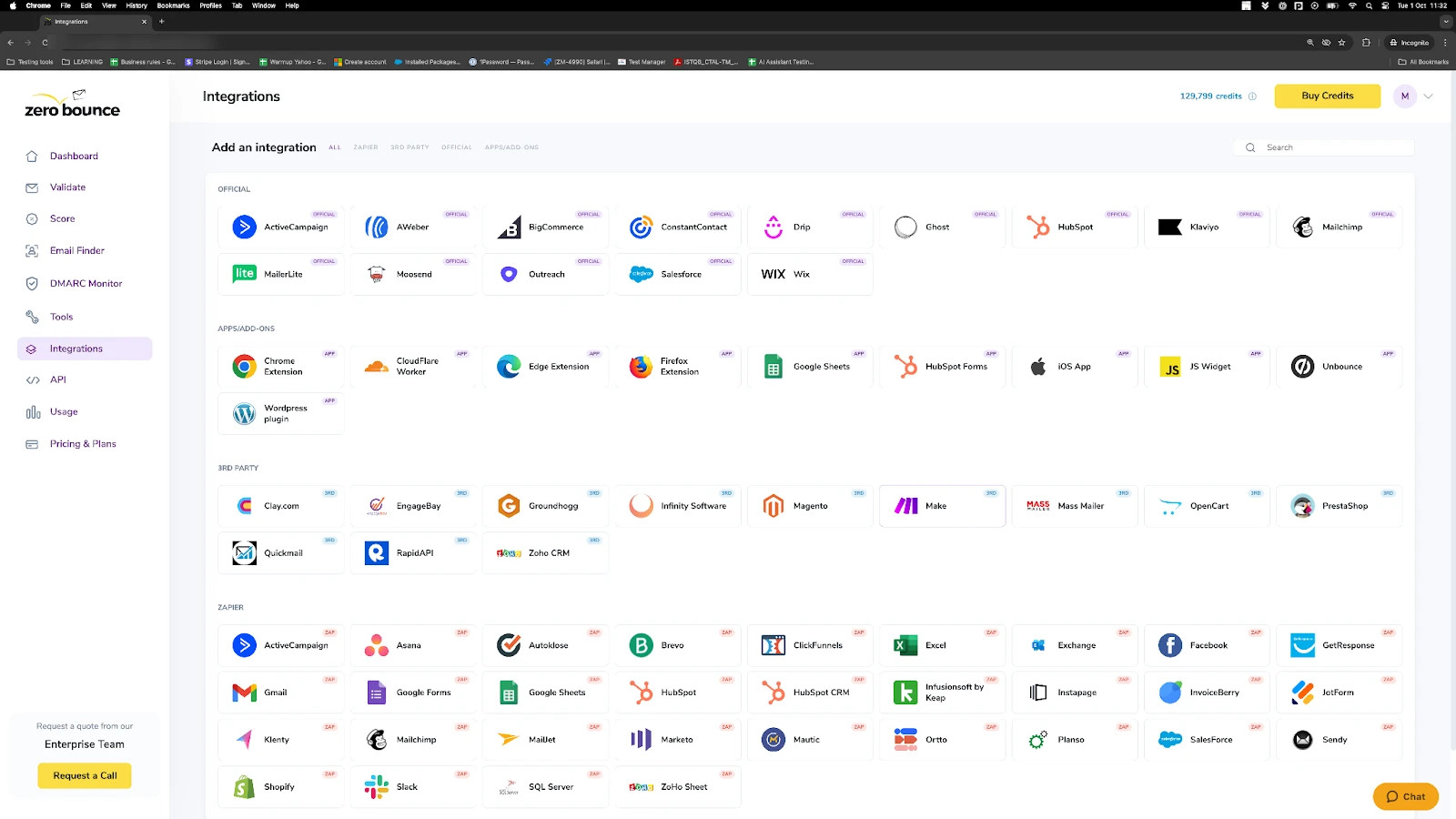
From your dashboard, navigate to the left-hand menu and select Integrations.
Step 3:
On the Add an Integration screen, choose Klaviyo.
Step 4:
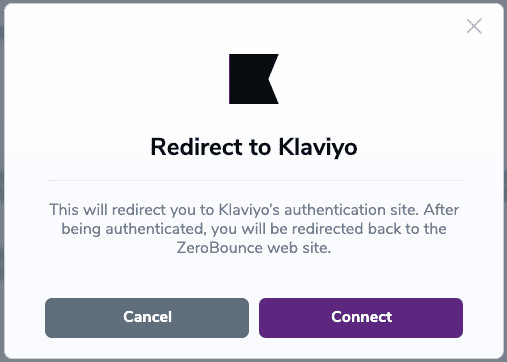
Click Connect to initiate the redirection to Klaviyo's authorization screen. Upon arrival, proceed by clicking Continue.
Step 5:
Klaviyo will outline the permissions ZeroBounce requires to execute tasks on your email lists.
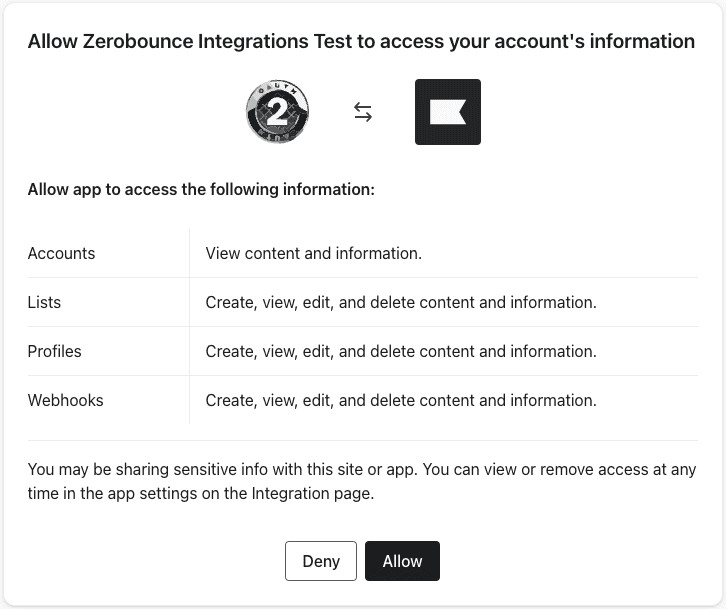
Grant access by selecting the Allow button to complete the integration setup.
Confirmation:
Upon completion of the integration procedure, a confirmation screen will validate the successful integration.
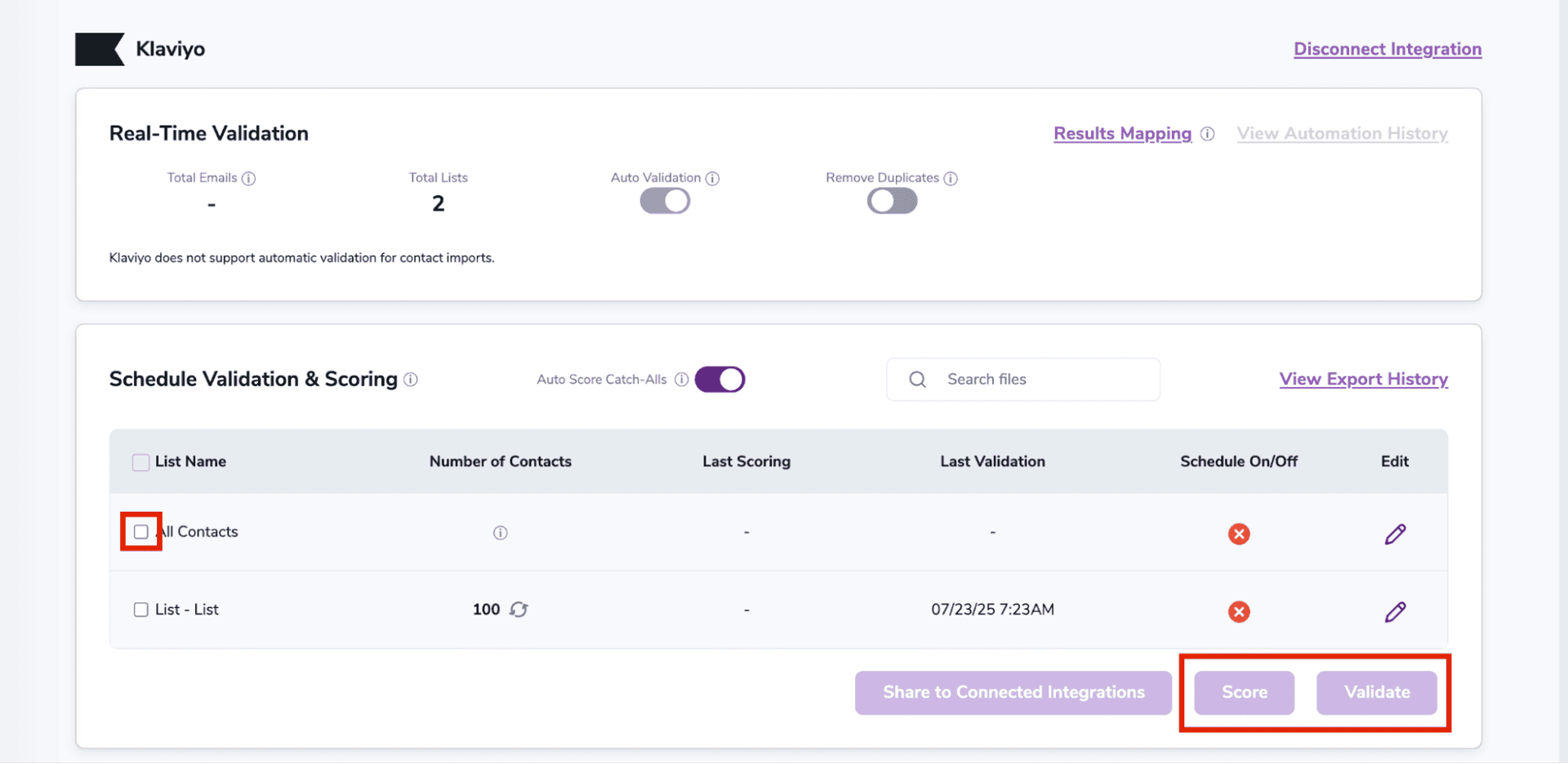
Post-Integration Actions:
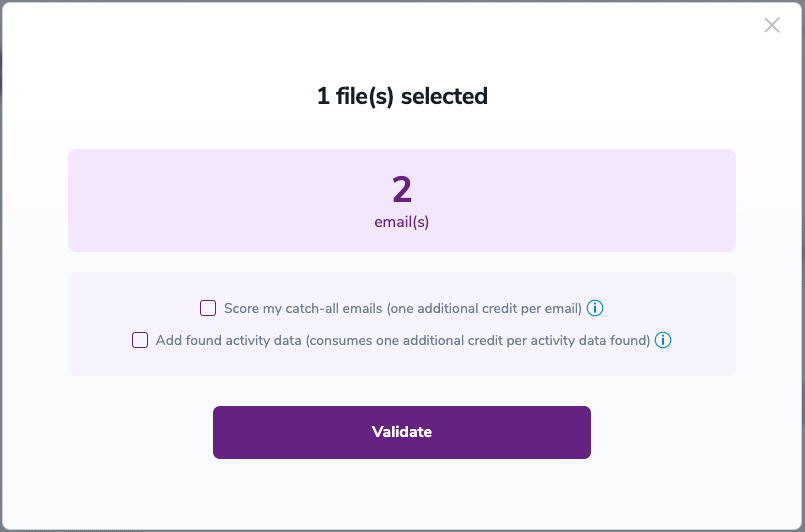
On validate you will be presented with a popup with two options that can assist your validation process:
![ZeroBounce Schedule Settings for a Klaviyo contact list called ‘Newsletter,’ where you can schedule ,[object Object], & Scoring.](https://www.zerobounce.net/cdn-cgi/image/fit=scale-down,format=auto,quality=90,width=1920,metadata=none/docs/assets_next_docs/docs/api-integrations/klavio/klaviyo_5.webp)
Refer to this guide to seamlessly integrate Klaviyo with ZeroBounce. By automating your validation and Scoring, you can ensure your contact lists stay up-to-date for optimal email marketing results.
If you have any questions or encounter issues with the Klaviyo integration, don’t hesitate to contact ZeroBounce support - available 24/7.
Results Mapping simplifies data management by allowing you to customize the names of validation or scoring result fields/tags when exporting to integrations, ensuring consistency.
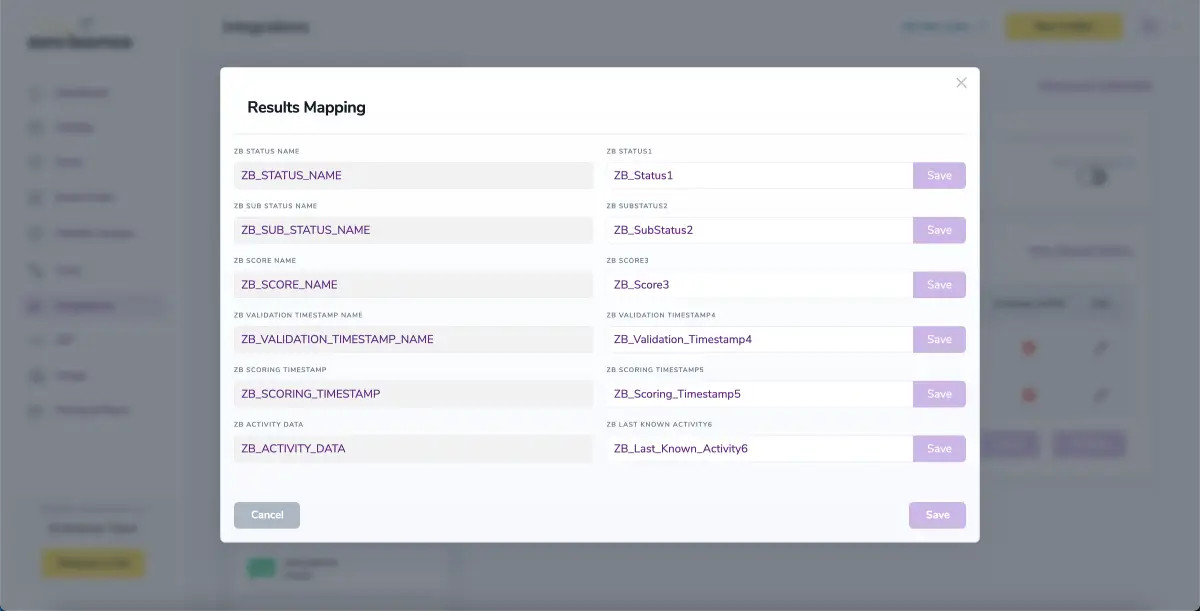
When you export your contacts, you'll find the following tags included in the exported file:
• ZB_Status
• ZB_SubStatus
• ZB_Validation_Timestamp
• ZB_Score
• ZB_Scoring_Timestamp
• ZB_Last_Known_Activity
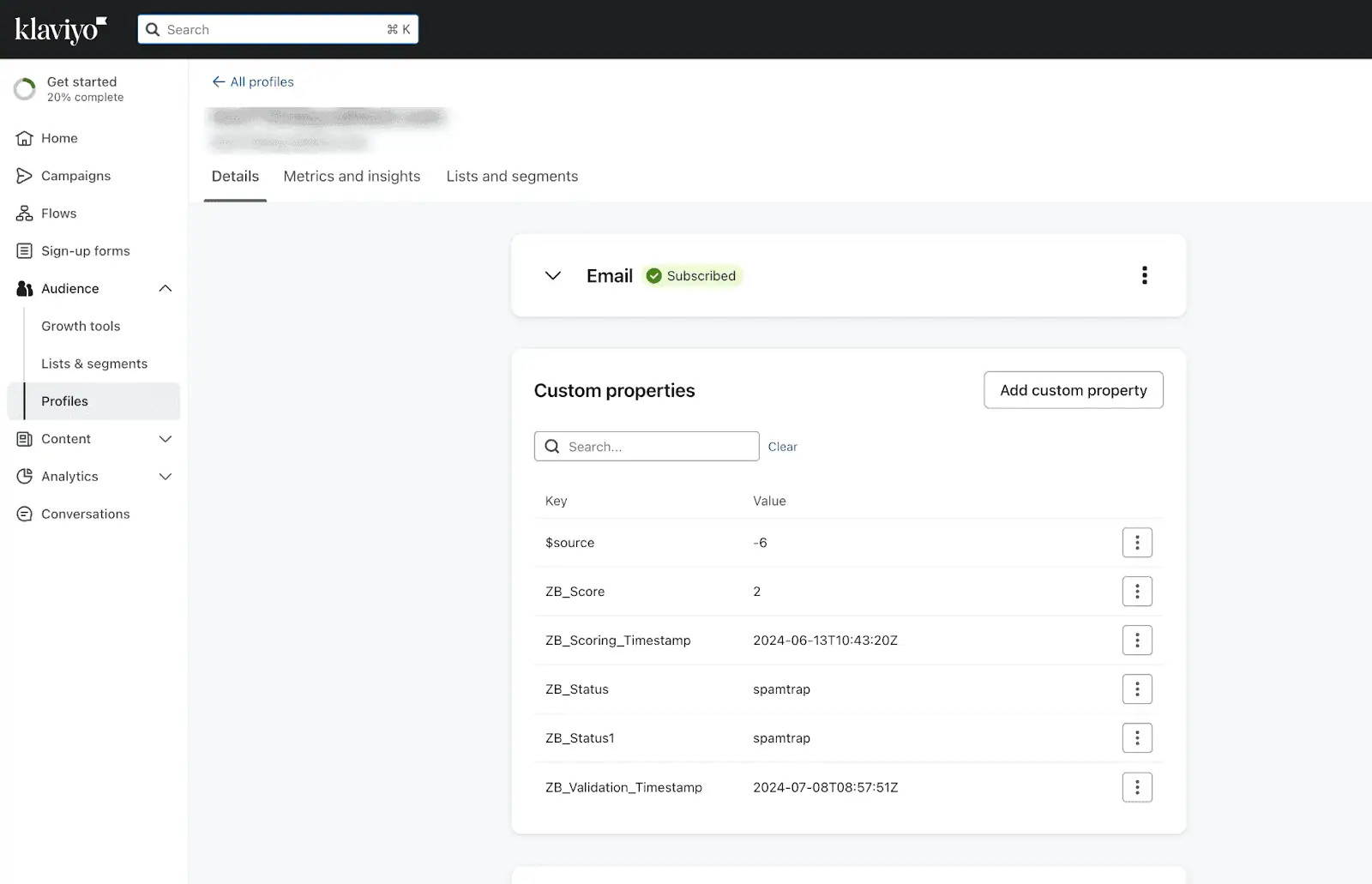
The following tags will be automatically created in your integration with the first automatically validation/scoring results export
These tags are essential for maintaining up-to-date and accurate contact information, allowing for better management and engagement with your contacts.
With this feature, you can automatically validate new contacts added to a specific list within your integration. To use auto-validation, you must first establish an integration with one of the supported platforms. Once the integration is set up, go to Integrations in the menu and select your integration. Then navigate to the Real-Time Validationⓘ section, where you can toggle Auto-Validation ON.
When auto-validation is enabled, ZeroBounce will automatically validate any new contact added to the selected list(s) in your integration. This ensures that contacts are validated as they are added to each of the selected/enabled listst, helping maintain clean, valid, and deliverable email lists at all times.
When this feature is enabled, catch-all emailsⓘ are automatically scored each time a validation action is performed. This process consumes 1 credit per email. Please note that auto-scoring does not apply to emails added through auto-validation.
NOTE:
There is also the possibility to share your contacts between integrations, schedule scoring and validation or monitor your contacts to validate any new contact automatically. To learn more about this, check out this dedicated page: Integrations Contacts Monitoring, Scheduling and Sharing.
