
Docs
Docs
The Microsoft Dynamics 365 ZeroBounce integration allows you to validate email addresses stored within your account. By connecting the integration, you can seamlessly sync your accounts to rapidly clean data and add additional contact insights that assist with target, segmentation, and email campaign performance.
Prerequisite Setup
You must have an active Microsoft Dynamics 365 account. If you do not have an account, you can create one through Microsoft’s website. Then, proceed with the following setup steps:
Step 1:
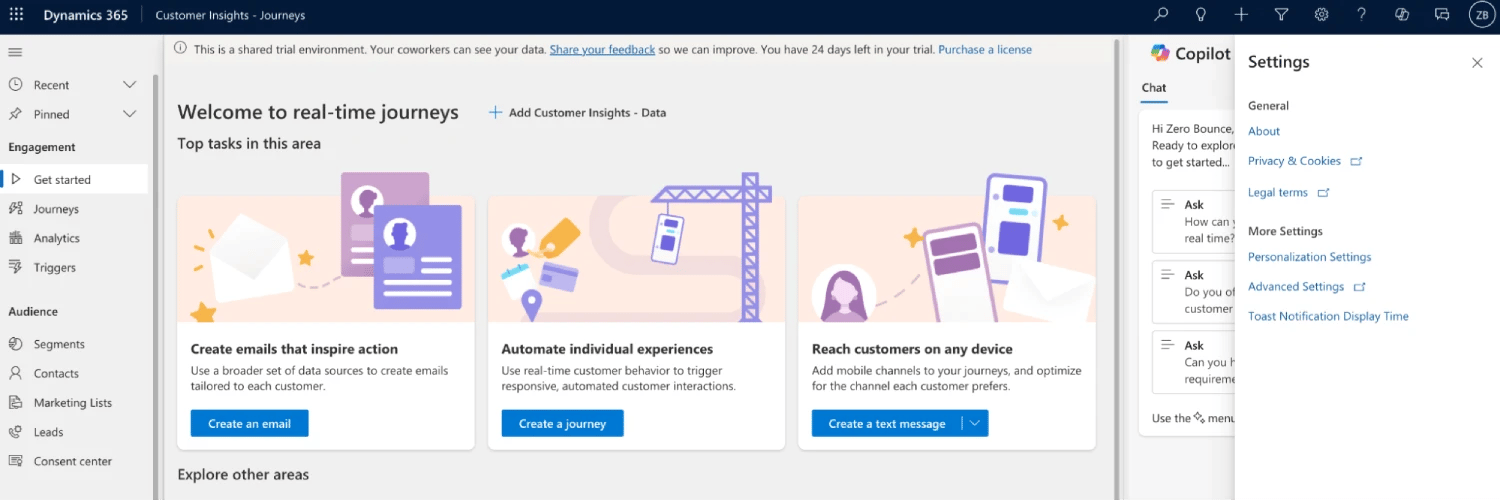
Log in to your account, and navigate to Settings -> Advanced Settings.
Step 2:
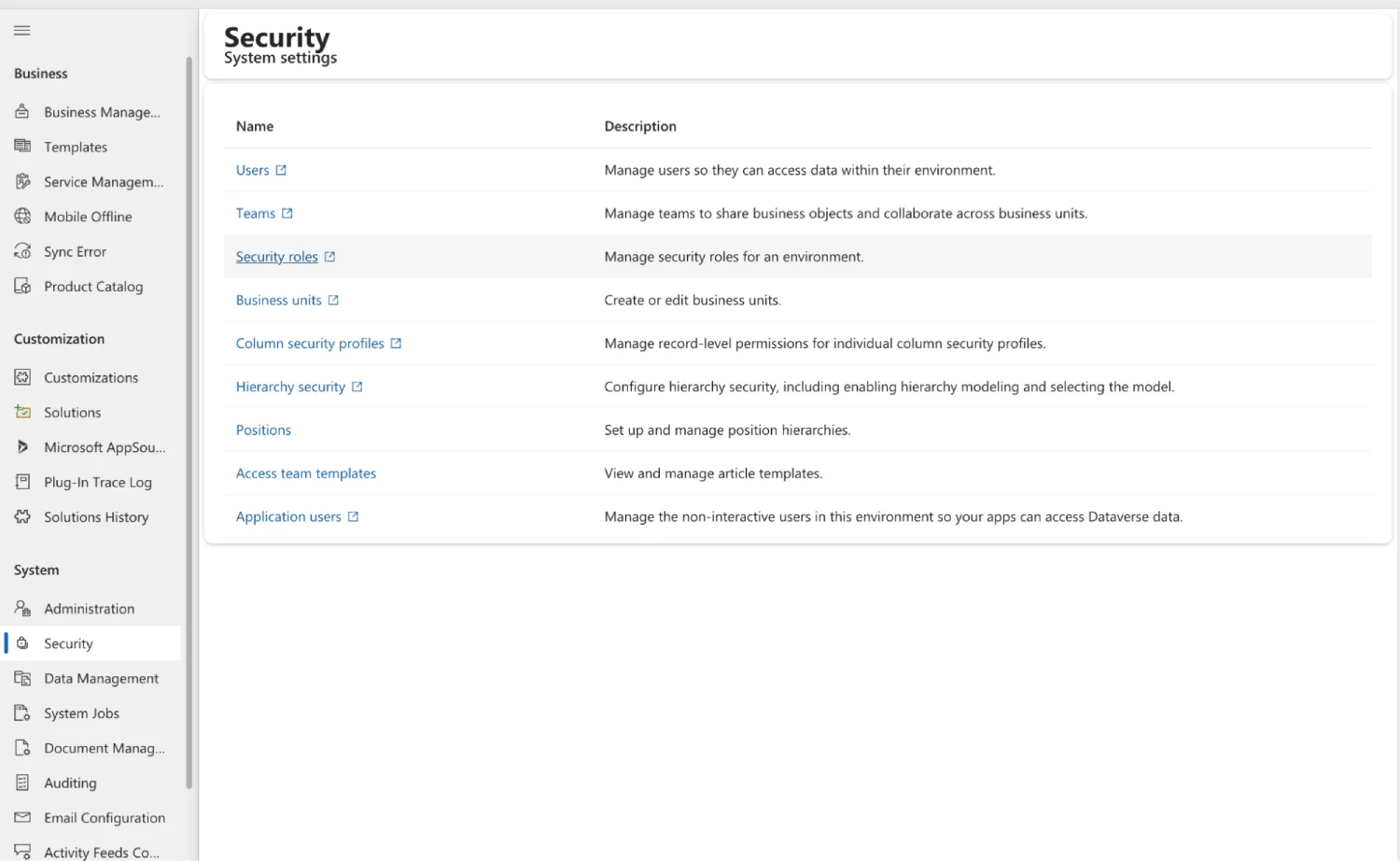
Go to the Security tab. Then click on Security Roles.
Step 3:
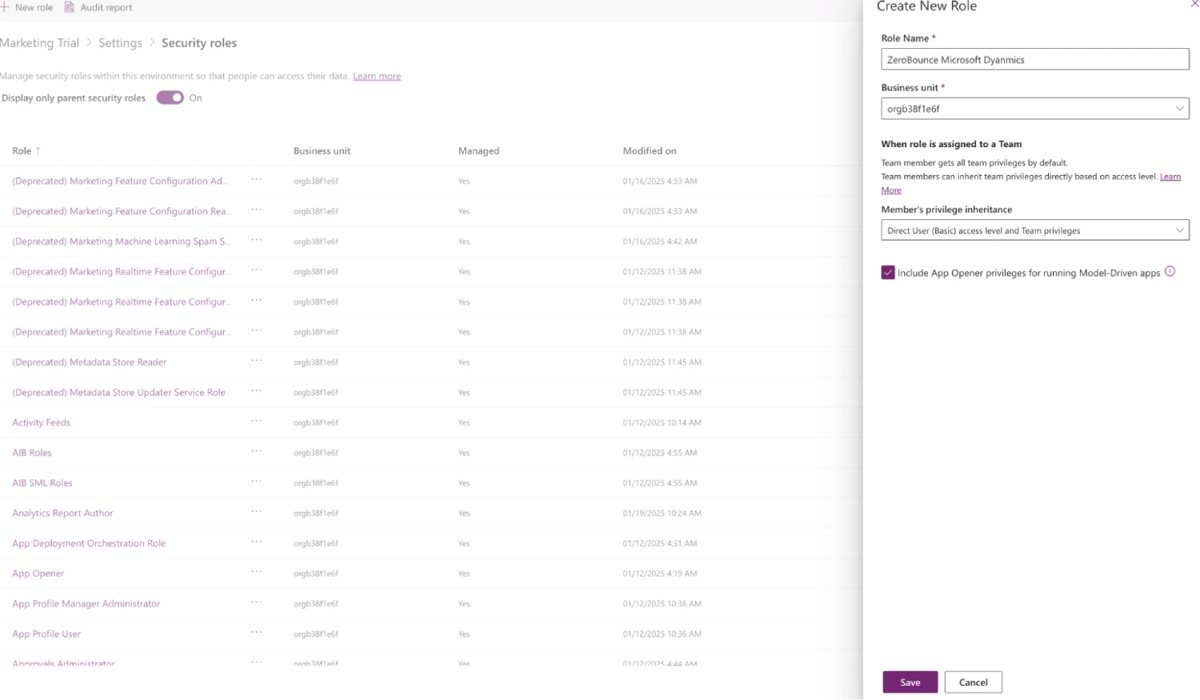
Click ‘Create a New Role.’ Select the Business unit, and click on Save. You’ll automatically land on the Permissions page.
Step 4:
On the Permissions page, grant the following permissions at the Organization level:



After those are added, click on Save at the top of the screen.
Step 5:
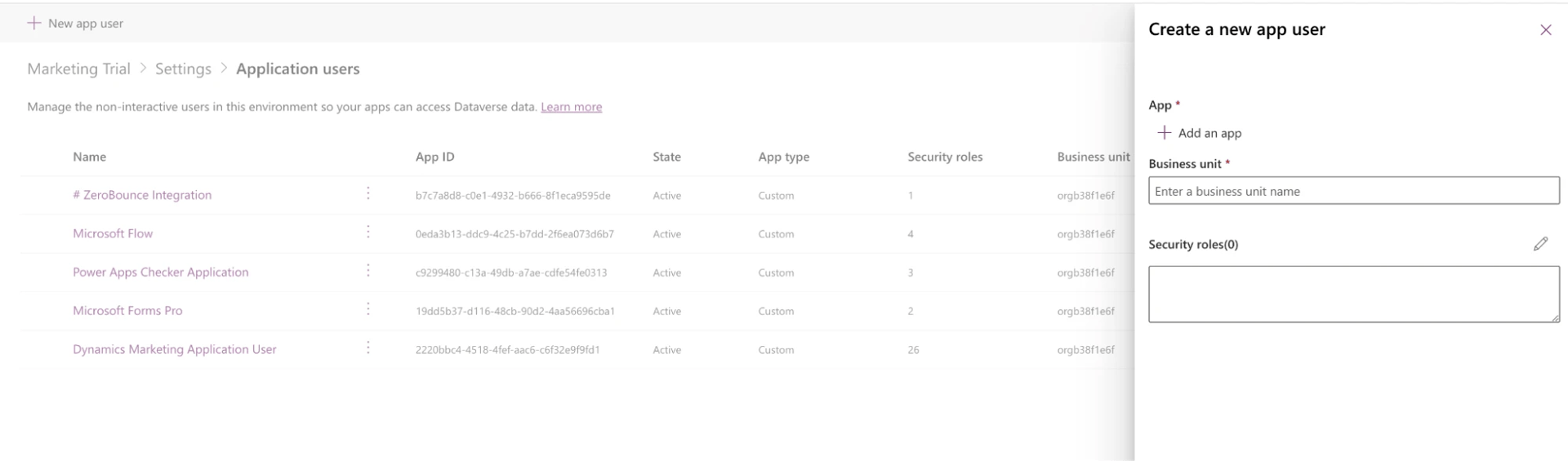
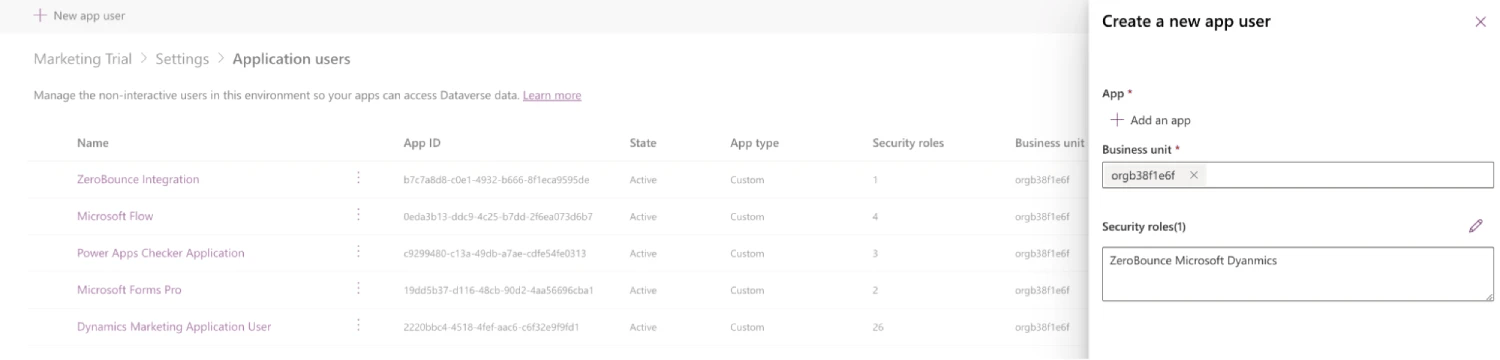
Go back to Settings and select the Application Users page. Create a new app user for use with the integration.
Step 6:
Click ‘Add an App’ and add the following app code for the ZeroBounce integration. The app will appear here only after authorizing the ZeroBounce Integration app in Microsoft Dynamics 365 (see ‘Add Integration’ -> section 3).
4070d57d-b363-4621-8457-9ed3e6a11eec
Step 7:
Select the business unit (as you did in the security roles section before) and choose the previously selected security role.
Step 1:
Sign in with your ZeroBounce account. Select ‘Integrations’ from the menu on the left.
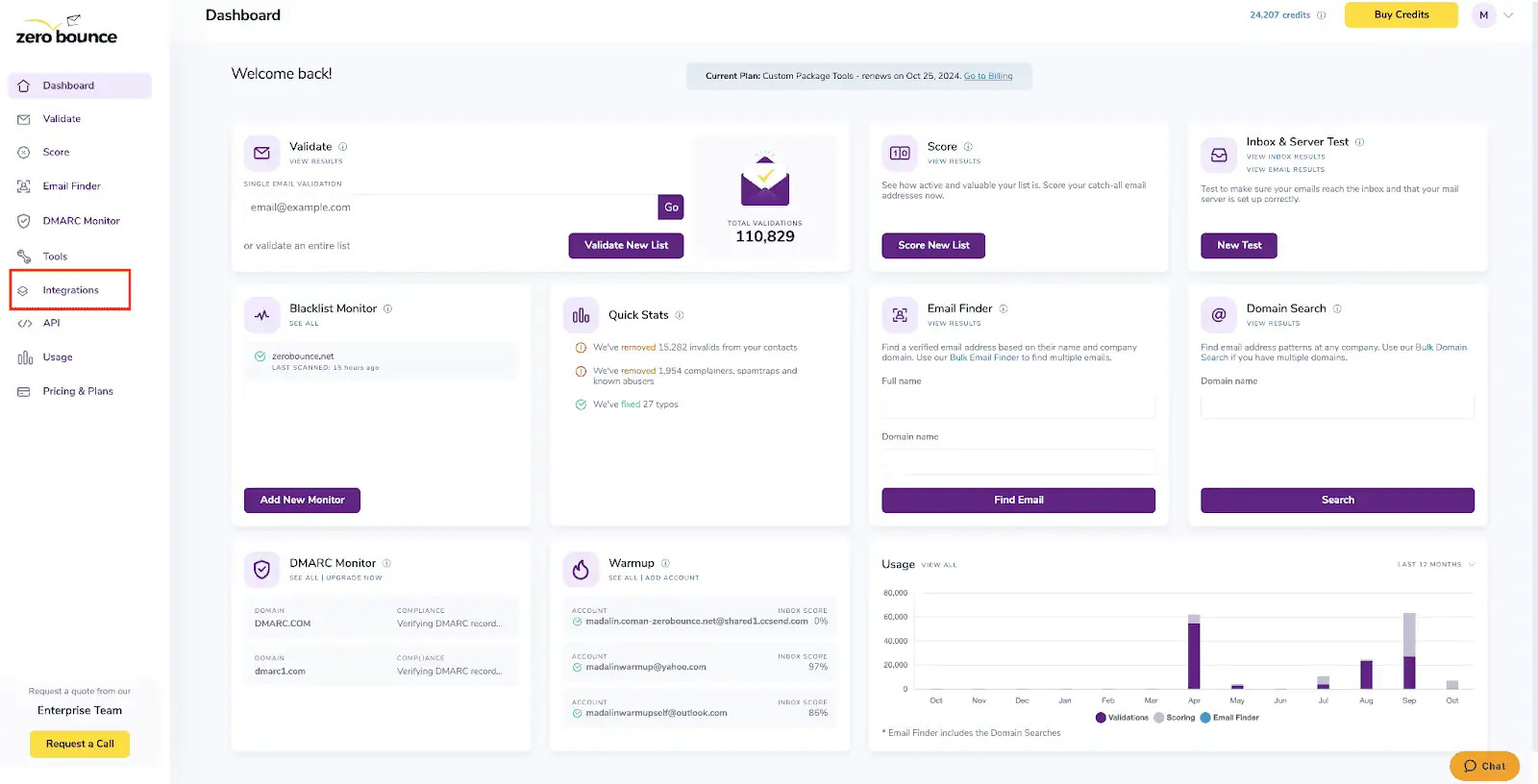
ZeroBounce Dashboard
Step 2:
Select Microsoft Dynamics 365 from the Integration List.
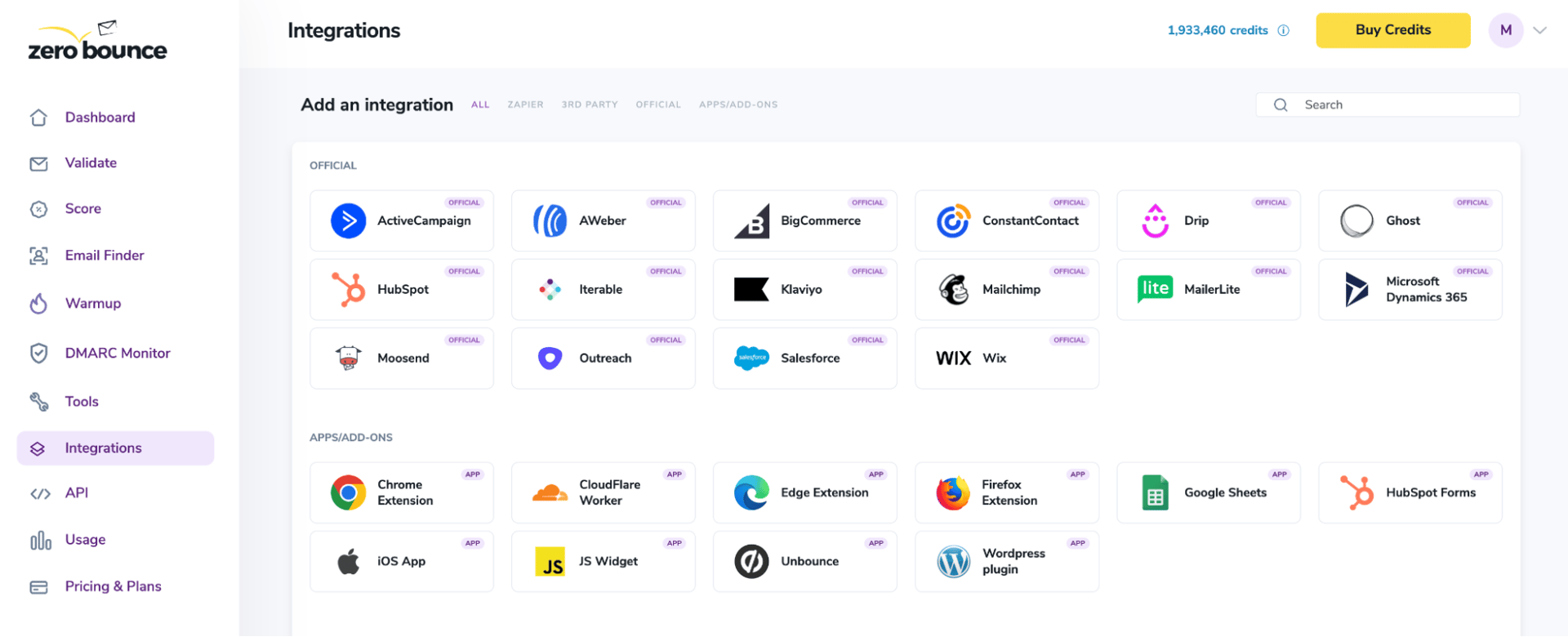
ZeroBounce Integrations Dashboard
Step 3:
Authorize the ZeroBounce Integration app in Microsoft Dynamics 365.
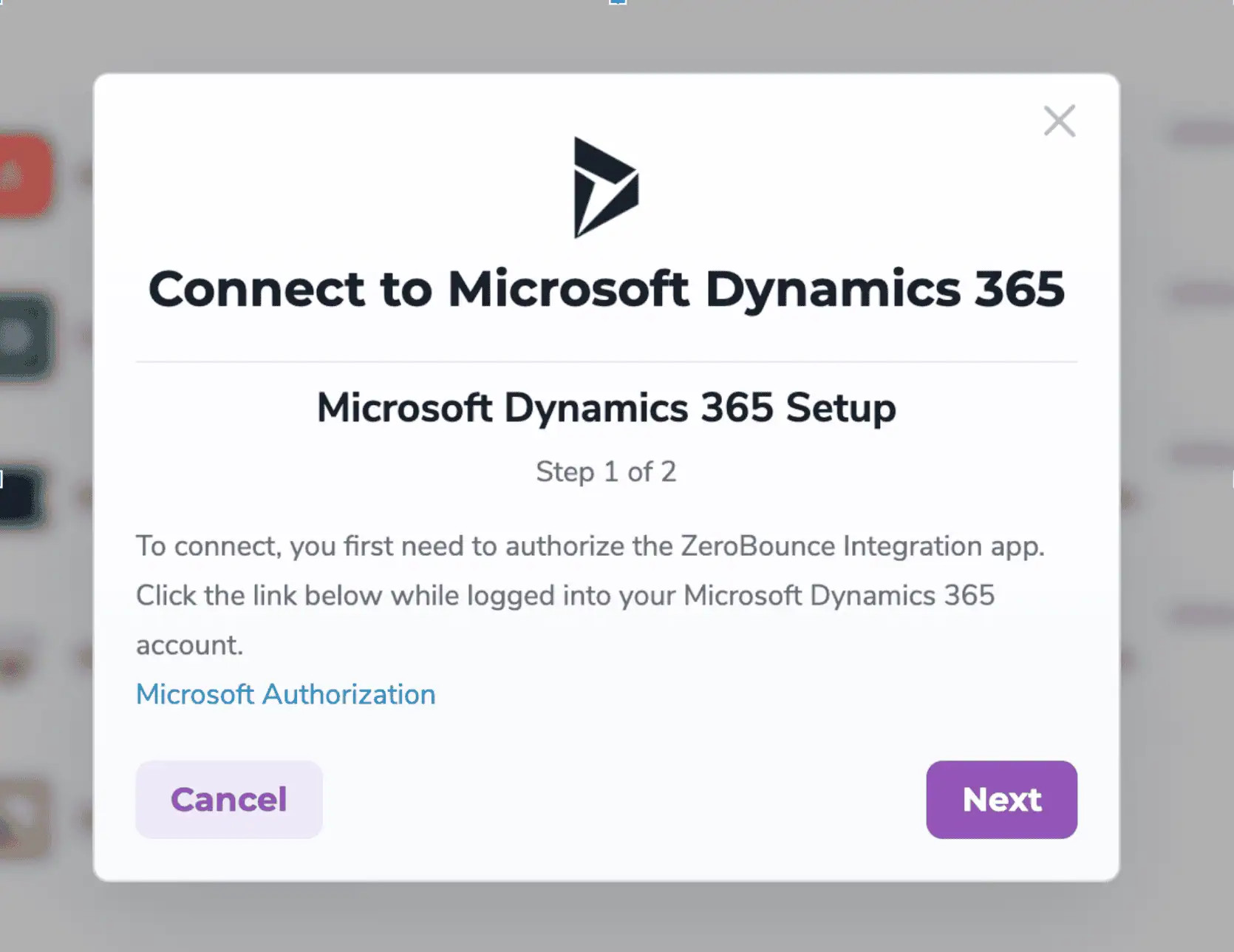
Step 1 pop-up modal
When clicking on the link you will be presented with an authorization prompt.
Check ‘Consent on behalf of your organisation’ and click ‘Accept’. You’ll get redirected to the ZeroBounce integrations page in this new tab, close this tab and continue the process where you left it clicking the ‘Next’ button.
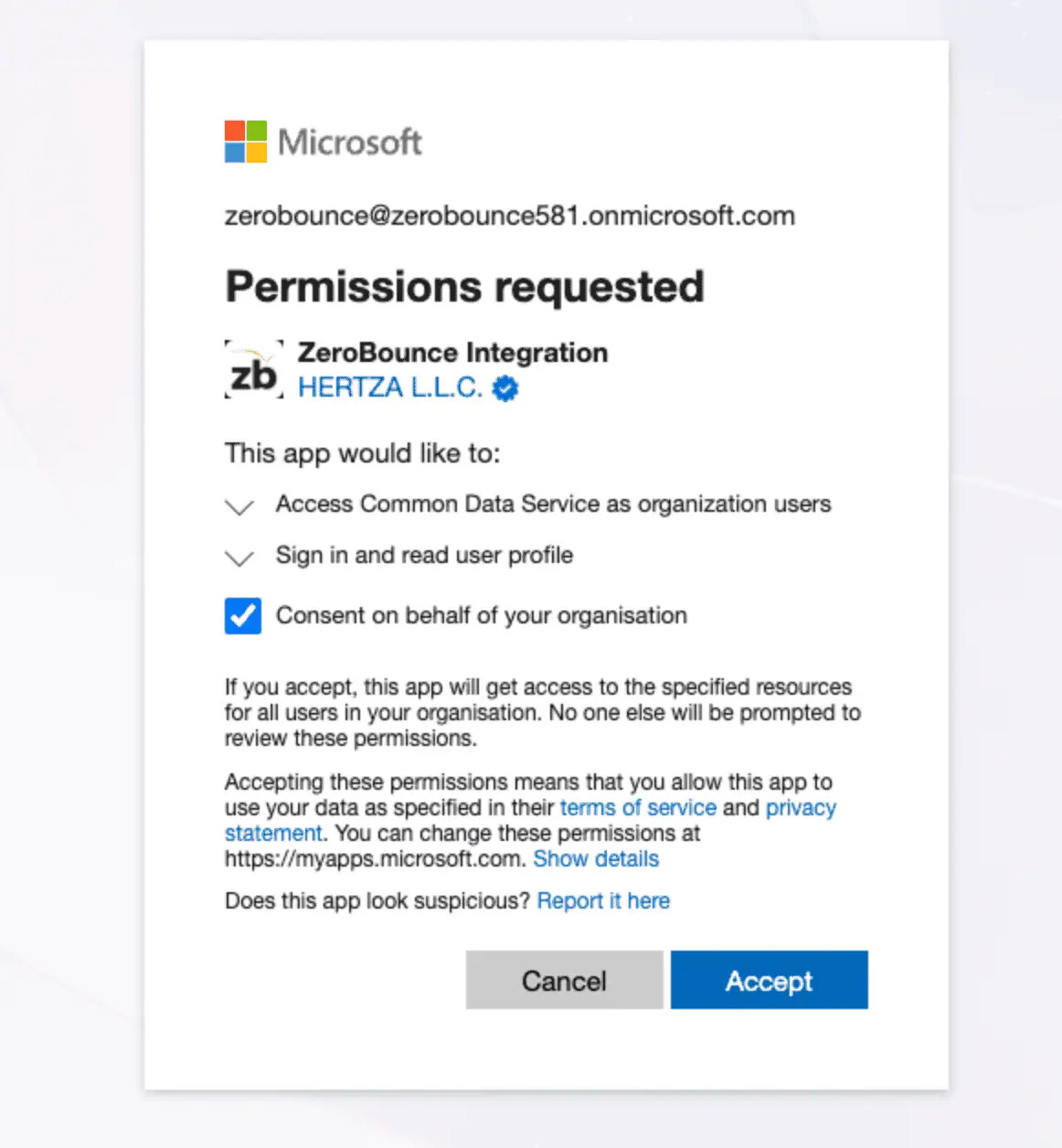
Microsoft Permissions prompt
Step 4:
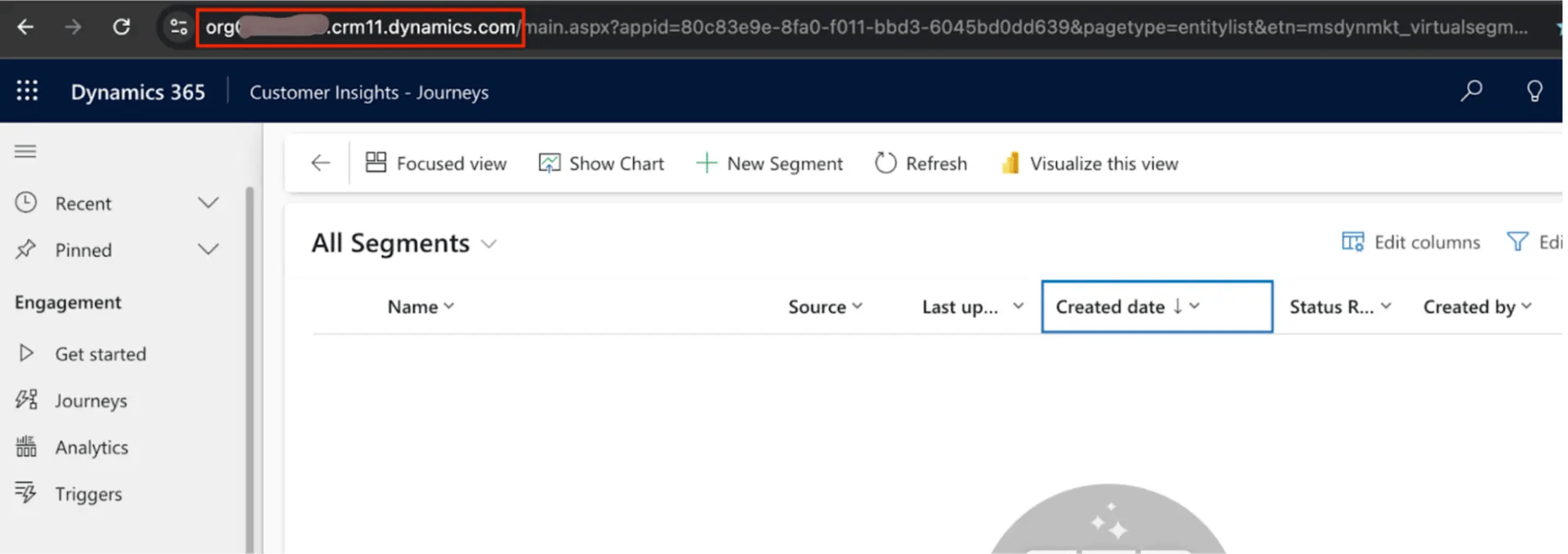
Add your Microsoft Dynamics 365 Environment URL and Environment (Tenant) ID in the provided fields.
You can find the Environment URL on your Dynamics 365 UI’s address bar:
And the Environment (Tenant) ID on: https://portal.azure.com/#view/Microsoft_AAD_IAM/ActiveDirectoryMenuBlade/~/Overview -> select your environment
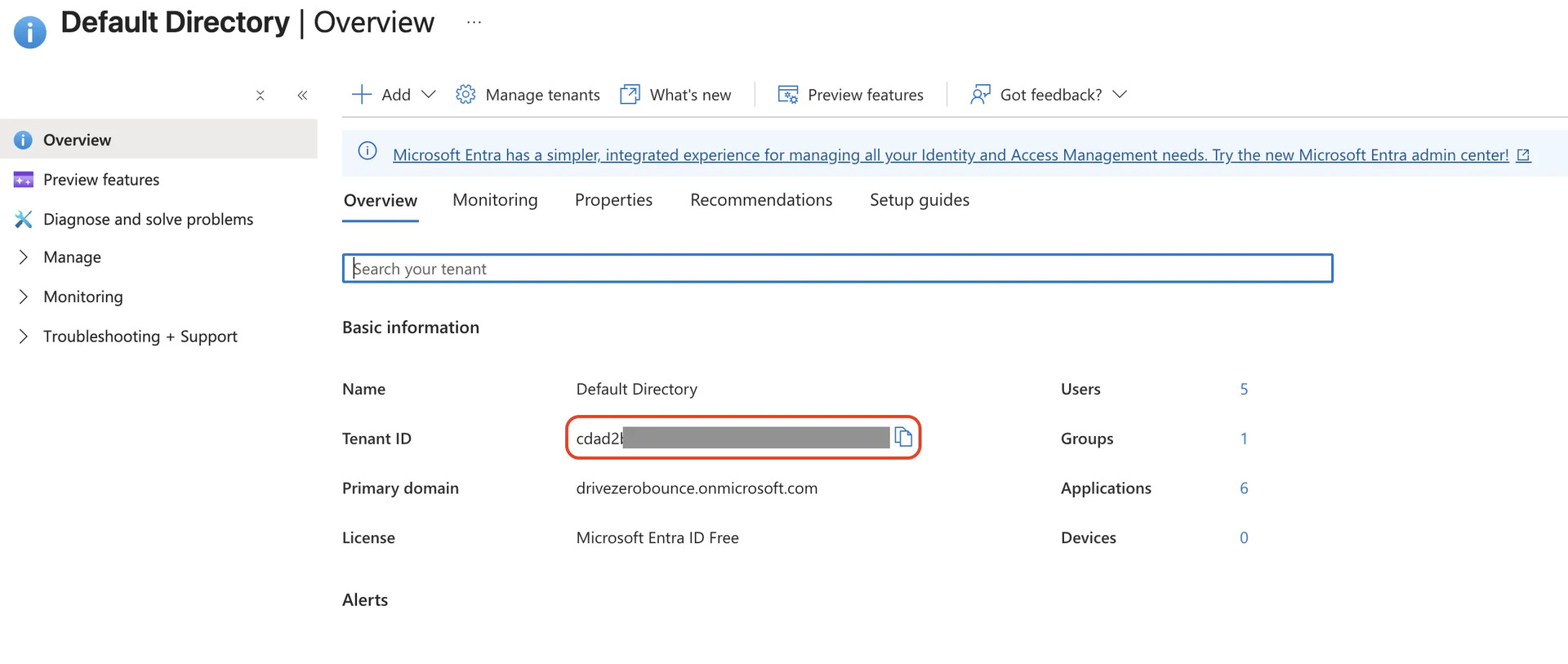
Microsoft Admin center environment
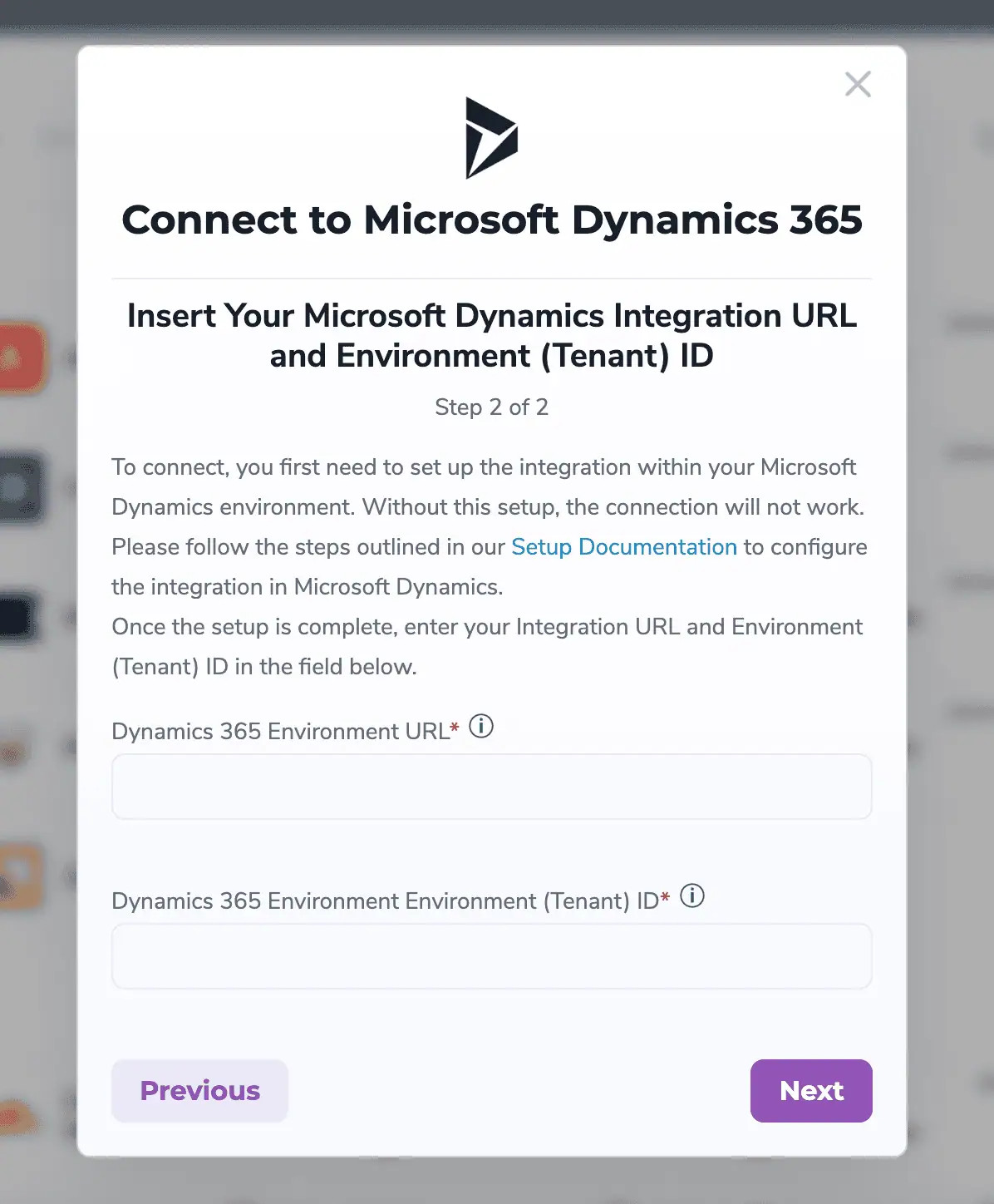
Step 2 pop-up modal
Step 5:
Click the ‘Next’ button to finalise the integration connection.
Click on ‘Refresh Page’, your new integration will show and ZeroBounce will automatically import list data from your Microsoft Dynamics 365 account.
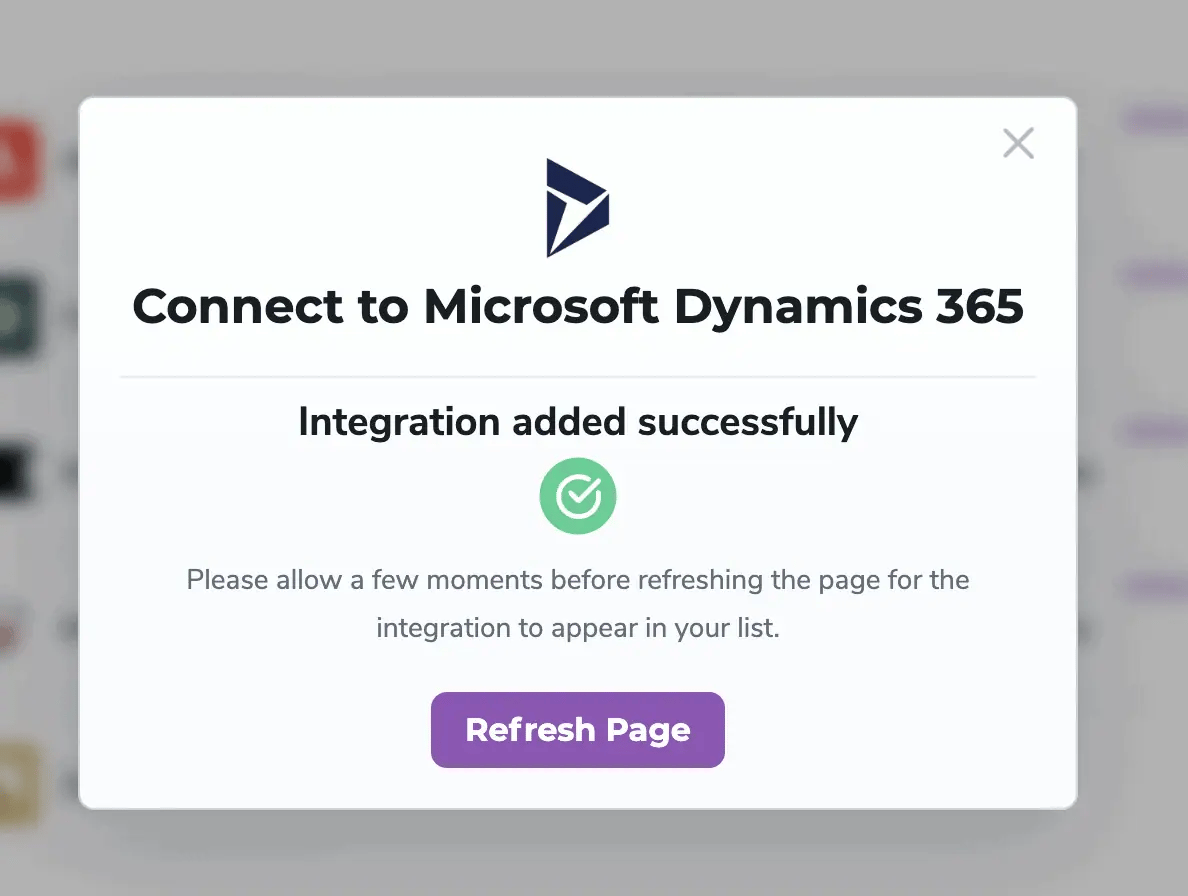
Success pop-up modal
Step 1:
To validate a list, check the box next to your chosen list. Then, click ‘Validate.’
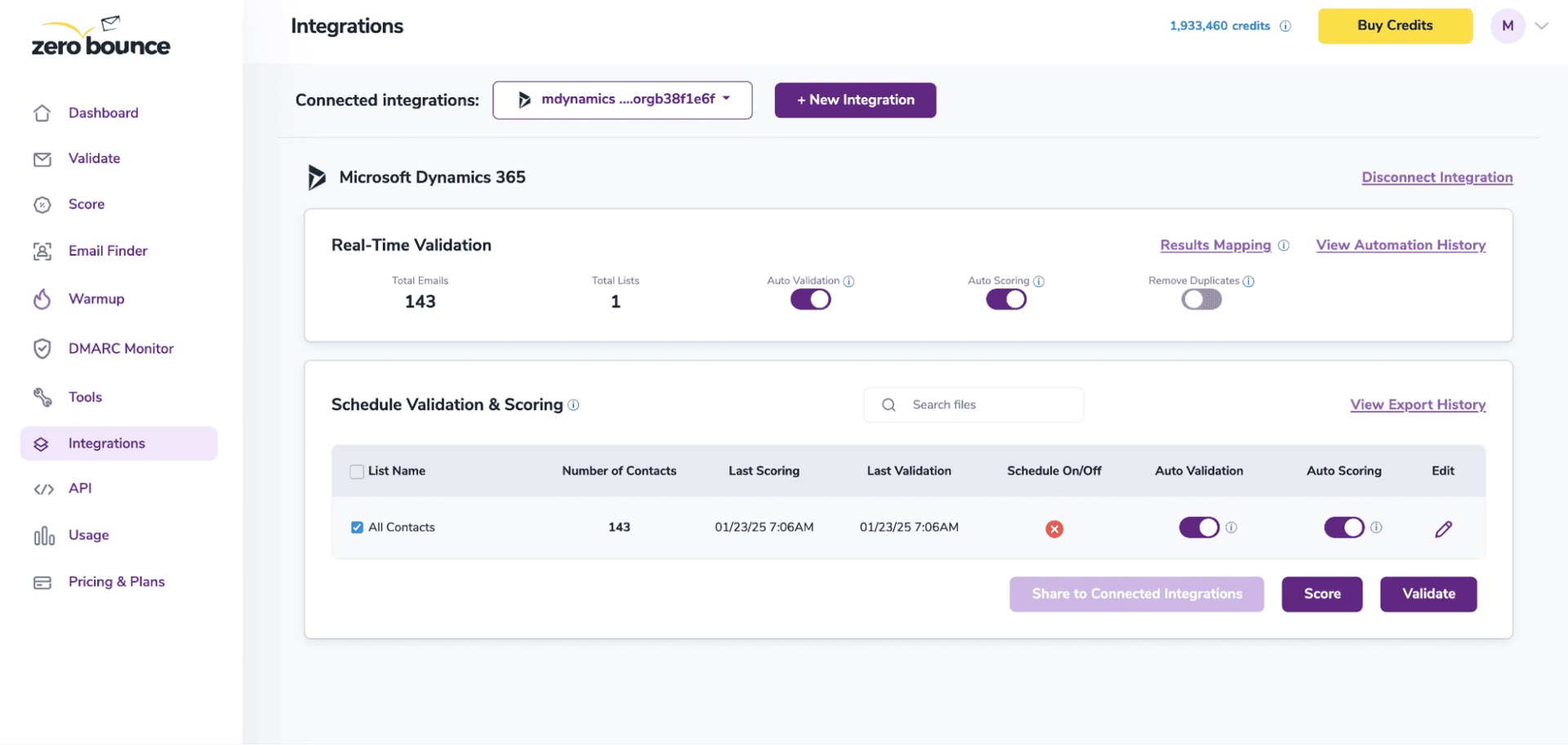
After successful integration, you will be able to view your lists in your ZeroBounce Dashboard.
![The ZeroBounce ,[object Object], menu pop-up, which offers the user the ability score ,[object Object], and add Activity Data.](https://www.zerobounce.net/cdn-cgi/image/fit=scale-down,format=auto,quality=90,width=1920,metadata=none/docs/assets_next_docs/docs/bigCommerce/big-commerce_10.jpg)
Validation Pop-up
Step 2:
You’ll receive a popup with two optional features. Both of these services can provide helpful insights into each contact, assisting with targeting and segmentation.
Step 3:
You’ll land on the Email Validationⓘ Results page, which now shows your selected list in the queue.
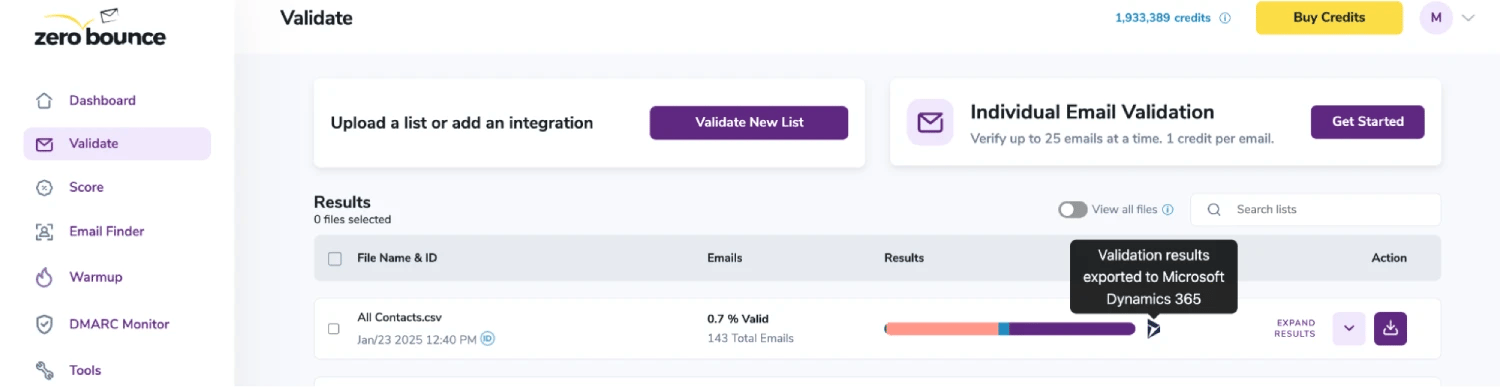
Email Validationⓘ results page
Step 4:
When the process is complete, you’ll receive an email notification, and a ‘Download’ button will appear on the results page.
![The ,[object Object], results screen with a red highlight over the button to expand or download results.](https://www.zerobounce.net/cdn-cgi/image/fit=scale-down,format=auto,quality=90,width=1920,metadata=none/docs/assets_next_docs/docs/bigCommerce/drip-10.webp)
Note: The results of the validation and scoring are automatically exported to the integration from which they originated.
Status: Completed
Step 5:
When you export your contacts, you'll find the following tags included in the exported file:
These tags organize your results within Microsoft Dynamics 365 and are essential for maintaining up-to-date and accurate contact information. They allow for better management and engagement with your contacts.
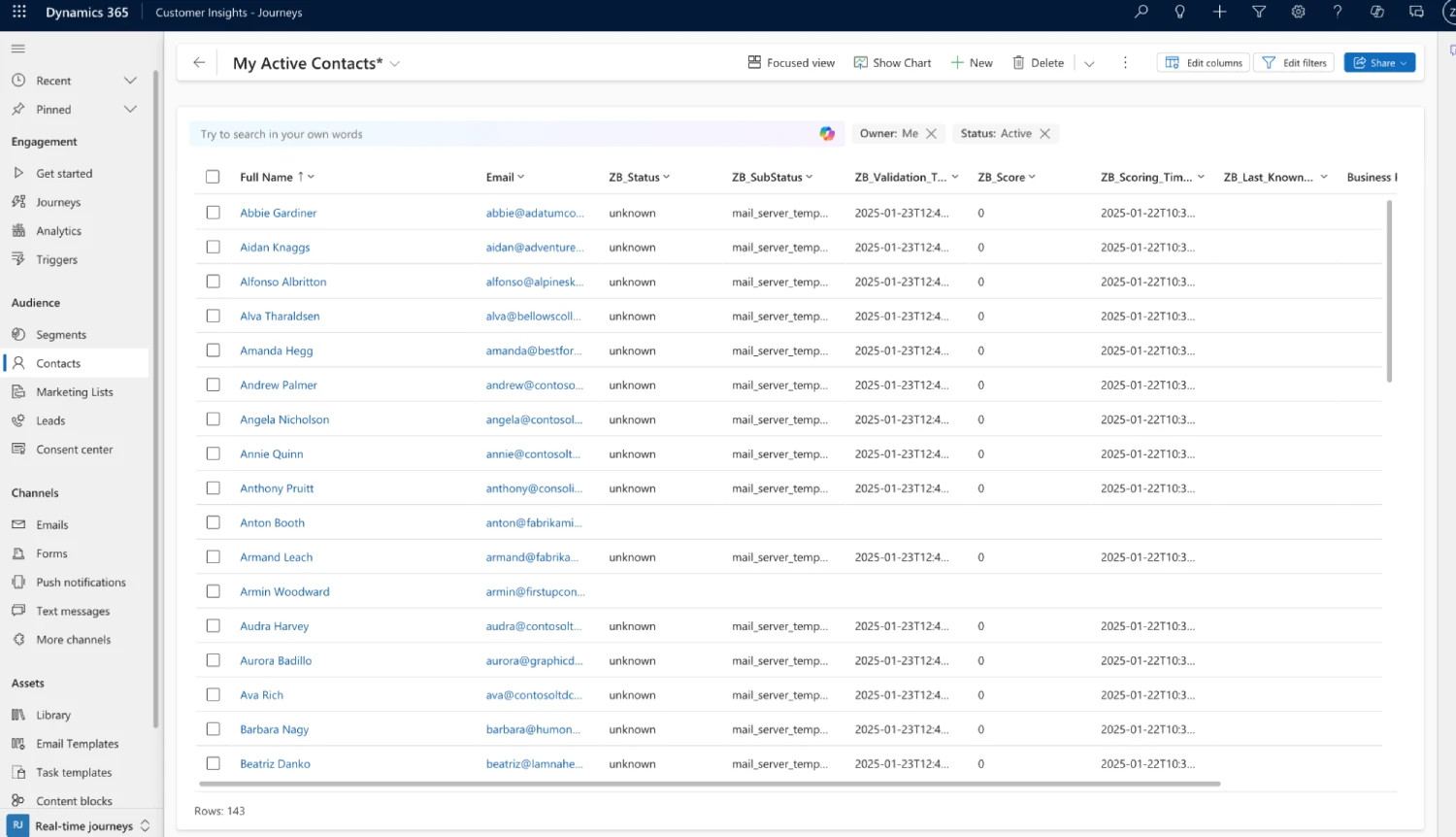
Essential tags for maintaining up-to-date and accurate contact information
Step 6:
(Optional) The Results Mapping menu allows you to customize the names of validation or scoring result fields/tags when exporting to integrations, ensuring consistency.
Add your custom tags by using the provided fields. Then, click Save after customizing each.
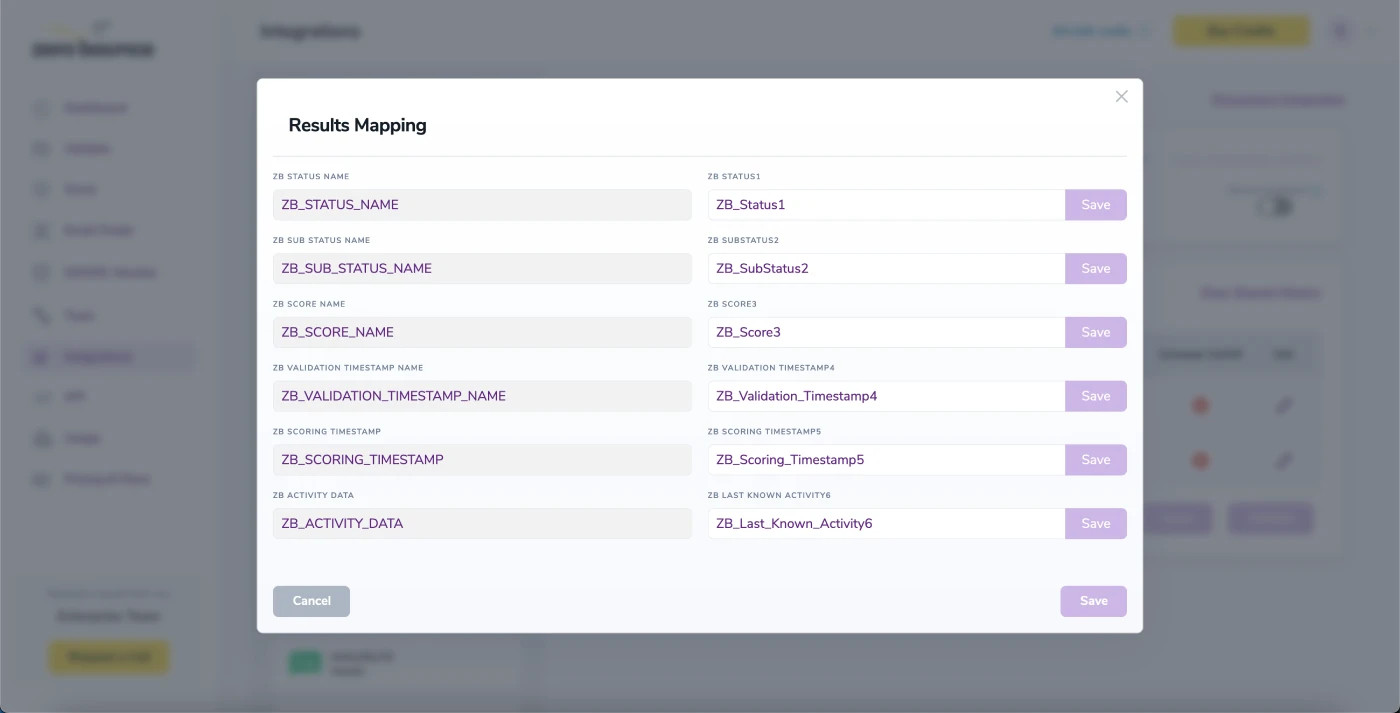
Results Mapping window
With this feature, you can validate and score any new contact added to your list(s) automatically. To do so, go to the Real-Time Validationⓘ section and toggle auto-validation and/or auto-scoring ON.
With auto-validation enabled, ZeroBounce will validate your new contacts automatically once added to your integration, ensuring they are valid and deliverable.
With auto-scoring enabled, each new contact will also receive a quality score automatically, providing insight into their potential engagement and overall contact quality.
For more information about Microsoft Dynamics 365, please visit https://www.microsoft.com/en-us/dynamics-365.
NOTE:
The Microsoft Dynamics 365 integration includes additional features, such as Contact Sharing, Scheduling, and Monitoring. Learn more about these features in their dedicated documentation.
