ZeroBounce Logo

Docs

Language Icon
  • Sign In
  • Sign Up Free

Languages

ZeroBounce ImageGetting Started
ZeroBounce ImageEmail List Validation
ZeroBounce ImageA.I. Email Scoring
ZeroBounce ImageEmail Finder
ZeroBounce ImageDomain Search
ZeroBounce ImageActivity Data
ZeroBounce ImageMulti-file upload
ZeroBounce ImageIntegrations
ZeroBounce ImageActiveCampaign Integration
ZeroBounce ImageAdobe Journey Integration
ZeroBounce ImageAdobe Marketo Integration
ZeroBounce ImageAmazon S3 Integration
ZeroBounce ImageAmazon S3 Bulk API
ZeroBounce ImageAWeber Integration
ZeroBounce ImageBigCommerce Integration
ZeroBounce ImageChatGPT Integration
ZeroBounce ImageClay.com Integration
ZeroBounce ImageCloudFlare Worker Integration
ZeroBounce ImageConstant Contact Integration
ZeroBounce ImageCustomer.io Integration
ZeroBounce ImageDrip Integration
ZeroBounce ImageEmail Validator Browser Extension
ZeroBounce ImageGhost Integration
ZeroBounce ImageGoogle Sheets Integration
ZeroBounce ImageHubSpot Integration
ZeroBounce ImageHubSpot Forms Integration
ZeroBounce ImageInfinity Integration
ZeroBounce ImageIntegrations Contacts Monitoring, Scheduling and Sharing
ZeroBounce ImageIterable Integration
ZeroBounce ImageJS Widget
ZeroBounce ImageKlaviyo Integration
ZeroBounce ImageLinkedIn Integration
ZeroBounce ImageMailchimp Integration
ZeroBounce ImageMailerLite Integration
ZeroBounce ImageMicrosoft Dynamics Integration
ZeroBounce ImageMonday.com Integration
ZeroBounce ImageMoosend Integration
ZeroBounce ImageOutreach Integration
ZeroBounce ImagePipeDrive Integration
ZeroBounce ImageSalesforce Integration v1.39
ZeroBounce ImageSFTP/FTP Integration
ZeroBounce ImageSFTP/FTP Bulk API
ZeroBounce ImageUnbounce Integration
ZeroBounce ImageWix Integration
ZeroBounce ImageWordPress/WooCommerce Plugins
ZeroBounce ImageZapier Integration
ZeroBounce ImageZendesk Sell Integration
ZeroBounce ImageZoho Integration
ZeroBounce ImageUsage Reports
ZeroBounce ImageYour ZeroBounce Account
ZeroBounce ImageEmail Validation API
ZeroBounce ImageEmail Finder API
ZeroBounce ImageDomain Search API
ZeroBounce ImageA.I. Scoring API
ZeroBounce ImageActivity Data API
ZeroBounce ImageList Evaluator API
ZeroBounce ImageApi Dashboard
ZeroBounce ImageAPI Wrappers
ZeroBounce ImageAPI Migration
ZeroBounce ImageFAQ
ZeroBounce ImageSecuring Your Account
ZeroBounce ImageAbout ZeroBounce
ZeroBounce ImageDeliverability Tools
ZeroBounce ImageStatus Page
  • Email Validation Homepage
  • Separator
  • Docs
  • Separator
  • API Integrations
  • Separator
  • Monday.com
API Integrations

How to Use the Monday.com Integration

Step 1

Sign in with your ZeroBounce account. Select ‘Integrations’ from the menu on the left.
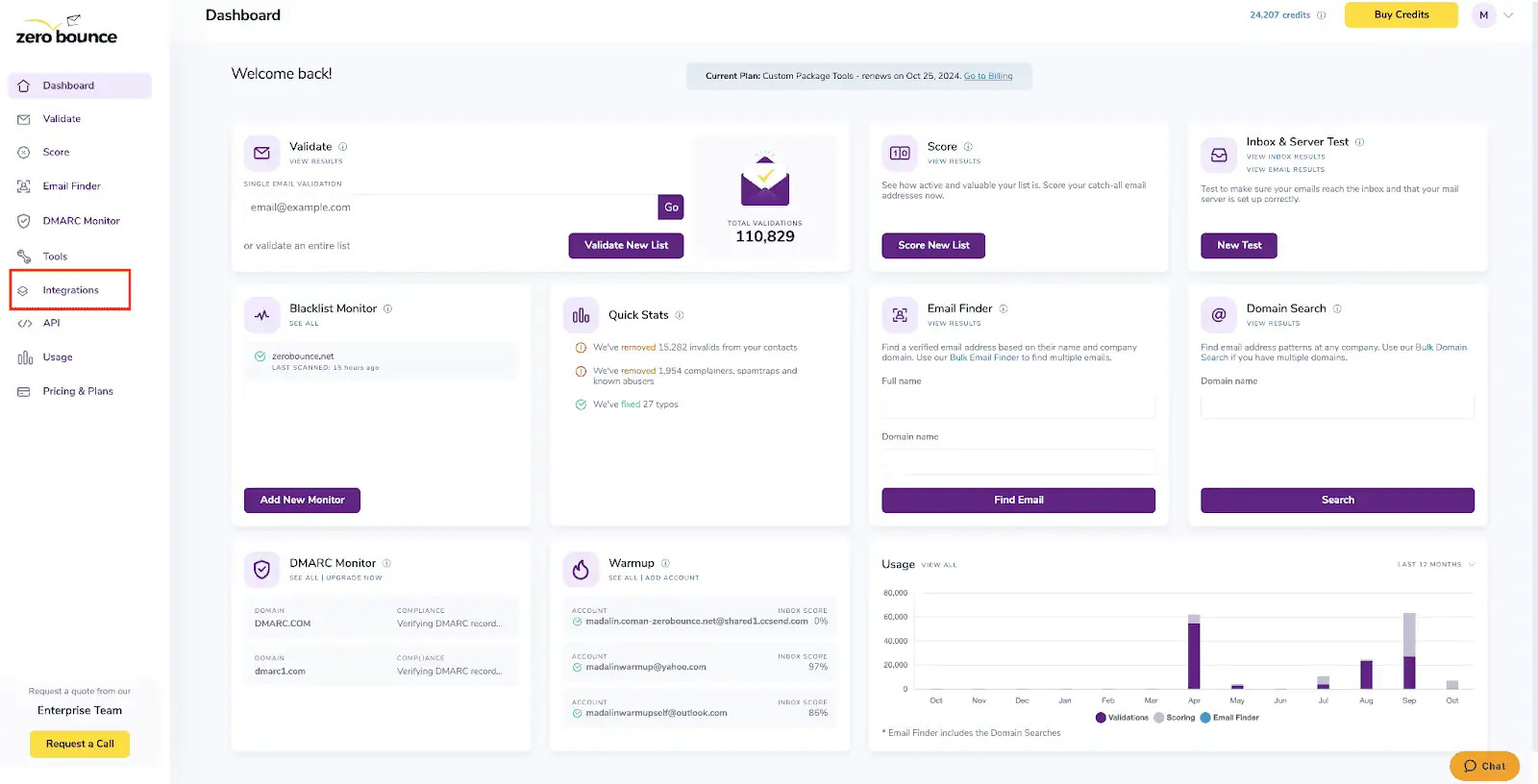
ZeroBounce Dashboard

ZeroBounce Dashboard

Step 2

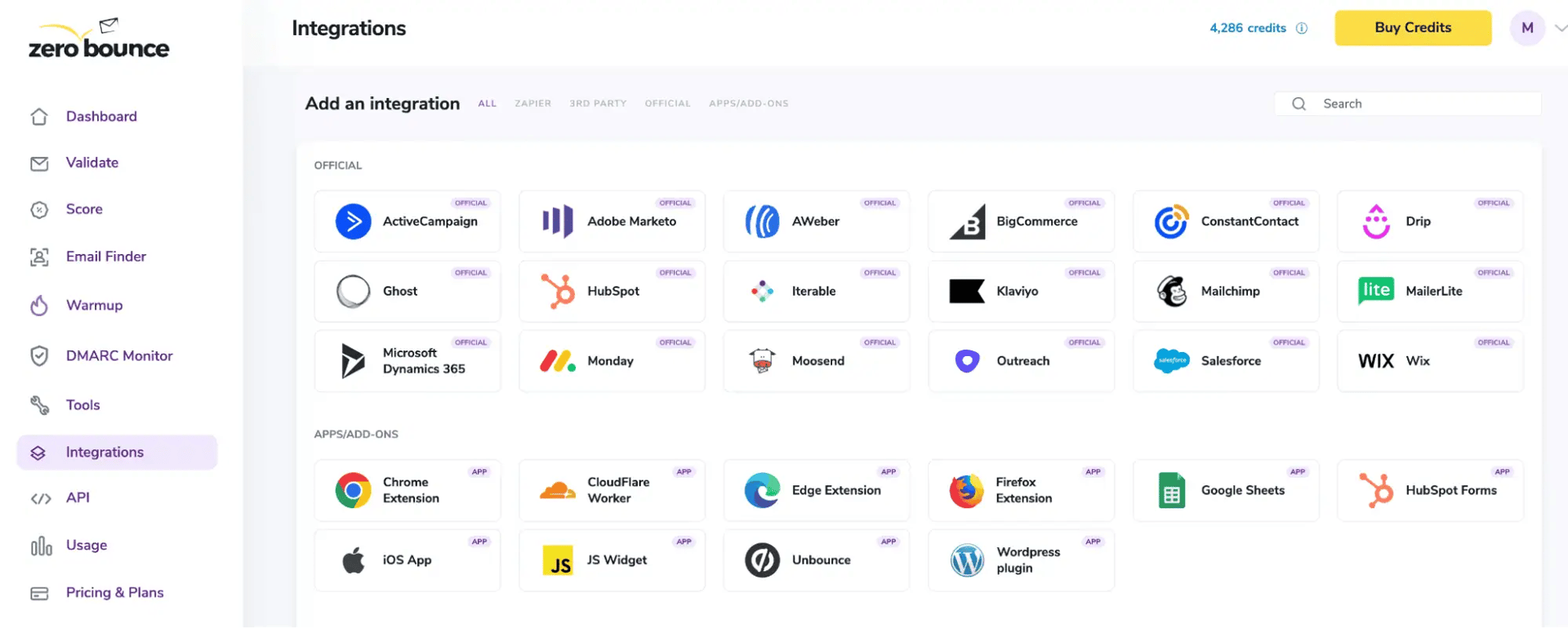
Select the Monday.com integration under the ‘Official’ section.

ZeroBounce Integrations Dashboard

ZeroBounce Integrations Dashboard

Step 3.1

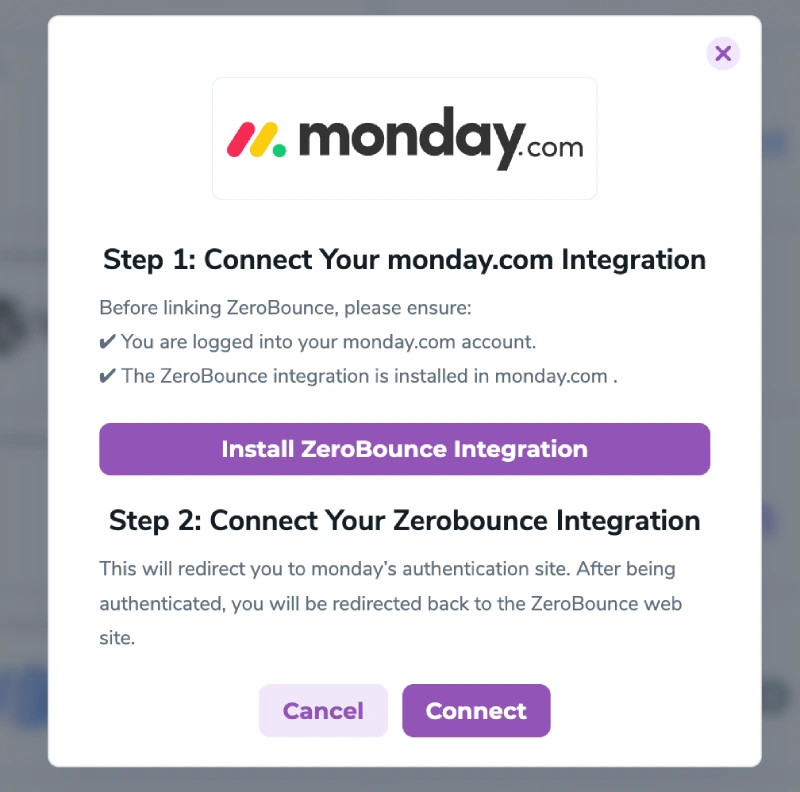
For the first time use, the user must connect the ZeroBounce app to the Monday.com platform.

Redirect pop-up modal

Redirect pop-up modal

In order to do that the user must click on “Install ZeroBounce Integration” then select the workspace for which he intends to use the ZeroBounce integration and then click on Install
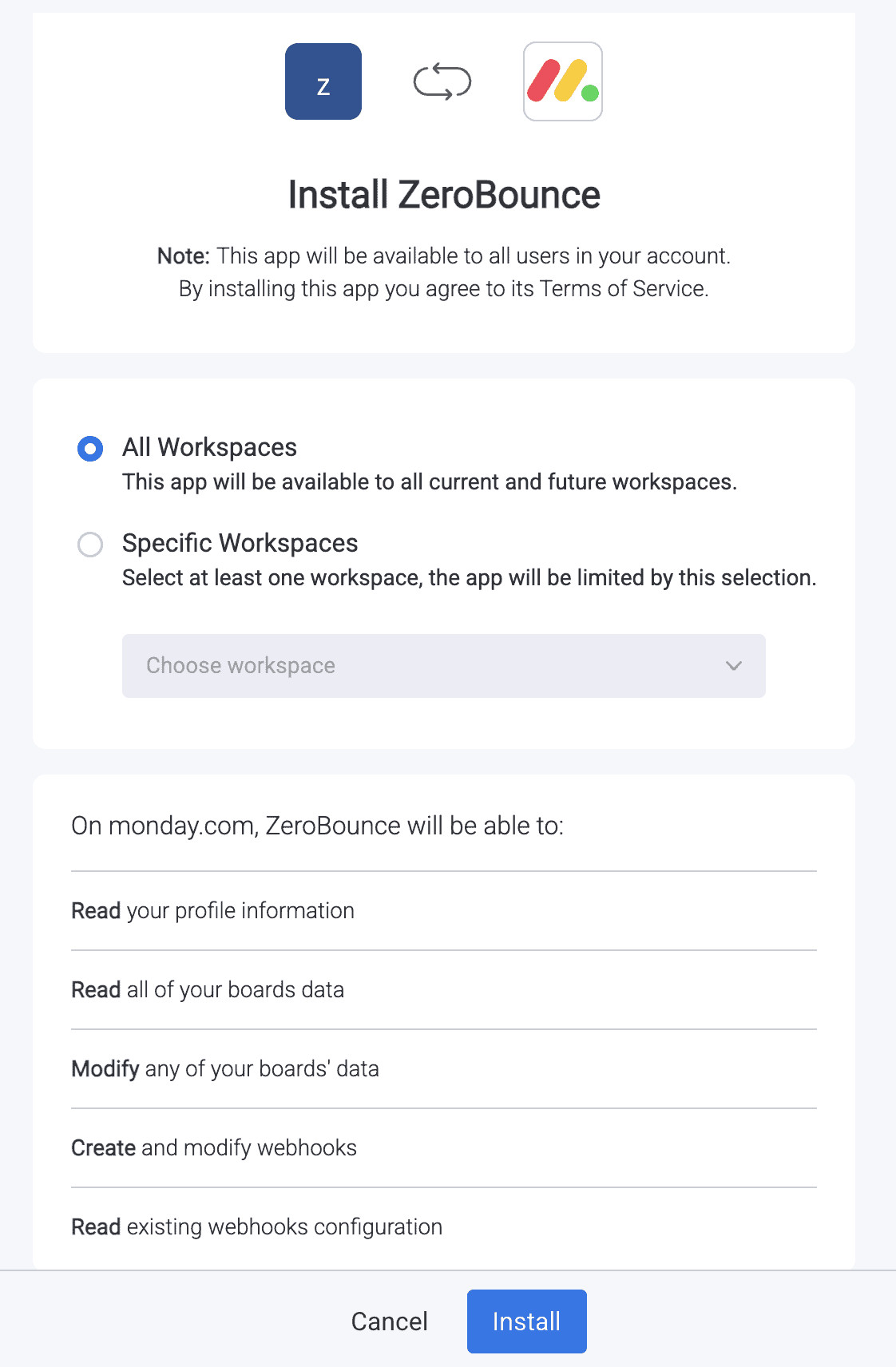
Install pop-up modal

Install pop-up modal

Step 3.2

After finishing step 3.1 , click Connect to redirect to Monday.com's authentication site.

Redirect pop-up modal

Redirect pop-up modal

Here, you will need to click on Authorize, then the integration will be connected
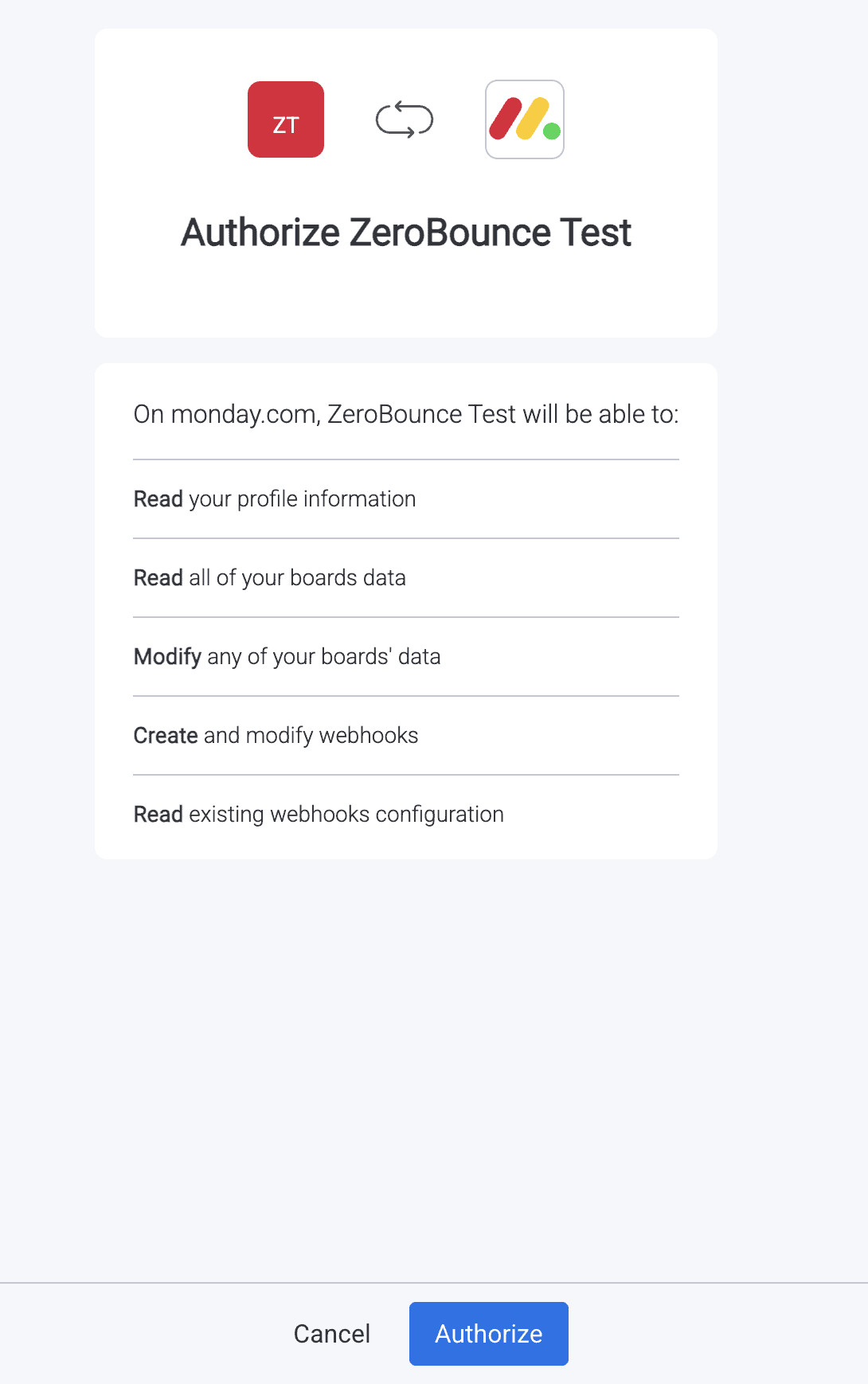
Authorize pop-up modal

Authorize pop-up modal

Step 4

To validate a list, check the box next to your chosen list. Then, click ‘Validate.’
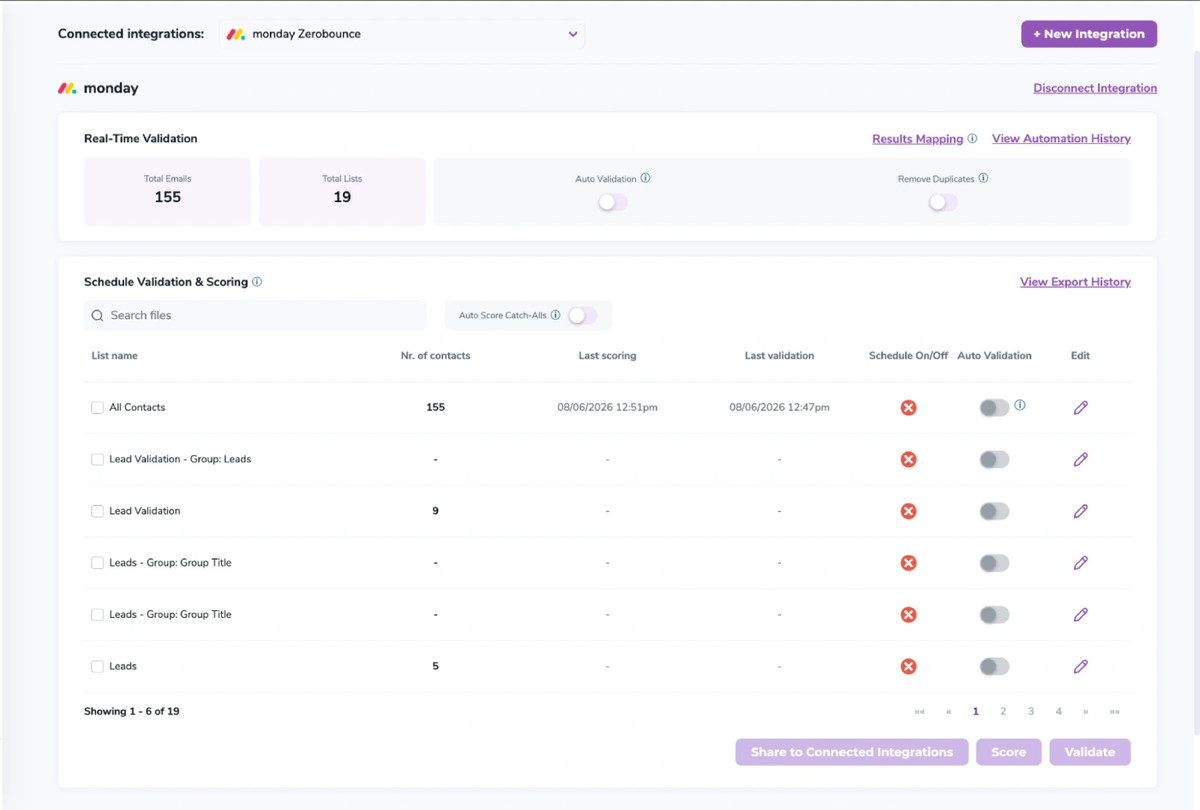
After successful integration, you will be able to view your lists in your ZeroBounce Dashboard.
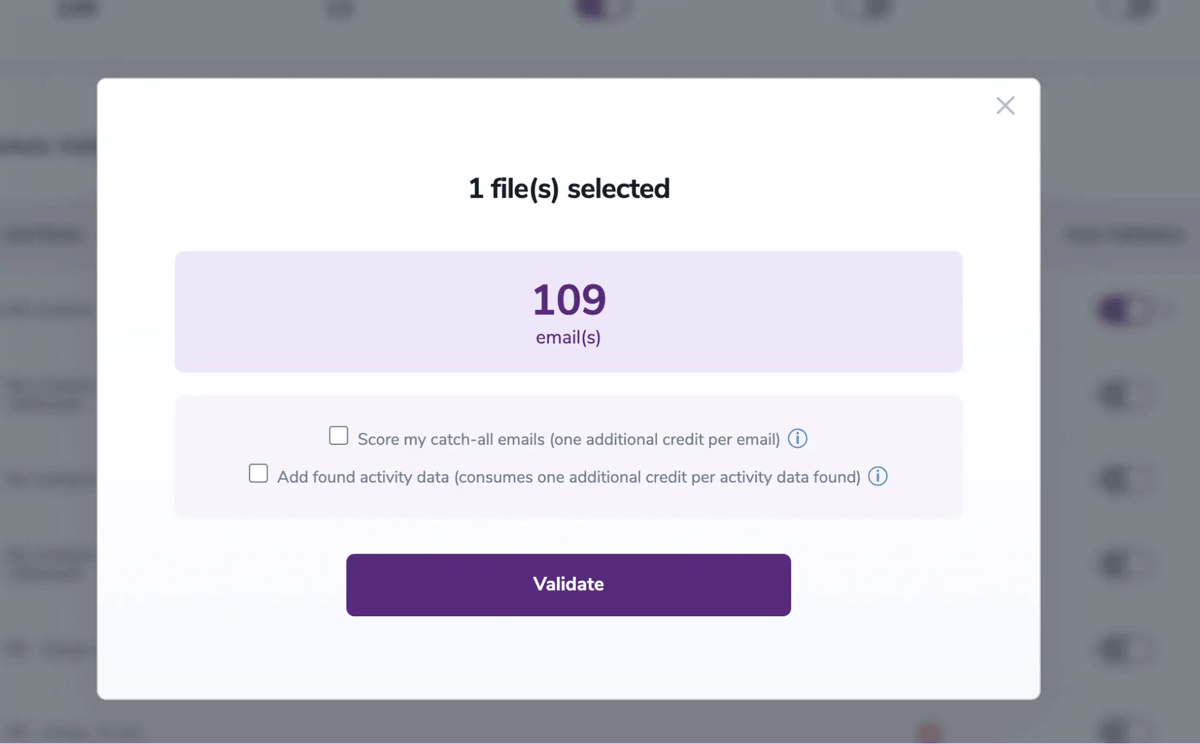
After successful integration, you will be able to view your lists in your ZeroBounce Dashboard.

Validation Pop-up

Validation Pop-up

Step 5

You’ll receive a popup with two optional features. Both of these services can provide helpful insights into each contact, assisting with targeting and segmentation.

  • Scoring - An optional service that Scores catch-all email addresses based on recent email activity on a scale of 0-10. 0 indicates a failure, 1 indicates little or no activity, and 10 indicates the highest confidence in activity and engagement.
  • ZeroBounce Activity Data - Uses interaction data to identify emails that have been opened, clicked, forwarded, or unsubscribed. The matching process is performed in-house through ZeroBounce's infrastructure, and your data is not transferred or shared with any third parties.

Step 6

You’ll land on the Email Validationⓘ Results page, which now shows your selected list in the queue.

[object Object], results page

Email Validationⓘ results page

Step 7

When the process is complete, you’ll receive an email notification, and a ‘Download’ button will appear on the results page.

Note: The results of the validation and scoring are automatically exported to the integration from which they originated.

Status: Completed

Status: Completed

Step 8

When you export your contacts, you'll find the following tags included in the exported file:

  • ZB_Status
  • ZB_SubStatus
  • ZB_Validation_Timestamp
  • ZB_Score
  • ZB_Scoring_Timestamp
  • ZB_Last_Known_Activity

These tags organize your results within Monday.com and are essential for maintaining up-to-date and accurate contact information. They allow for better management and engagement with your contacts.
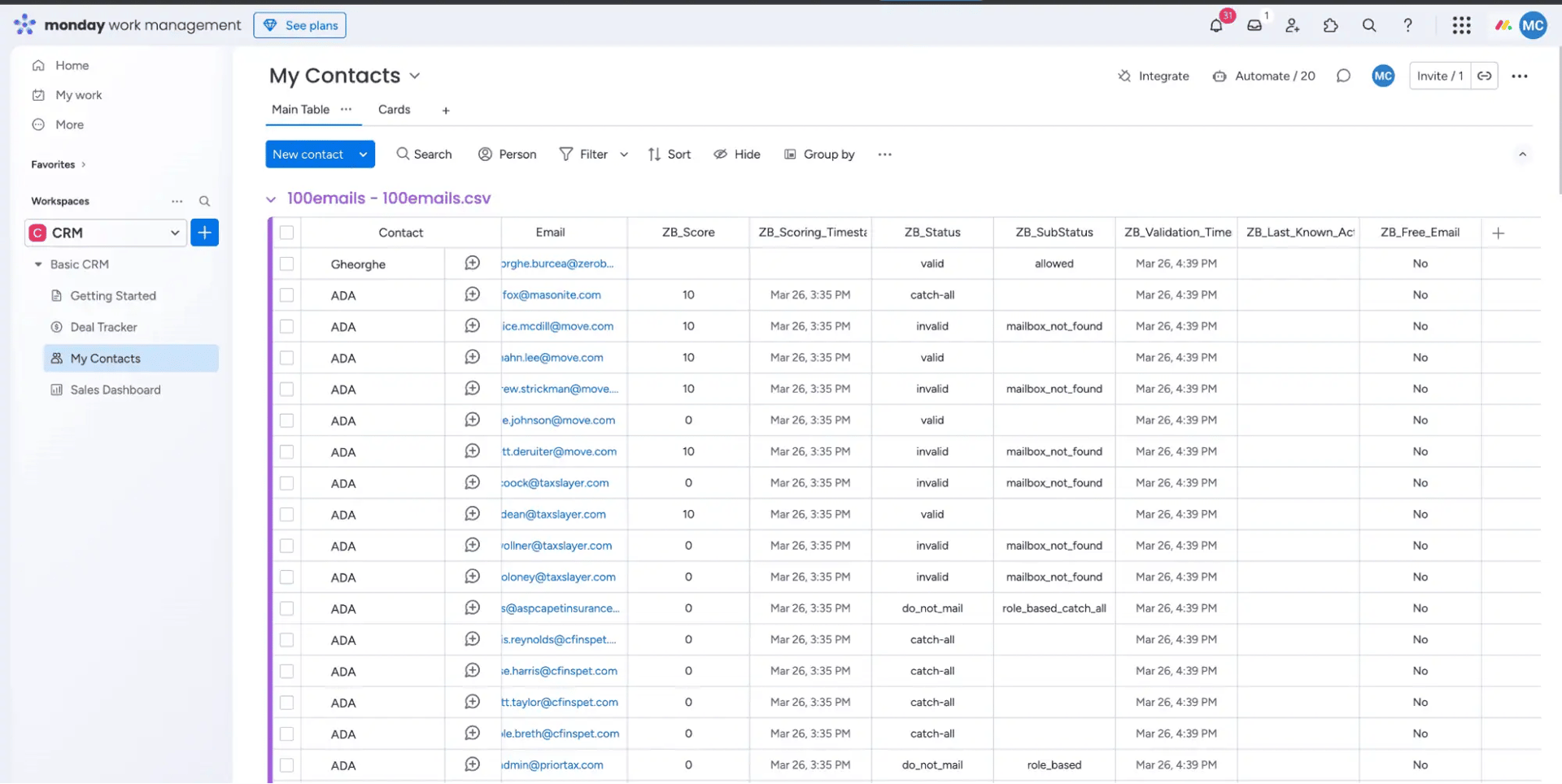
Essential tags for maintaining up-to-date and accurate contact information

Essential tags for maintaining up-to-date and accurate contact information

Step 9

(Optional) The Results Mapping menu allows you to customize the names of validation or scoring result fields/tags when exporting to integrations, ensuring consistency.

Add your custom tags by using the provided fields. Then, click Save after customizing each.
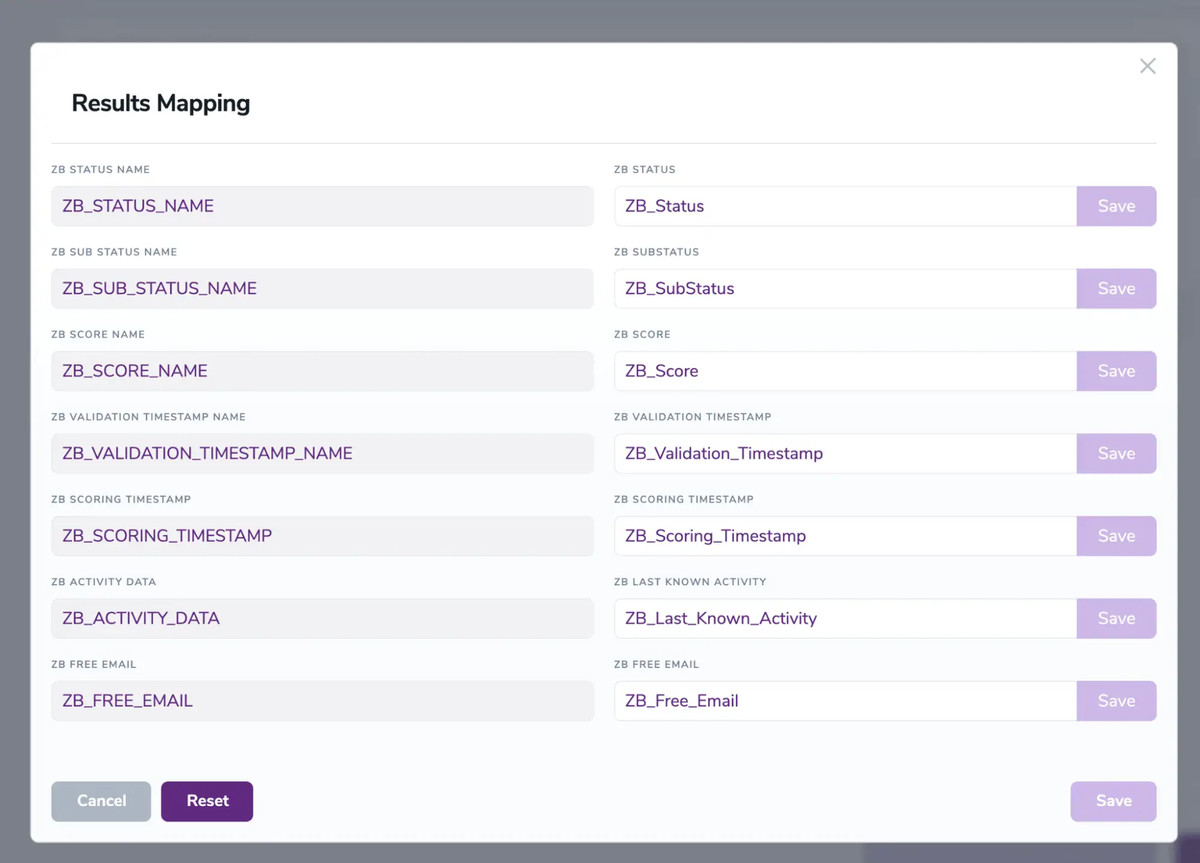
Results Mapping window

Results Mapping window

Auto-validation

With this feature, you’re able to validate any new contact added to your integration automatically. To do so, you must establish an integration with one of the compatible platforms. After doing this, select Integrations from the menu and select your integration. Once you’re there, go to the Real-Time Validationⓘ section, where you can toggle auto-validation ON.

With auto-validation enabled, ZeroBounce will automatically validate your new contacts once they are added to your integration, ensuring they are valid and deliverable.

Auto-Scoring of Catch-All Emailsⓘ

When this feature is enabled, catch-all emailsⓘ are automatically scored each time a validation action is performed. This process consumes 1 credit per email. Please note that auto-scoring does not apply to emails added through auto-validation.

NOTE: The Monday.com integration includes additional features, such as Contact Sharing, Scheduling, and Monitoring. Learn more about these features in their dedicated documentation.