ZeroBounce's new Integration with SSH File Transfer Protocol (SFTP) or File Transfer Protocol (FTP) allows you to validate or score files located in any on your machine. In addition, the result can be both manually and automatically exported back to your machine, in a folder of your choosing.
In order to authorize ZeroBounce to have access to your machine, via SFTP, we’ll need the username and the password of a user that has access to those files that you want to validate or score.
To be noted that we highly recommend using SFTP, as FTP is not secure (i.e. the communication is not encrypted) and should only be used by legacy systems that don’t support SFTP. Due to the nature of FTP, we don’t take any responsibility for any data leaks.
Prerequisites
A FTP/SFTP/OpenSSH server installed on your machine
An active user account that have access to your files, locally
In case you must use FTP instead of SFTP, it must be set to passive mode
Step 1 - Load the Keys in ZeroBounce
Sign in to your ZeroBounce account
Go to Validate or Score, select Validate New List/Score New List
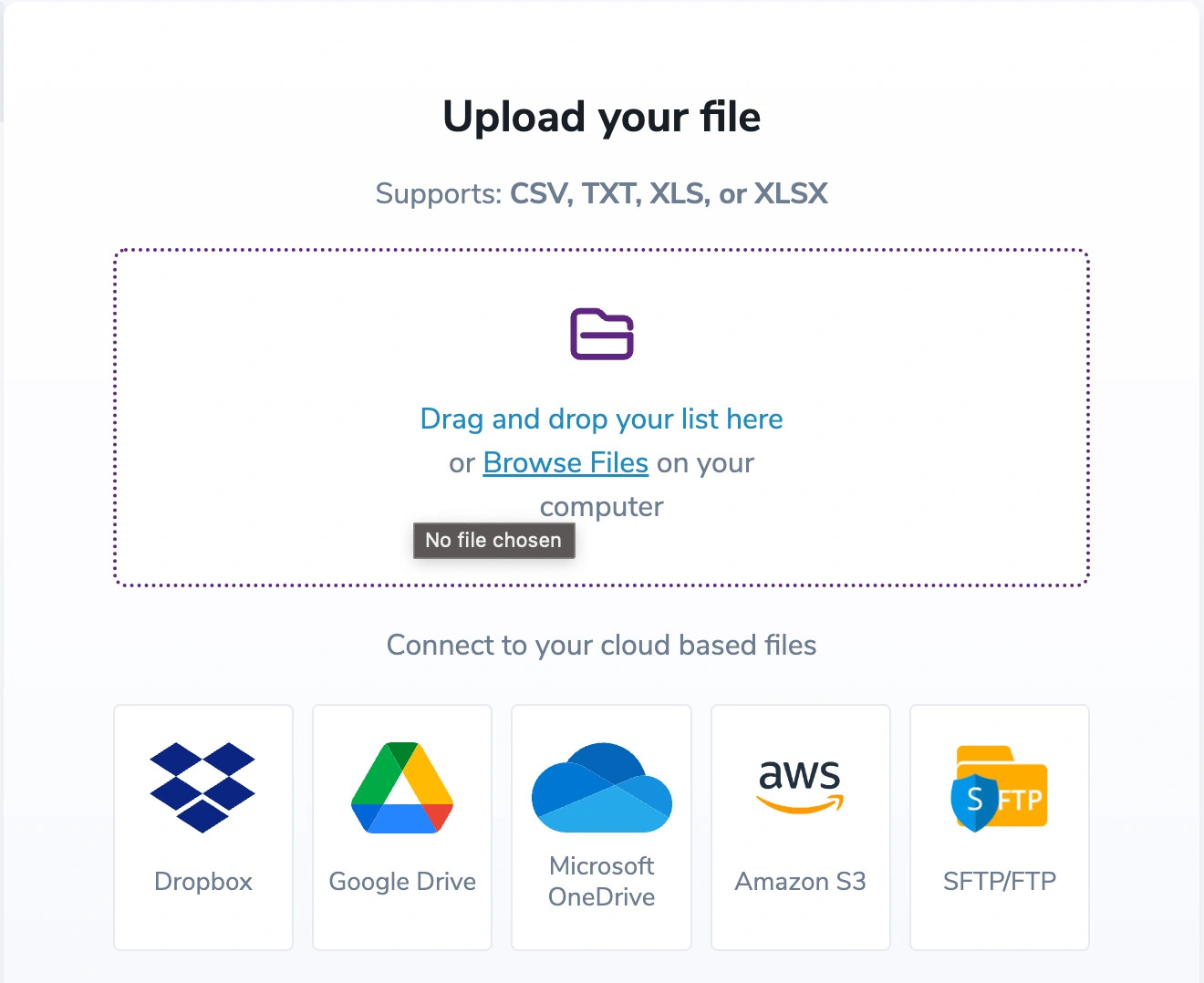
Hit SFTP/FTP
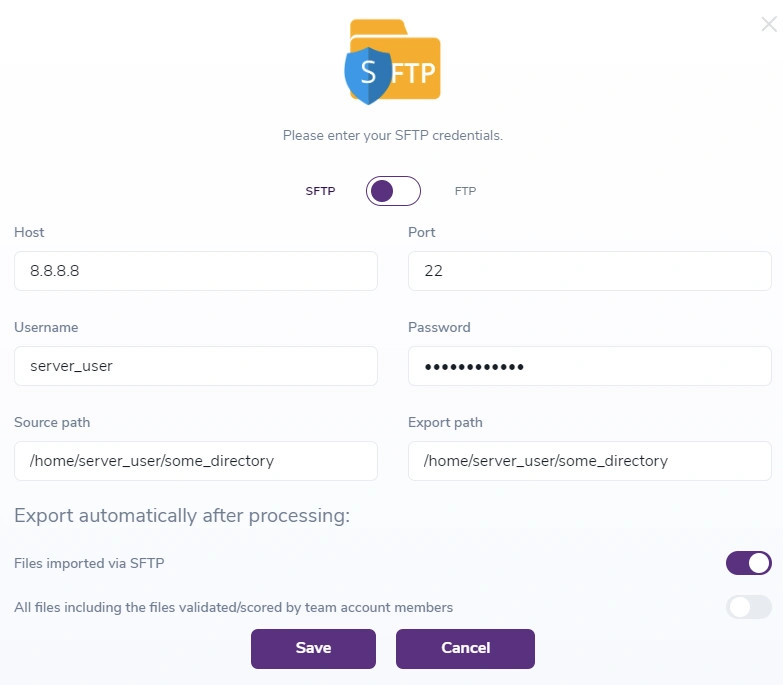
In this window, you should add the following information:
SFTP/FTP
Host
The Port number - it automatically defaults to 22 for SFTP, but you can overwrite this value, if needed. For FTP, it automatically defaults to 20-21, and cannot be changed
Username
Password - it will be stored encrypted on our side
The Import folder path - the location where your file that you want to be validated or scored resides. For SFTP it should be the absolute path, and for FTP the path starting from your user’s home directory, due to the fact that via FTP we don’t have access to the root directory (e.g. for /home/my_user/my_folder, you should only provide my_folder)
The Export folder path - the location to where the report will be exported. Same path rules apply as for the Import folder path
If you enable Export files originated via SFTP, all the files validated or scored via the ZB SFTP integration will also be exported back to to your machine (only applies to SFTP)
The Export all files option can only be enabled by the Owner. What it does is that it exports all files, validated or scored by any team member, regardless of their source, to the Owner’s machine. Only applies to SFTP. Note: For this export, we’ll be using the owner’s username and password
Hit Save
File Name - the name of the file you want to validate or score. It has to be a TXT, CSV, XLS or XLSX file and it’s case sensitive
Step 2 - Validate files
Go to the Validate page, select Validate New List and choose SFTP/FTP
In the next window, you have to introduce the name of the file you want to validate (and, if necessary, change the Import file path)
Hit Verify
The file should now be listed on the Validate page
Step 3 - Score files
Go to the Score page, select Score New List and choose SFTP
Choose SFTP/FTP
In the next window, you have to introduce the name of the file you want to validate (and, if necessary, change the Import file path)
Hit Verify
The file should now be listed on the Validate page
Step 4 - Export the file manually
Go to Validate or Score page
From the list, select a file that has been validated or scored via SFTP
Hit the download button
Select Export via SFTP/FTP
Note: In case two or more files with the same name will be validated or scored, the resulting files will be versioned.