ZeroBounce Logo

Docs

Language Icon
  • Sign In
  • Sign Up Free

Languages

ZeroBounce ImageGetting Started
ZeroBounce ImageEmail List Validation
ZeroBounce ImageA.I. Email Scoring
ZeroBounce ImageEmail Finder
ZeroBounce ImageDomain Search
ZeroBounce ImageActivity Data
ZeroBounce ImageMulti-file upload
ZeroBounce ImageIntegrations
ZeroBounce ImageActiveCampaign Integration
ZeroBounce ImageAdobe Journey Integration
ZeroBounce ImageAdobe Marketo Integration
ZeroBounce ImageAmazon S3 Integration
ZeroBounce ImageAmazon S3 Bulk API
ZeroBounce ImageAWeber Integration
ZeroBounce ImageBigCommerce Integration
ZeroBounce ImageChatGPT Integration
ZeroBounce ImageClay.com Integration
ZeroBounce ImageCloudFlare Worker Integration
ZeroBounce ImageConstant Contact Integration
ZeroBounce ImageCustomer.io Integration
ZeroBounce ImageDrip Integration
ZeroBounce ImageEmail Validator Browser Extension
ZeroBounce ImageGhost Integration
ZeroBounce ImageGoogle Sheets Integration
ZeroBounce ImageHubSpot Integration
ZeroBounce ImageHubSpot Forms Integration
ZeroBounce ImageInfinity Integration
ZeroBounce ImageIntegrations Contacts Monitoring, Scheduling and Sharing
ZeroBounce ImageIterable Integration
ZeroBounce ImageJS Widget
ZeroBounce ImageKlaviyo Integration
ZeroBounce ImageLinkedIn Integration
ZeroBounce ImageMailchimp Integration
ZeroBounce ImageMailerLite Integration
ZeroBounce ImageMicrosoft Dynamics Integration
ZeroBounce ImageMonday.com Integration
ZeroBounce ImageMoosend Integration
ZeroBounce ImageOutreach Integration
ZeroBounce ImagePipeDrive Integration
ZeroBounce ImageSalesforce Integration v1.39
ZeroBounce ImageSFTP/FTP Integration
ZeroBounce ImageSFTP/FTP Bulk API
ZeroBounce ImageUnbounce Integration
ZeroBounce ImageWix Integration
ZeroBounce ImageWordPress/WooCommerce Plugins
ZeroBounce ImageZapier Integration
ZeroBounce ImageZendesk Sell Integration
ZeroBounce ImageZoho Integration
ZeroBounce ImageUsage Reports
ZeroBounce ImageYour ZeroBounce Account
ZeroBounce ImageEmail Validation API
ZeroBounce ImageEmail Finder API
ZeroBounce ImageDomain Search API
ZeroBounce ImageA.I. Scoring API
ZeroBounce ImageActivity Data API
ZeroBounce ImageList Evaluator API
ZeroBounce ImageApi Dashboard
ZeroBounce ImageAPI Wrappers
ZeroBounce ImageAPI Migration
ZeroBounce ImageFAQ
ZeroBounce ImageSecuring Your Account
ZeroBounce ImageAbout ZeroBounce
ZeroBounce ImageDeliverability Tools
ZeroBounce ImageStatus Page
  • Email Validation Homepage
  • Separator
  • Docs
  • Separator
  • API Integrations
  • Separator
  • Amazon S3 Integration
API Integrations

Email Validation and Email Scoring for Amazon S3

ZeroBounce's new Integration with Amazon Simple Storage Service (Amazon S3) allows you to validate or score files located in any of your S3 buckets, in a similar manner to what can be currently done via our Email List Validation service. In addition, the result can be both manually and automatically exported back to Amazon S3, in any Bucket you choose.

In order to authorize ZeroBounce to have access to your Buckets, an Access Key and a Secret Access Key are required; the Secret Access Key will be stored encrypted on our side. Although it is not mandatory, we recommend you to create a dedicated user account, that has limited access to Amazon S3, or even to certain Buckets. In order to generate the credentials, perform the steps 1 (optional) and 2.

Prerequisites

  • An active AWS account
  • At least one Amazon S3 Bucket

Step 1 (optional) - Create a dedicated user account

1. Sign in to AWS Console

2. Go to the search bar, type in user and select Users
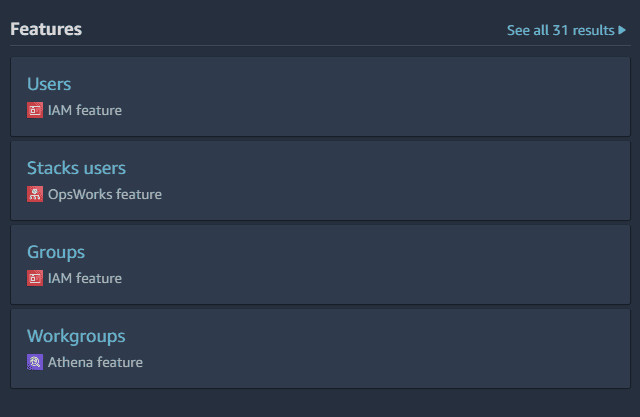
Go to the search bar, type in user and select Users

3. Click on Add users in the top-right corner
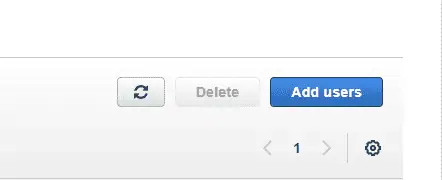
Click on Add users in the top-right corner

4. Choose a username (e.g. zerobounce.integration) and hit Next
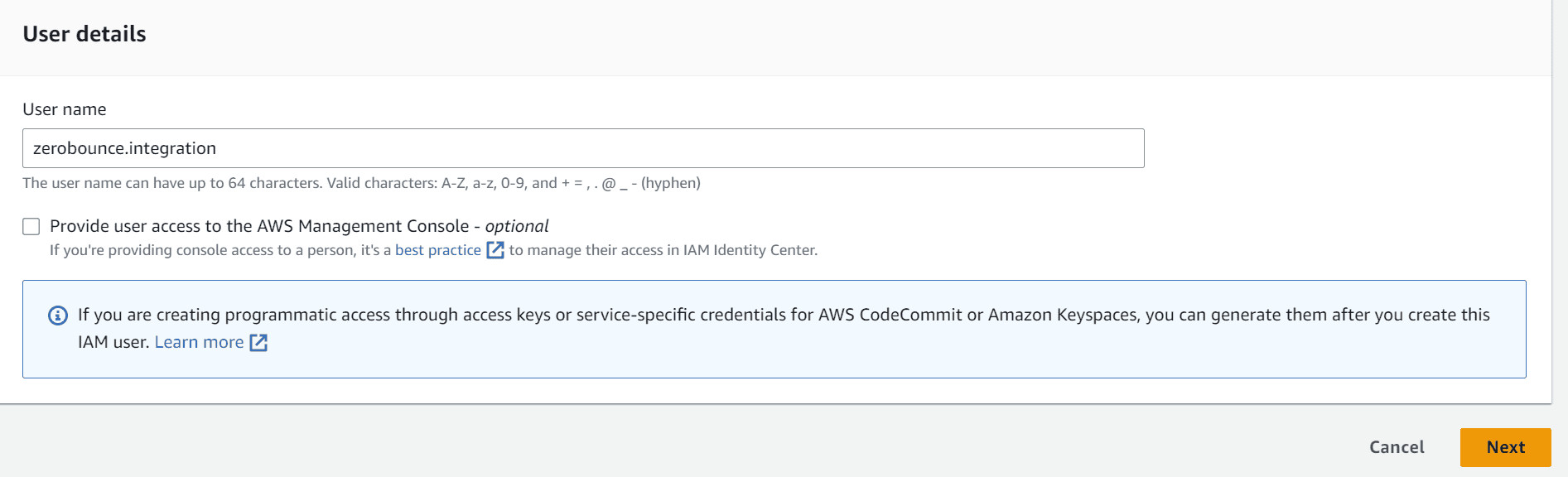
Choose a username (e.g. zerobounce.integration) and hit Next

5. On this page, you can either choose to attach the policy directly or add the user to a group (we’ll go with Attach policies directly). Here, you can choose one of the following:

  1. AmazonS3FullAccess - Give both reading and writing permissions to S3
  2. AmazonS3ReadOnlyAccess - Give only reading permissions (in case you don’t want to export the results back to S3)

For a more granular approach (e.g. access to only specific Buckets), you can always create a dedicated policy using Create policy.
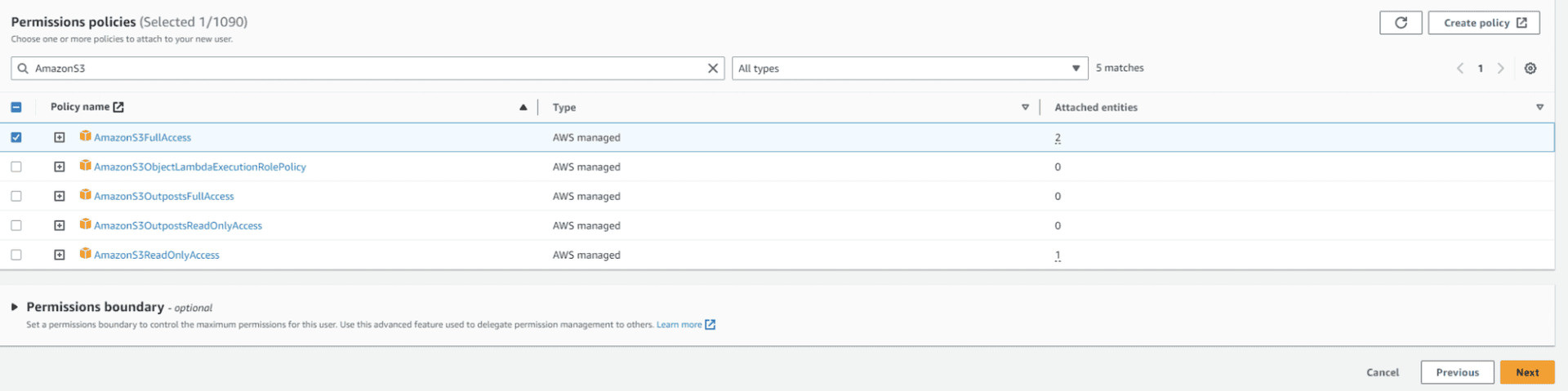
ZeroBounce Image

6. Hit Next and then Create user

Step 2 - Generate the Keys

1. As before, go to the search bar, type in user and select Users

2. If you followed Step 1, click on the user you just created. Otherwise, just select the user for whom you want to create the Keys

3. Go to Security Credentials
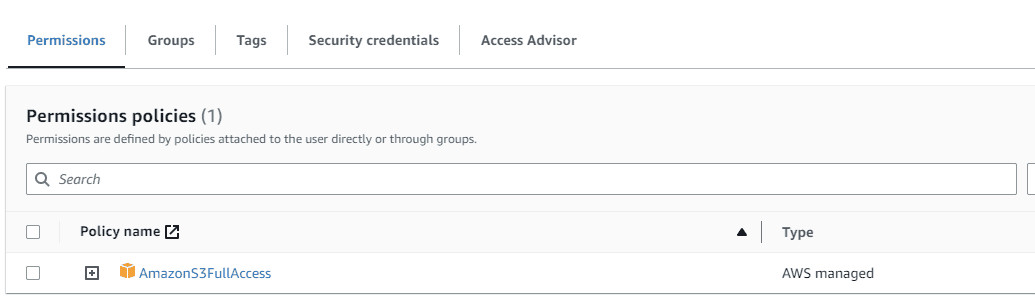
3. Go to Security Credentials

4. Under Access keys, select Create access key
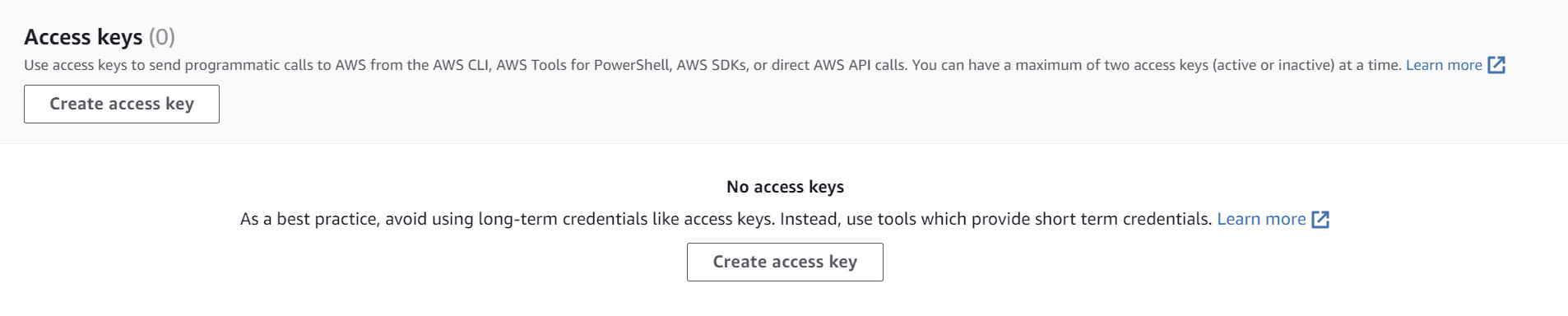
4. Under Access keys, select Create access key

5. On the following page, select Command Line Interface (CLI), check I understand the above recommendation and want to proceed to create an access key. checkbox and hit Next
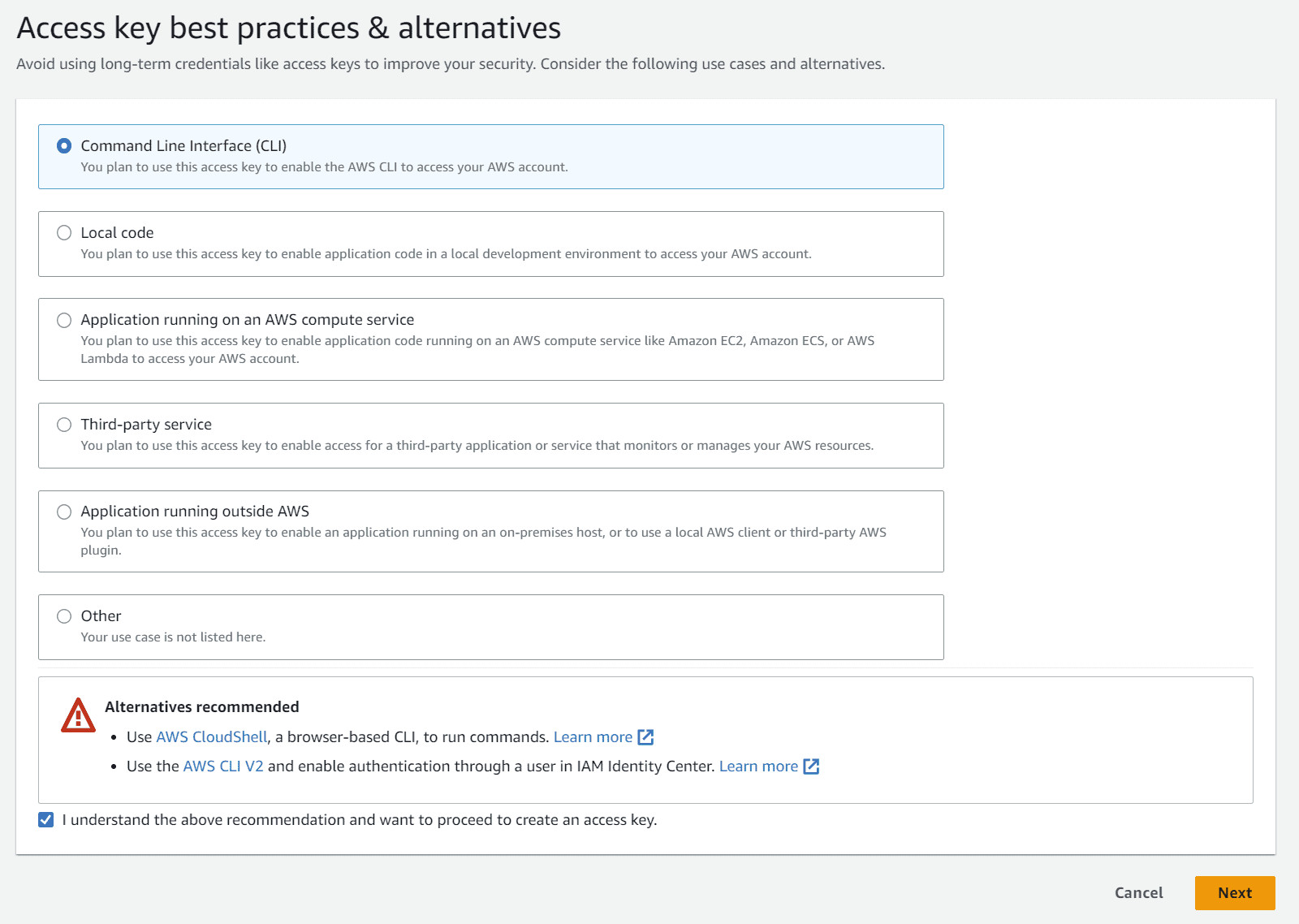
5. On the following page, select Command Line Interface (CLI), check I understand the above recommendation and want to proceed to create an access key. checkbox and hit Next

6. (Optional) Add a Description tag

7. Hit Create access key

8. Optionally, you can download the Keys by hitting the Download .csv file; just remember, the secret key will no longer be obtainable after you close this window.
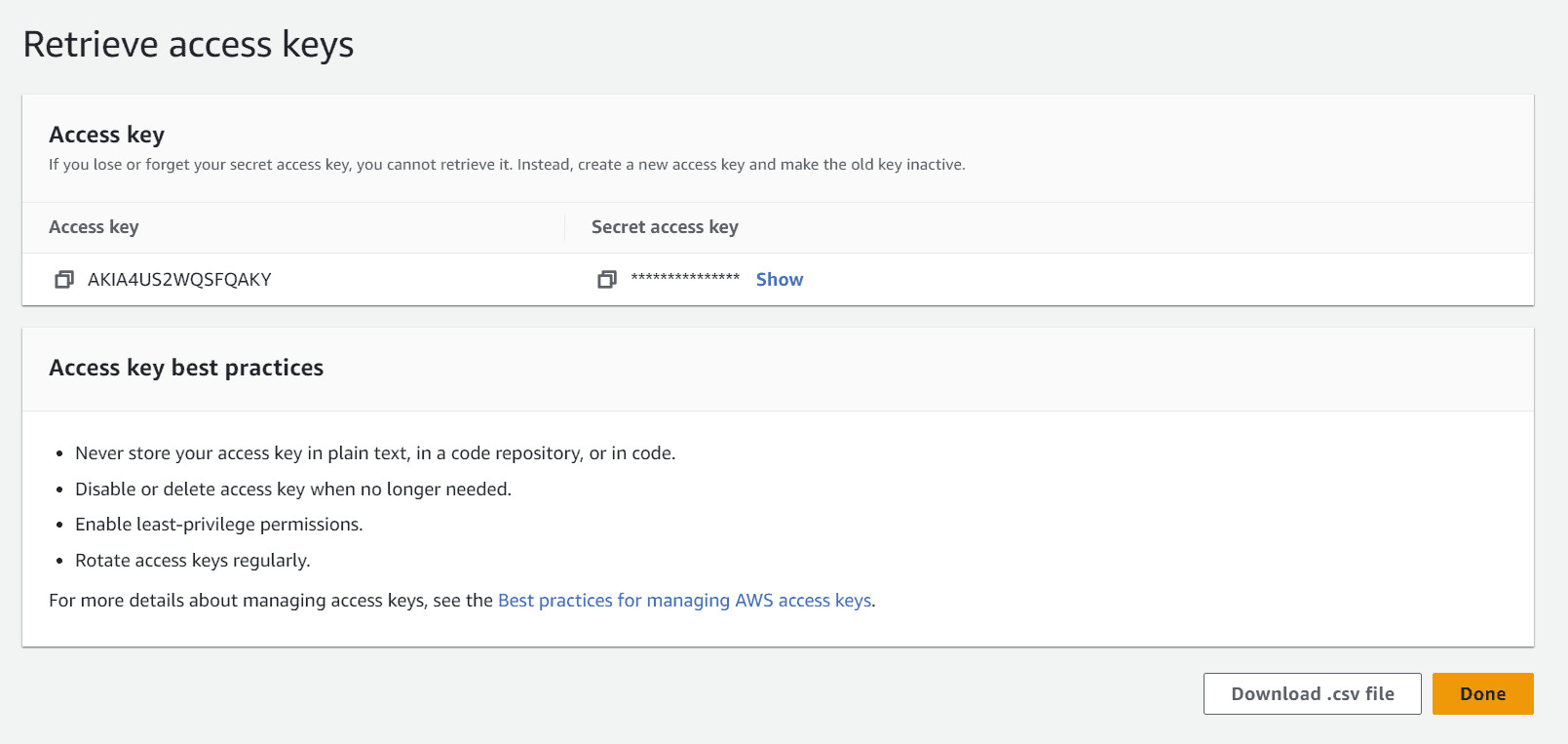
8. Optionally, you can download the Keys by hitting the Download .csv file; just remember, the secret key will no longer be obtainable after you close this window.

9. Save the Access Key and Secret Access Key, and hit Done

Step 3 - Load the Keys in ZeroBounce

1. Sign in to your ZeroBounce account

2. Go to Validate or Score, and select Amazon S3
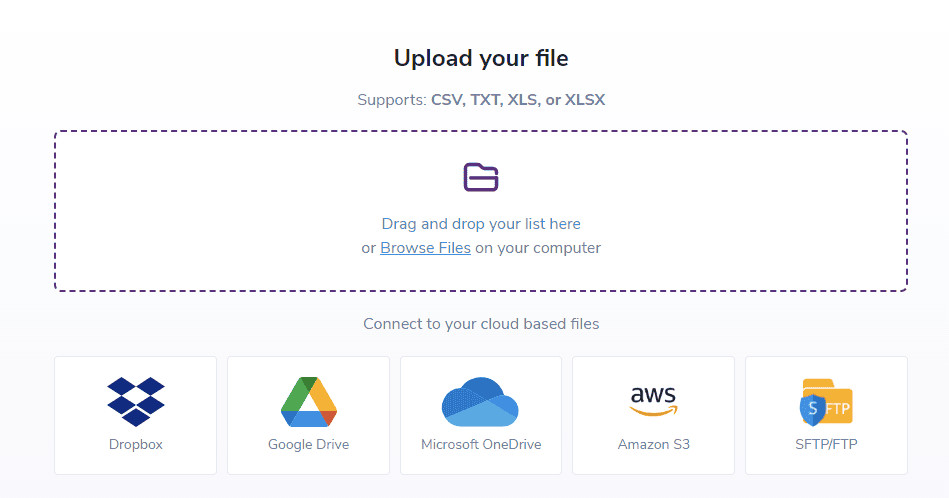
2. Go to Validate or Score, and select Amazon S3

3. In this window, you should:
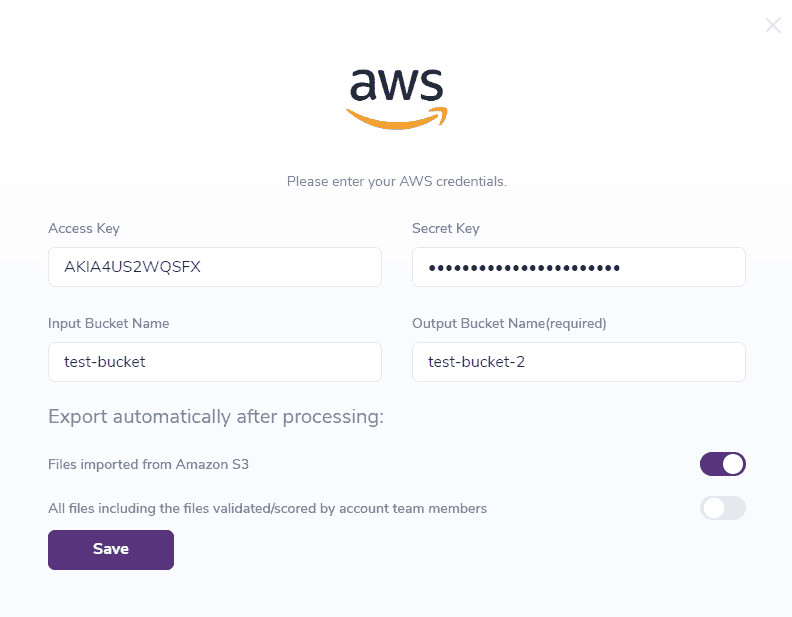
  1. add the two Keys
  2. add the Input Bucket, which is the Bucket from which the files will be taken for validation or scoring
  3. add the Output Bucket, which should be added if you want to benefit from the Export feature (Note: the Output Bucket can be the same as the Input Bucket).
  4. if you enable Files imported from Amazon S3, all the files validated or scored via the ZB S3 integration will also be exported back to S3
  5. the All files including the files validated/scored by account team members option can only be enabled by the Owner. What it does is that it exports all files, validated or scored by any team member, regardless of their source, to the Owner’s Export Bucket. Note: For this export, we’ll be using the owner’s Access Key and Secret Access Key
  6. after all information is inserted, click Save
ZeroBounce Image

Note: The next time Amazon S3 will be chosen from the Integrations page, there will be two options:

  1. Use saved settings - Should be selected in order to use the same information
  2. Update settings - Used in order to update the information

Step 4 - Validate files

1. Go to the Validate page, select Validate New List and choose Amazon S3

1. Go to the Validate page, select Validate New List and choose Amazon S31. Go to the Validate page, select Validate New List and choose Amazon S3

2. Select Use saved settings
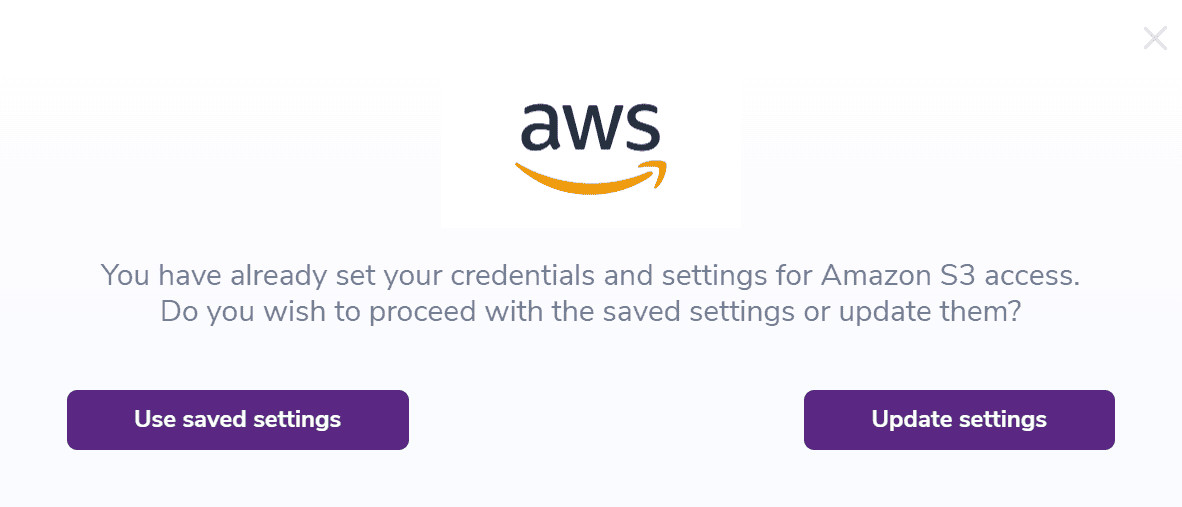
2. Select Use saved settings

3. In the next window, you can choose which file you’d like to be validated. To be noted that only TXT, CSV, XLS and XLSX files will be listed
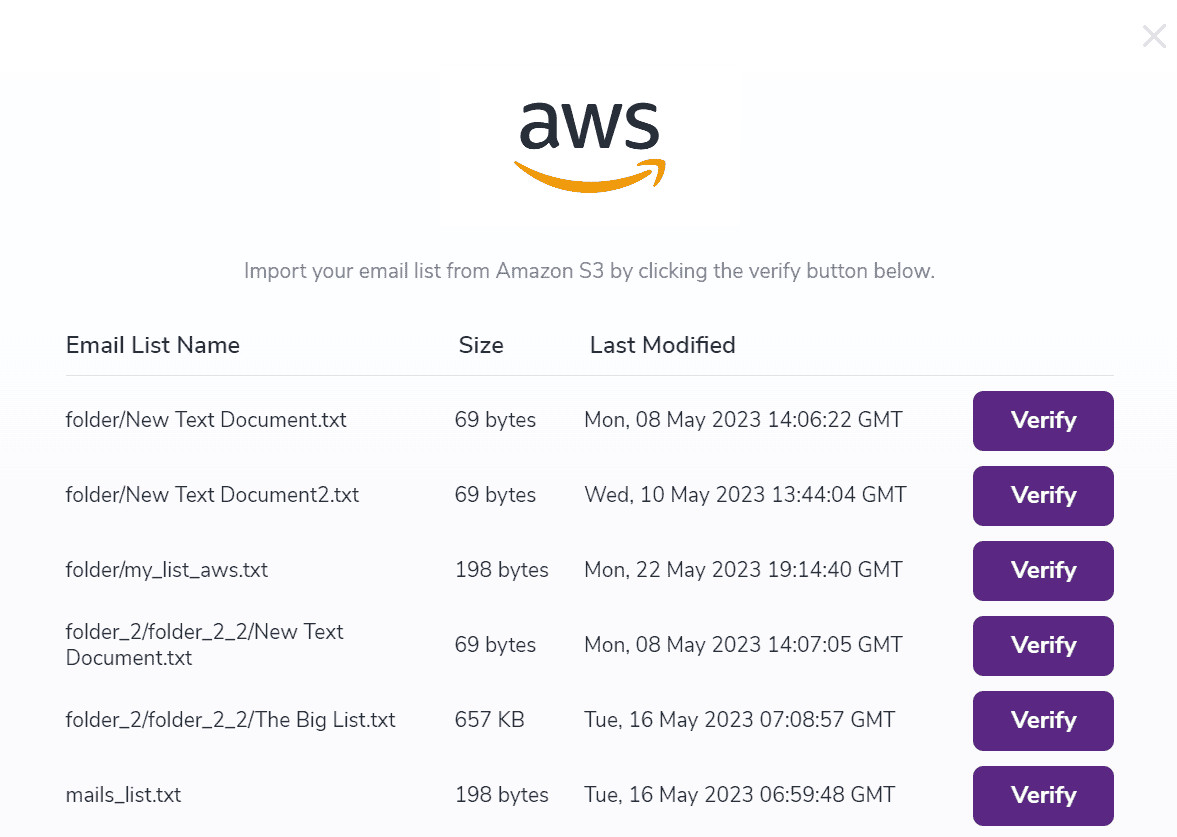
3. In the next window, you can choose which file you’d like to be validated. To be noted that only TXT, CSV, XLS and XLSX files will be listed

4. Hit Verify

5. The file should now be listed on the Validate page

Step 5 - Score files

1. Go to the Score page, select Score New List and choose Amazon S3

1. Go to the Score page, select Score New List and choose Amazon S31. Go to the Score page, select Score New List and choose Amazon S3

2. Select Use saved settings

2. Select Use saved settings

3. In the next window, you can choose which file you’d like to be scored. To be noted that only TXT, CSV, XLS and XLSX files will be listed

3. In the next window, you can choose which file you’d like to be scored. To be noted that only TXT, CSV, XLS and XLSX files will be listed

4. Hit Verify

5. The file should now be listed on the Score page

Step 6 - Export the file manually

1. Go to Validate or Score page

2. From the list, select a file that has been validated or scored through S3

3. Hit the download button
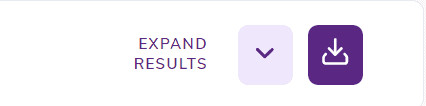
3. Hit the download button

4. Select Export to Amazon S3
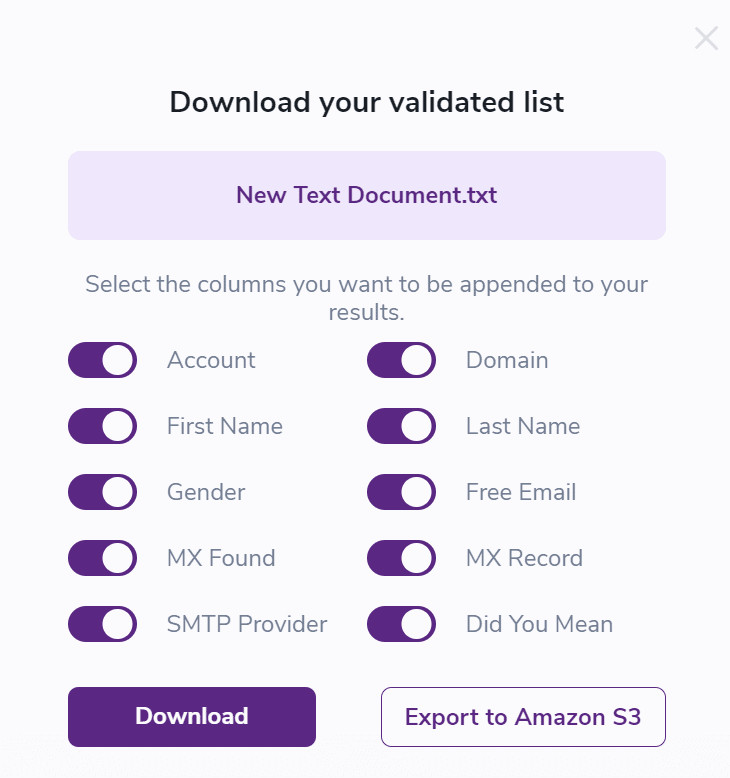
4. Select Export to Amazon S3

Note: Whenever a file will be exported, either manually or automatically, it will be saved in a directory named ZeroBounce_Results, located in the Bucket’s root. Also, files located in this folder will not be populated when listing all files for verification or scoring.

Note: Whenever a file will be exported, either manually or automatically, it will be saved in a directory named ZeroBounce_Results, located in the Bucket’s root. Also, files located in this folder will not be populated when listing all files for verification or scoring.

In case two or more files with the same name will be validated or scored, the resulted files will be versioned in S3.

In case two or more files with the same name will be validated or scored, the resulted files will be versioned in S3.