
Docs
Docs
ZeroBounce Email Validator is a powerful browser extension designed to validate and extract email addresses found on a webpage. This easy-to-use tool helps you maintain a clean mailing list and improve your email marketing efforts.
This beginner-friendly guide explains how to install, use, and troubleshoot the ZeroBounce Email Validator browser extension.
1. Download the ZeroBounce Chrome extension.
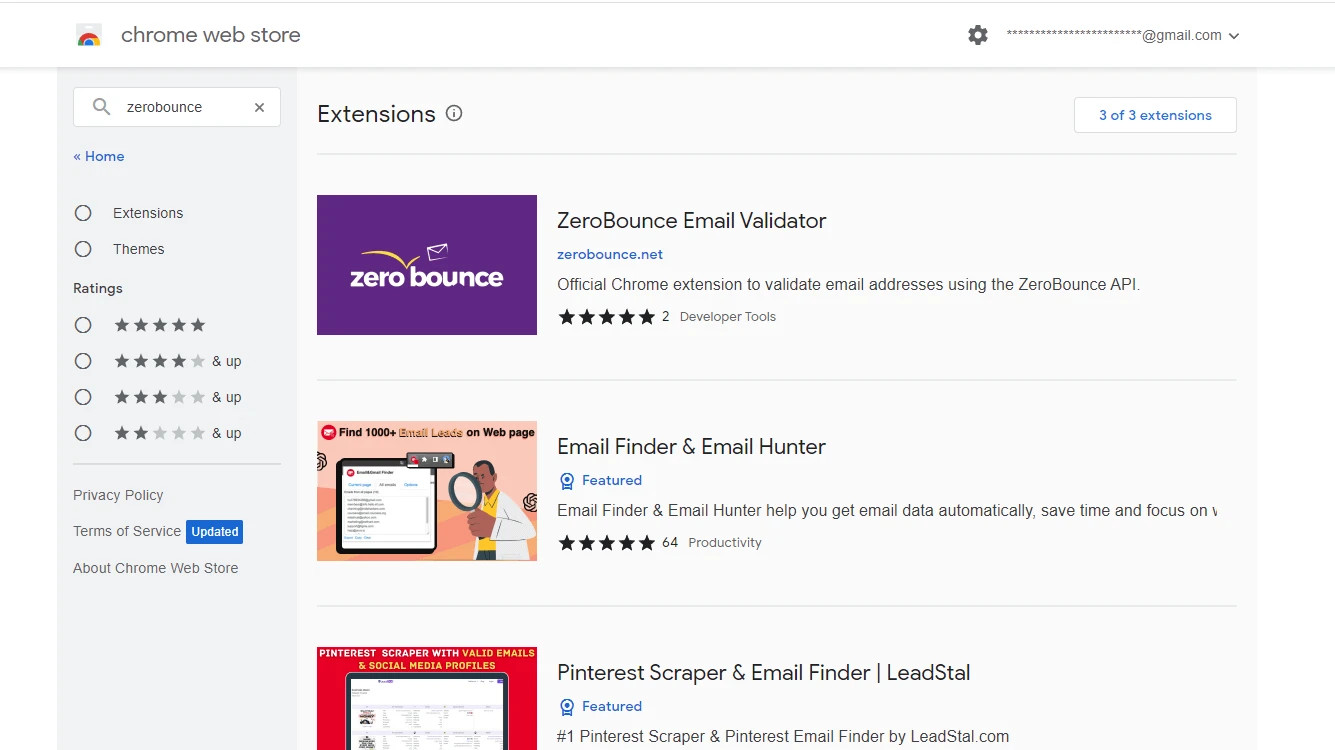
The ZeroBounce Email Validator extension in the Chrome web store
2. Click Add to Chrome.
3. A confirmation window will appear. Click Add extension to complete the installation.
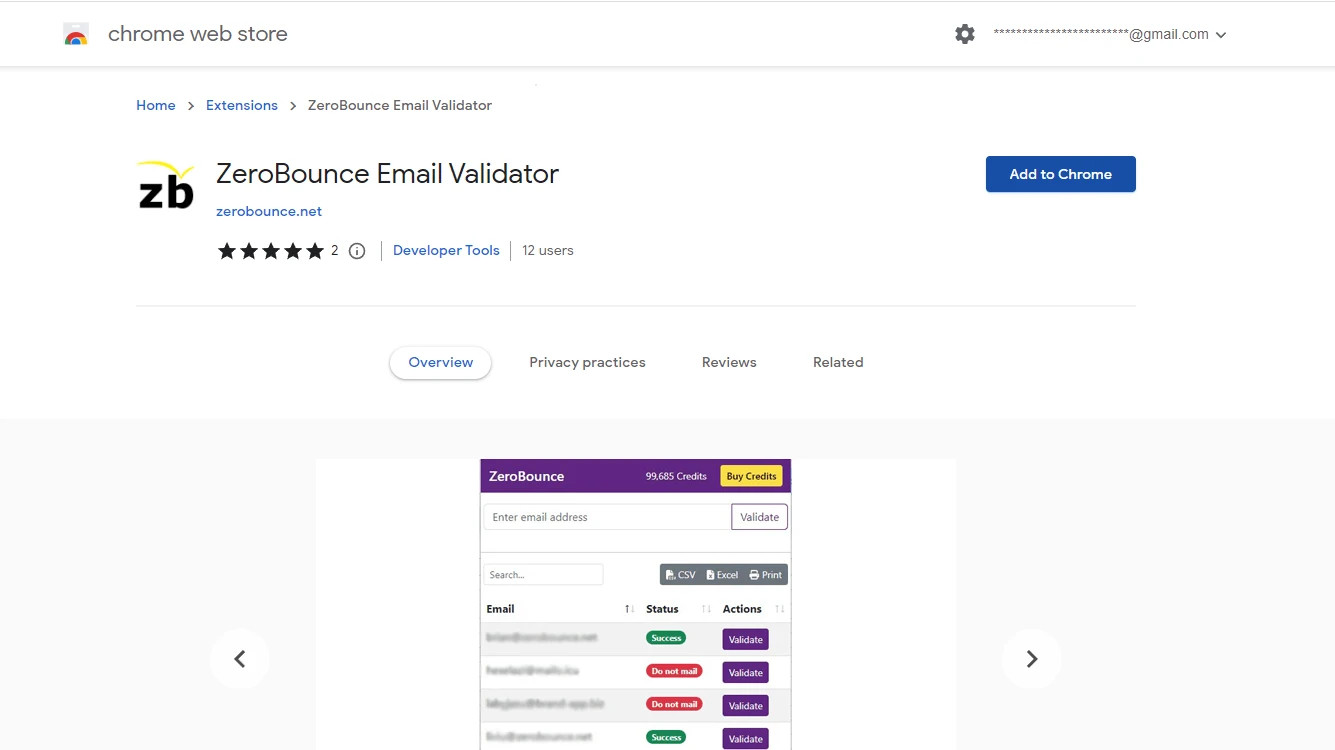
The ZeroBounce Email Validator extension main page in the Chrome marketplace
4. After adding the extension, the options/settings page will open automatically.
5. Enter your ZeroBounce API Key to use the extension.
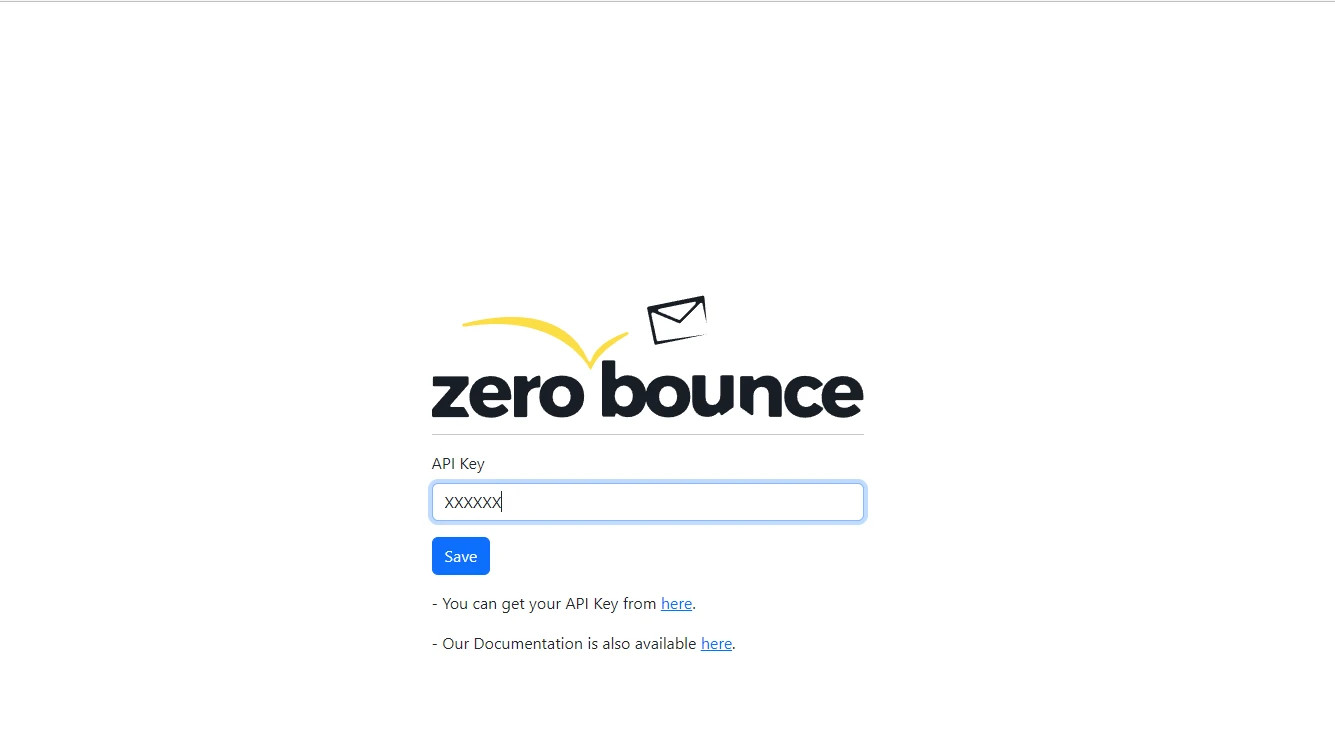
The ZeroBounce Email Validator extension API key settings page
1. Download the Mozilla Firefox extension.
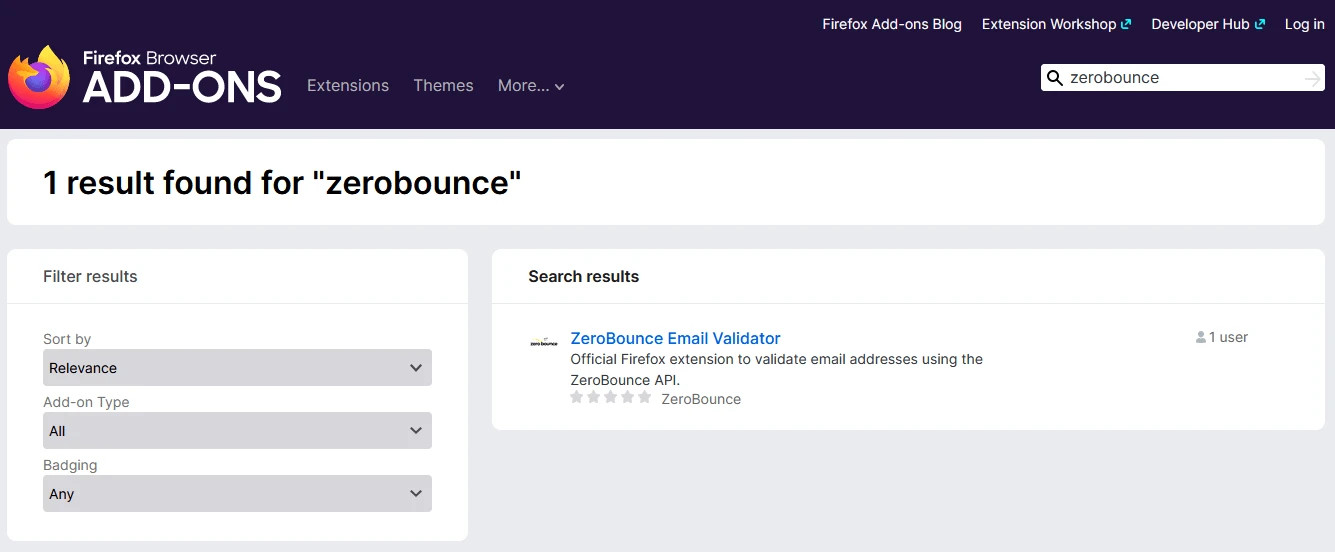
The ZeroBounce Email Validator extension in the Firefox Browser add-ons results page
2. Click Add to Firefox.
3. A confirmation window will appear. Click Add to complete the installation.
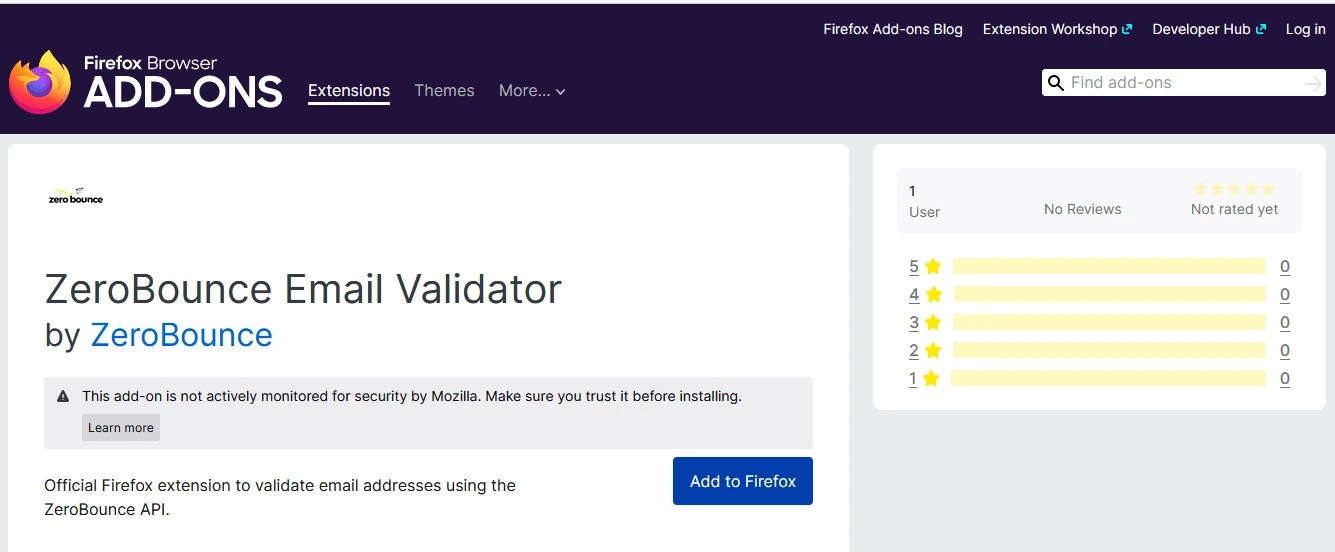
The official ZeroBounce Email Validator Firefox add-on page
4. The Firefox options/settings page might not open automatically. In this case, right click on the extension icon and click Manage Extension.
5. Enter your ZeroBounce API Key to use the extension.
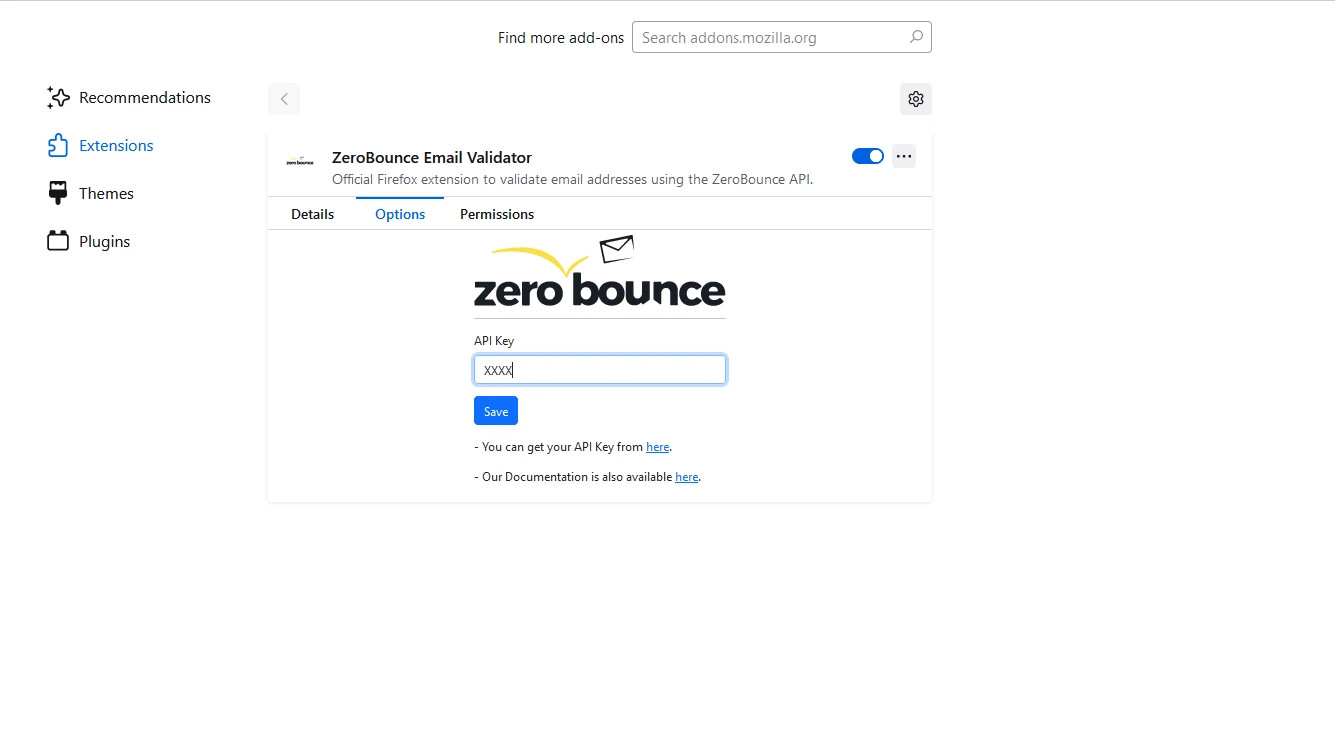
The ZeroBounce Email Validator Firefox API key settings page
1. Download the Microsoft Edge add-on
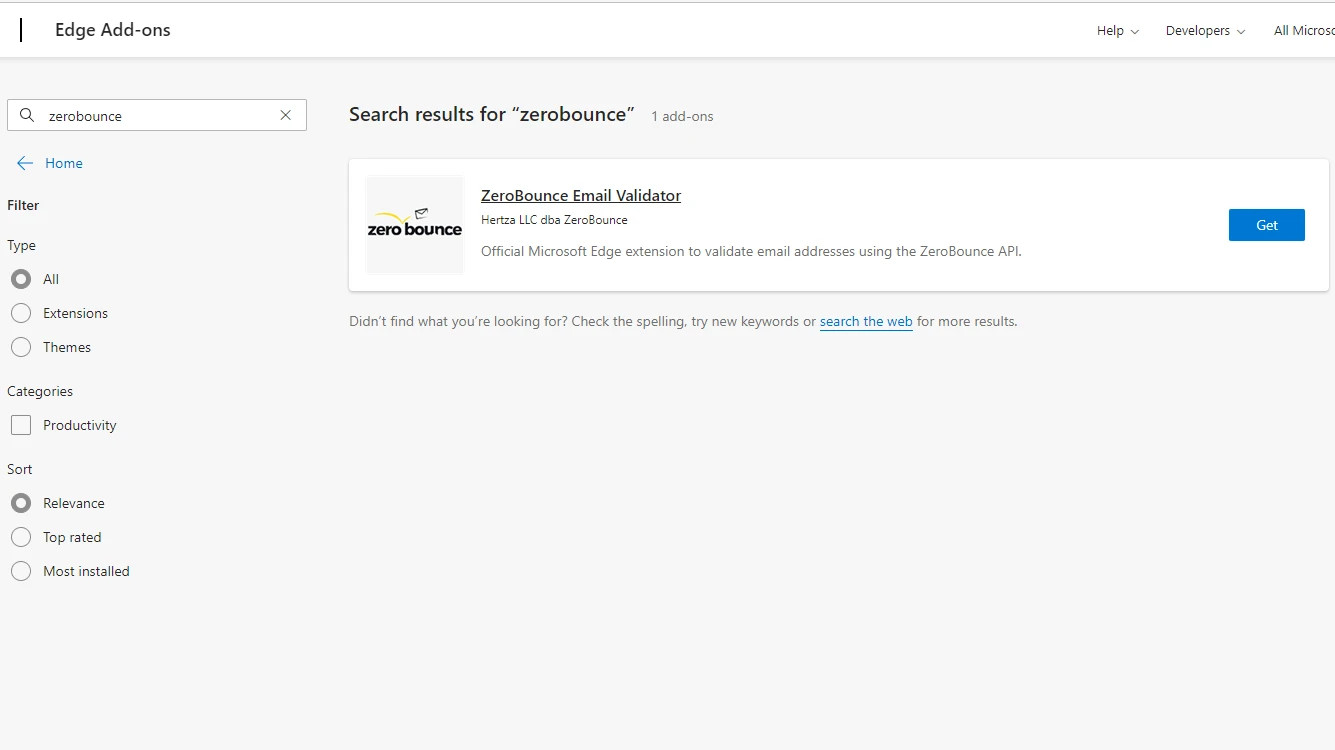
The ZeroBounce Email Validator extension in the Microsoft Edge extensions store
2. On the extension page, click Get.
3. A confirmation window will appear. Click Add extension to complete the installation.
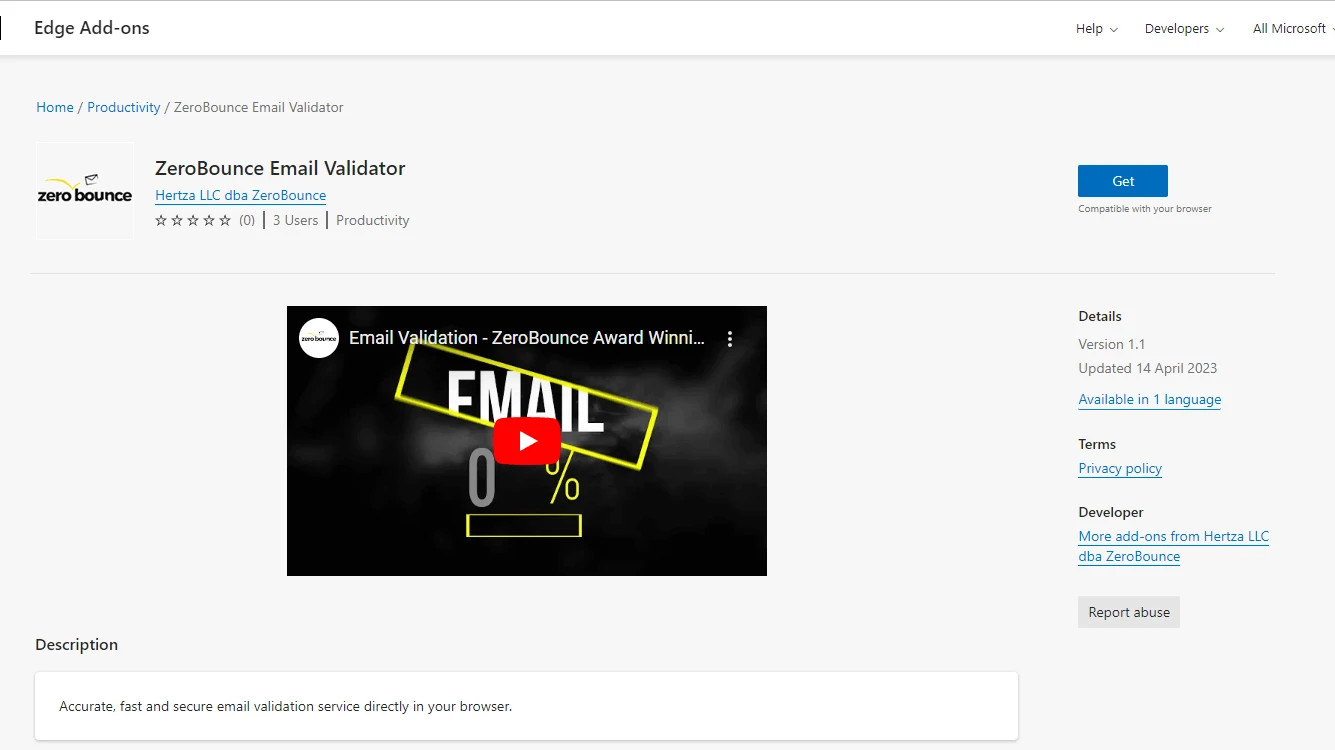
The official ZeroBounce Email Validator Microsoft Edge add-on page
4. After adding the extension, the options/settings page will open automatically in your Edge browser
5. Enter your ZeroBounce API Key to use the extension.
The ZeroBounce Email Validator add-on settings page in Microsoft Edge
You can manually validate an email address from your browser by using the ZeroBounce Email Validator extension.
To do so, follow these steps:
1. Click on the ZeroBounce Email Validator icon in your browser's toolbar.
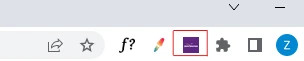
The ZeroBounce Email Validator extension pinned to the browser toolbar
2. Enter the email address you want to validate in the text field.
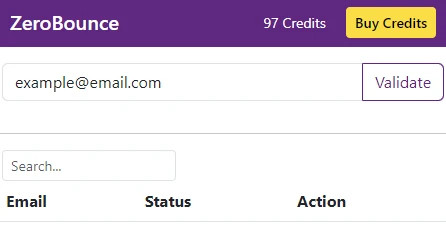
The ZeroBounce Email Validator email validation menu
3. Click the Validate button.
The extension will display the validation result (e.g., valid, invalid, or unknown).
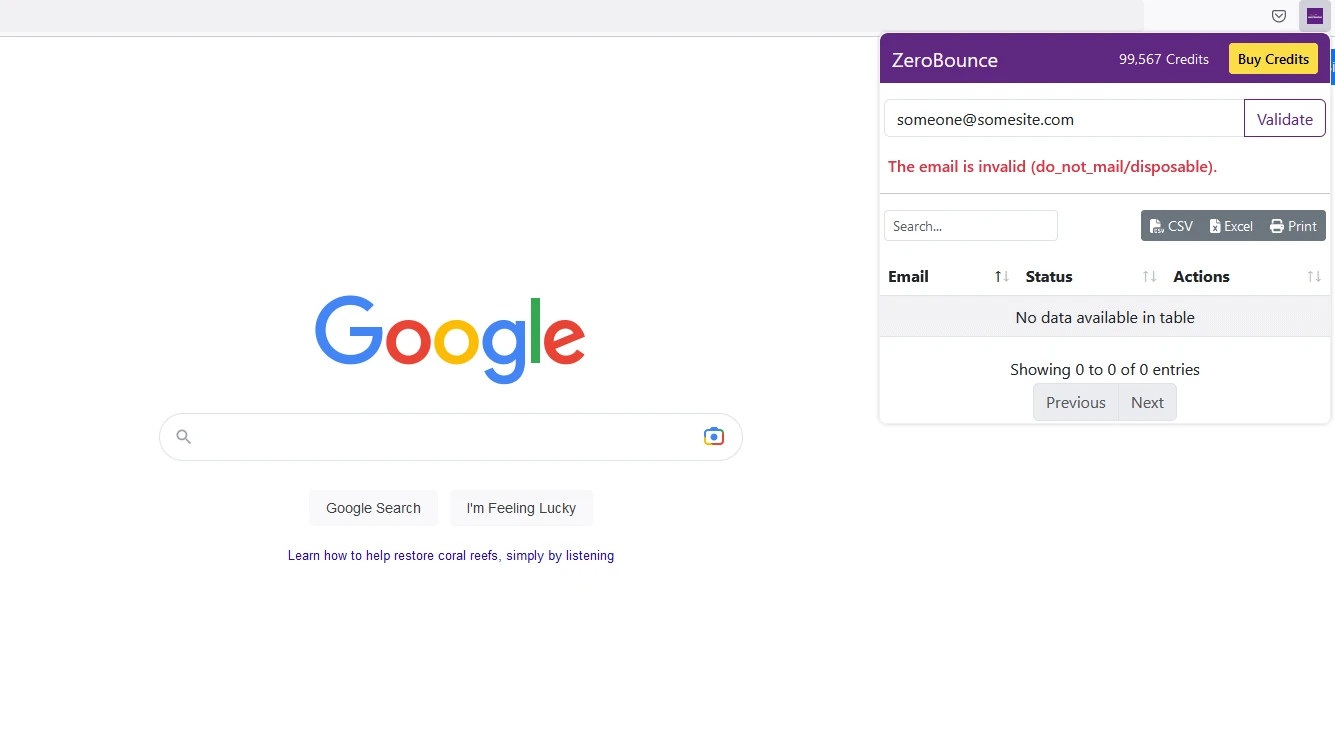
Email validation results in the ZeroBounce Email Validator extension
You can also use the ZeroBounce extension to extract all email addresses found on a webpage.
To do so, follow these steps:
1. Visit any webpage containing email addresses you want to extract.
2. Click on the ZeroBounce Email Validator icon in your browser's toolbar.
3. The extension will automatically display a list of extracted email addresses.
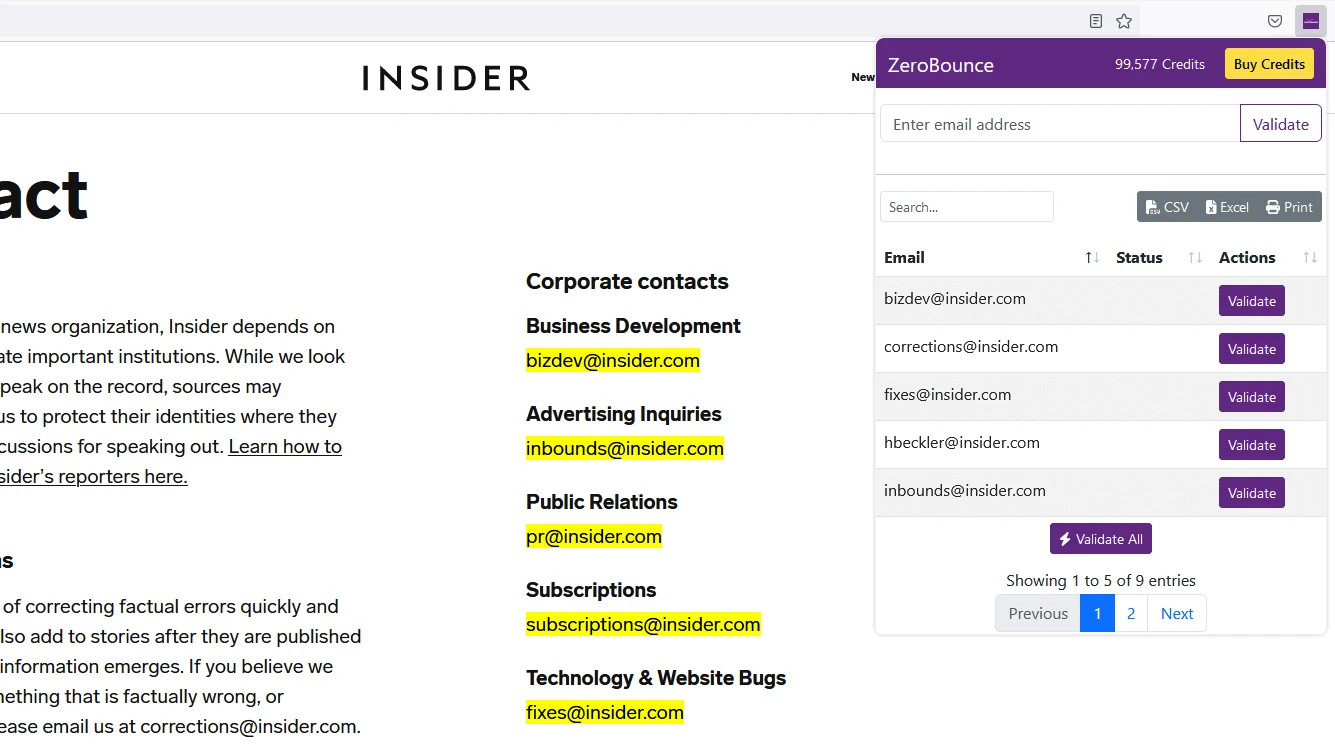
ZeroBounce Email Validator extension extraction results
You can then use the ZeroBounce extension to validate all extracted email addresses in bulk.
To use the extension for bulk email validation, follow these steps:
1. Follow the previous section to extract email addresses from a webpage.
2. In the list of extracted email addresses, click the "Validate All" button.
3. The extension will display the validation results for each email address.
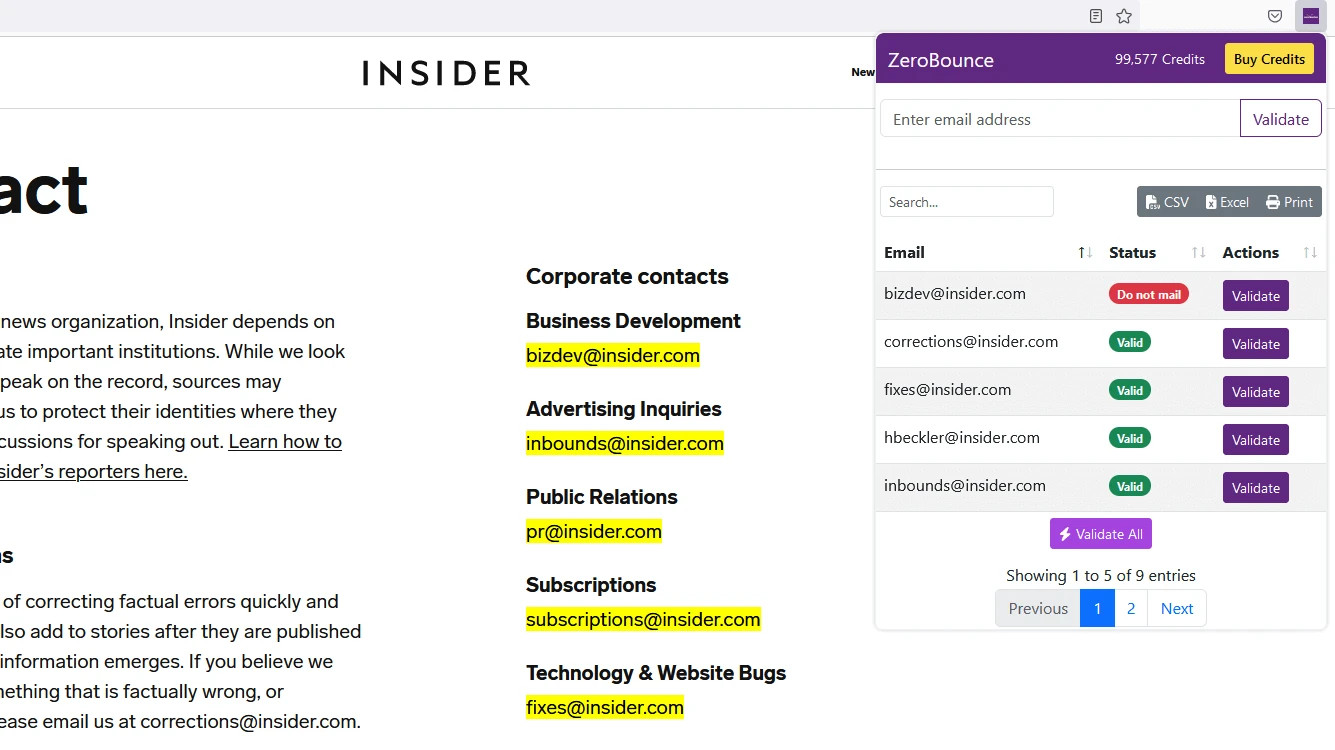
Bulk email validation results for extracted emails using the ZeroBounce extension
Finally, you can export extracted and validated emails using the ZeroBounce extension.
To export your emails:
1. Click on the ZeroBounce Email Validator icon in your browser's toolbar.
2. Select the desired export format (CSV, Excel, or Print) from the buttons next to the search.
This will prompt a download of your CSV, XLSX file, or a printable document containing your email addresses.
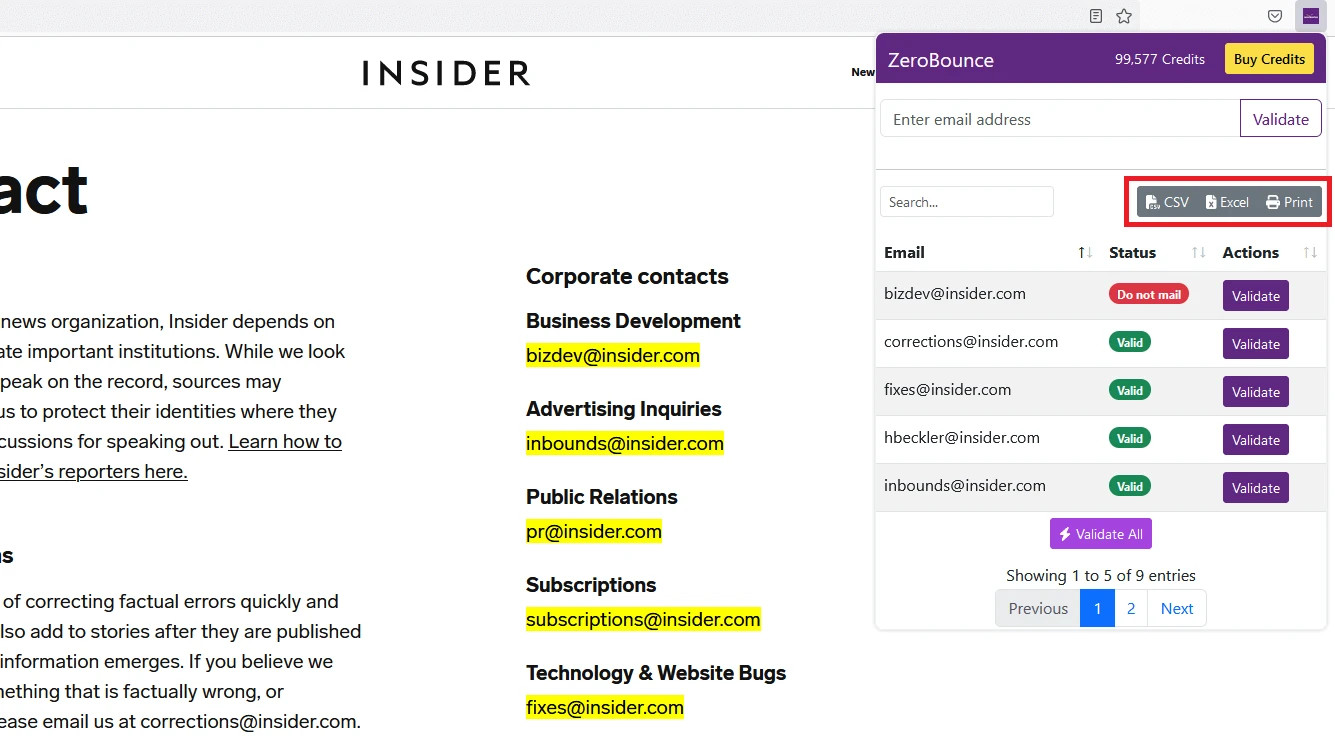
Menu for exporting bulk email validation results in the ZeroBounce Email Validator
With this user-friendly guide, you can now effortlessly install and utilize the ZeroBounce Email Validator browser extension to enhance your email marketing campaigns.
Be sure to regularly validate your emails to keep your email list clean. This extension will help you reduce email bounce rates, boost subscriber engagement, and improve your email marketing ROI.
The ZeroBounce Email Validator browser extension is designed to be reliable and user-friendly. However, like any software, you might encounter occasional issues.
This troubleshooting guide provides solutions to common problems you may face while using the ZeroBounce Email Validator extension.
If the ZeroBounce Email Validator extension becomes unresponsive, try the following steps:
1. Refresh the browser. Click the reload button or press F5 (or Cmd + R on Mac) to refresh your browser.
2. Restart the browser by closing your browser and reopening it. This can help resolve temporary glitches.
3. Disable and re-enable the extension.
To do this, go to your browser's extension settings, disable the ZeroBounce Email Validator extension, and then re-enable it.
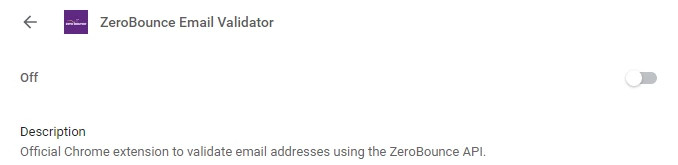
Google Chrome extension toggle for the ZeroBounce Email Validator
If the ZeroBounce Email Validator icon is missing from your browser's toolbar, follow these steps:
For Google Chrome and Microsoft Edge:
1. Click the puzzle piece icon (Extensions) in the upper-right corner of the browser.
2. Find the ZeroBounce Email Validator extension in the list and click the pin icon to add it to your toolbar.
For Mozilla Firefox
1. Click the three horizontal lines (Menu) in the upper-right corner of the browser.
2. Select Add-ons from the dropdown menu.
3. Find the ZeroBounce Email Validator extension in the list and click the three-dot menu.
4. Select Manage, then enable the "Show in Toolbar" option.
If you are unable to see extracted emails after clicking the Extract Emails button:
1. Ensure that the webpage you’re visiting contains visible email addresses.
2. Clear your browser cache and refresh the page. Then, try extracting emails again.
In Google Chrome, you can do this by accessing the settings menu, hovering over “More tools,” and clicking on Clear browsing data.
In Microsoft Edge, go to your settings menu, find Privacy, search, and services and scroll down to Clear browsing data.
In Mozilla Firefox, go to settings and find Privacy & security. Select Clear Data.
3. Temporarily disable other extensions that may be interfering with the ZeroBounce Email Validator extension.
If your validation results do not appear after validating an email address or using the "Validate All" feature:
1. Check your internet connection and ensure that you have a stable connection.
2. Refresh your browser and validate the email addresses again.
3. Ensure that you have enough credits to complete the validation attempt.
Note - If you are using the free version of ZeroBounce, ensure you have not exceeded the monthly limit for email validation.
If you are experiencing issues when exporting email lists:
1. Make sure you have selected the desired export format (CSV, Excel, or Print) from the "Export" buttons.
2. Check your browser's download settings and ensure that files are allowed to download from the ZeroBounce Email Validator extension.
3. For printing issues, ensure that your printer is connected and properly configured in your system settings.
If you continue to experience problems with the ZeroBounce Email Validator extension, don’t hesitate to reach out to our support team at support@zerobounce.net, visiting our live chat.
