
Docs
Docs
The LinkedIn ZeroBounce integration is now available.
To integrate your LinkedIn account with ZeroBounce, follow these steps:
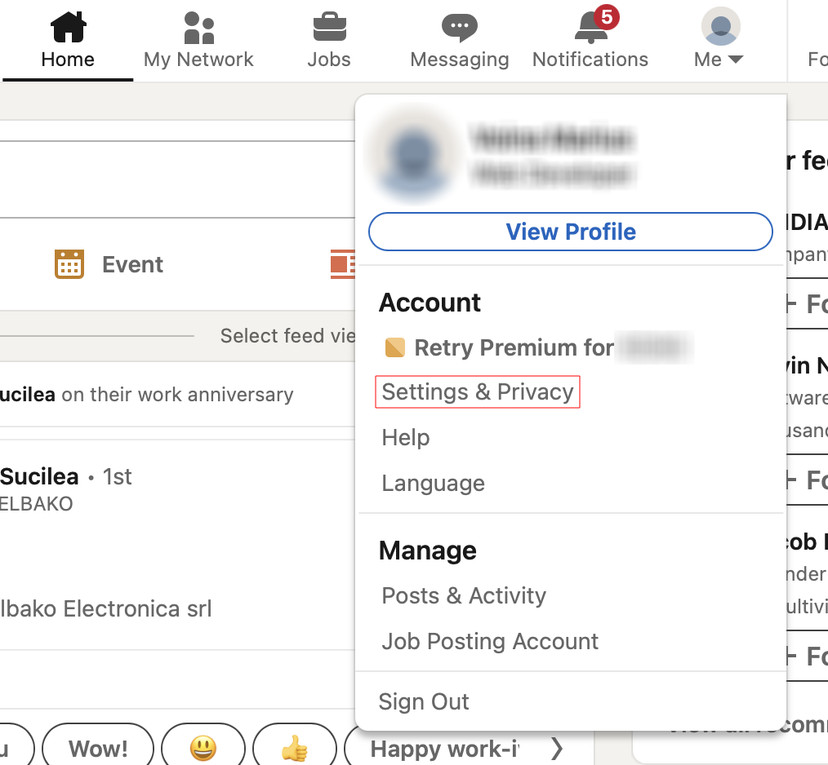
1. Access your LinkedIn account and navigate to the profile menu.
2. Select Settings & Privacy from the dropdown menu.
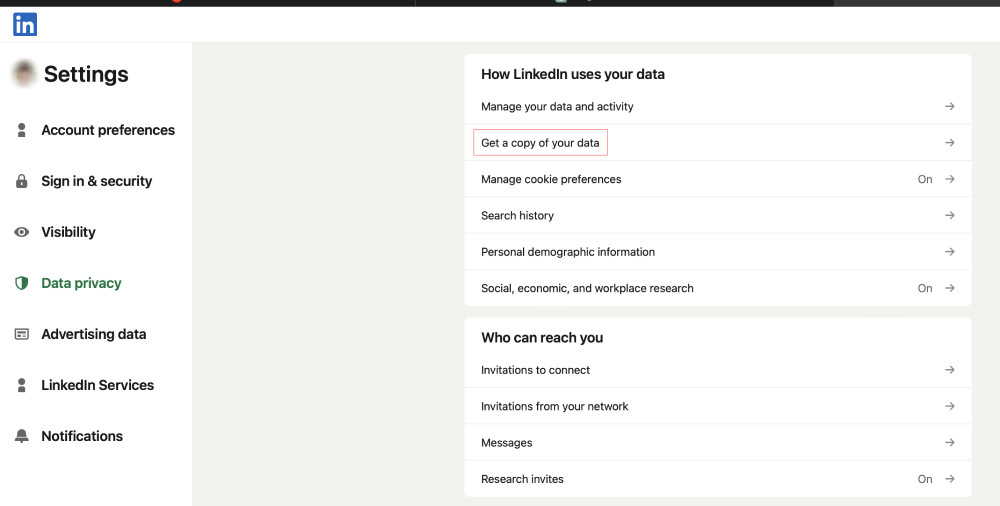
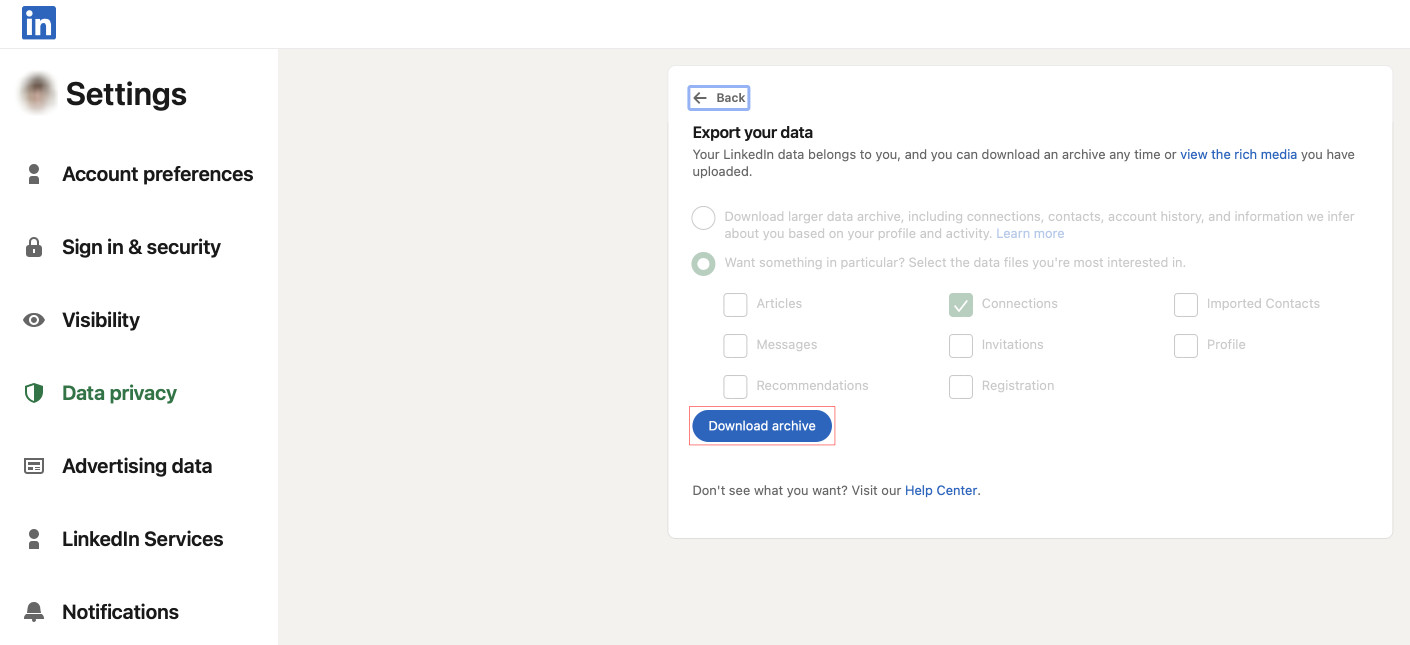
3. Within the Data Privacy section, click on Get a copy of your data.
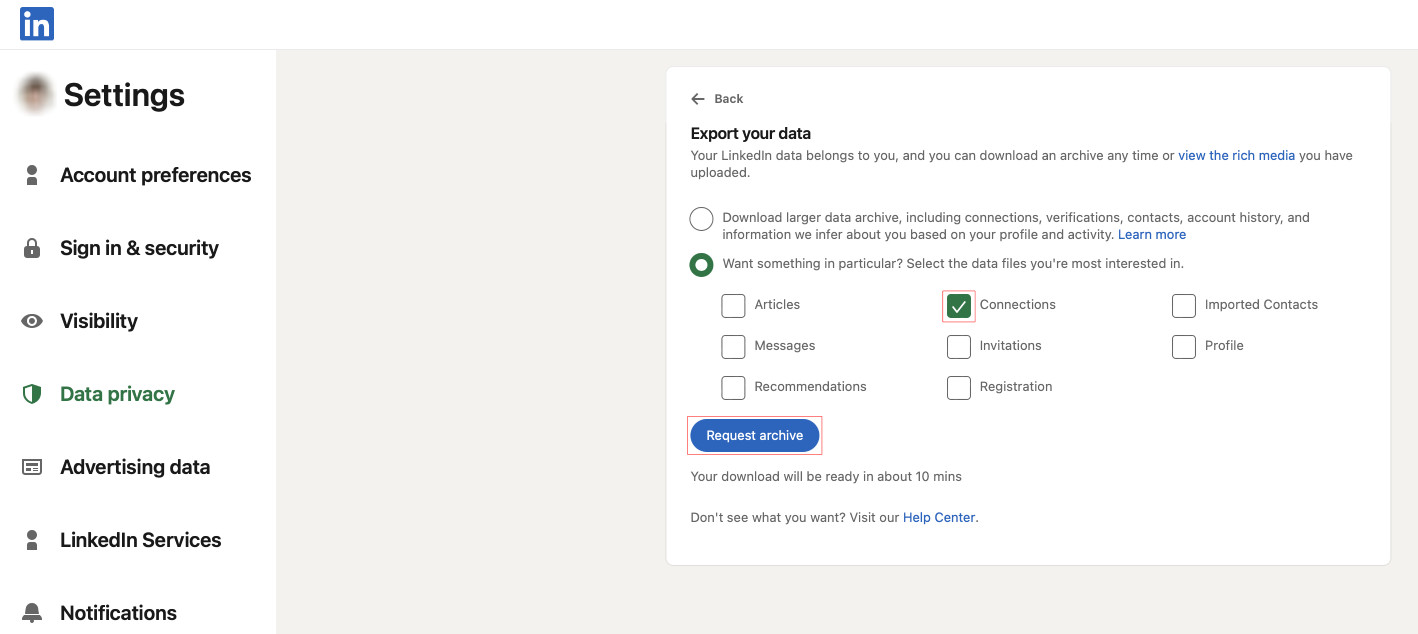
4. Under 'Export your data,' check the box next to Connections. Then, click the Request archive button.
5. Await the email containing the download link. Upon receipt, promptly click on the provided link to access the download portal.
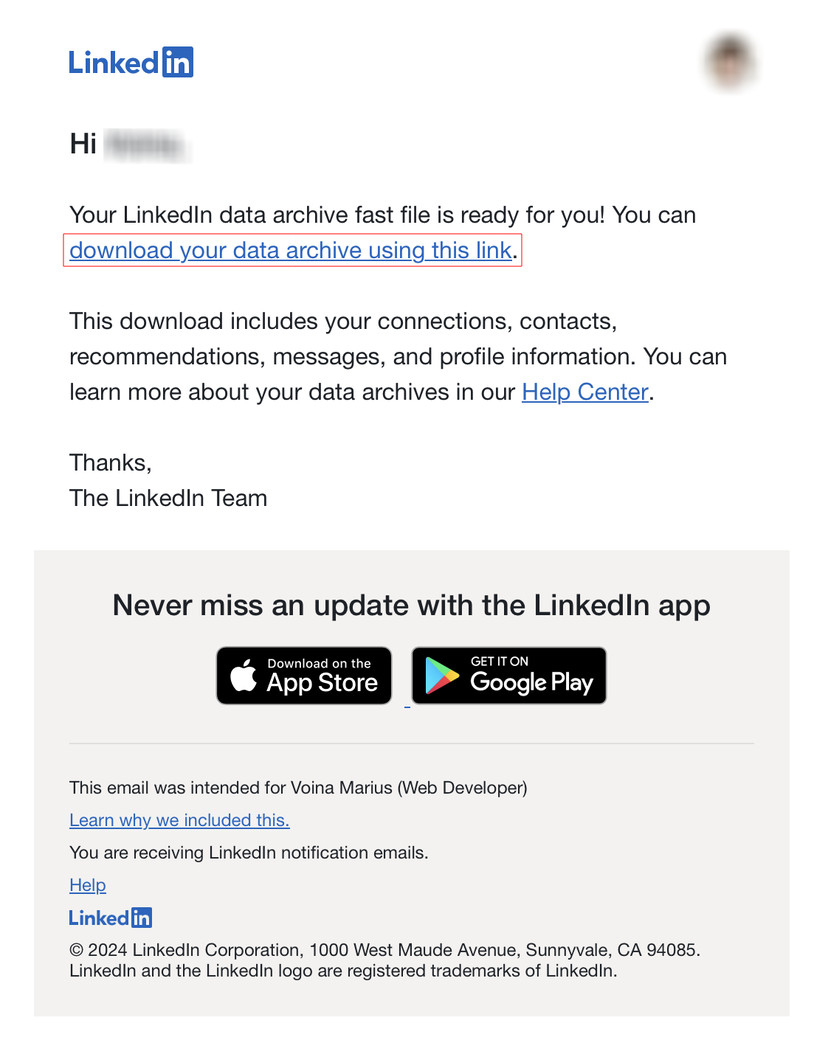
6. Initiate the download by clicking on the Download archive button. Then, you may resume the email finder process as usual.
Access the "Bulk Email Finder" tool on ZeroBounce through this link.
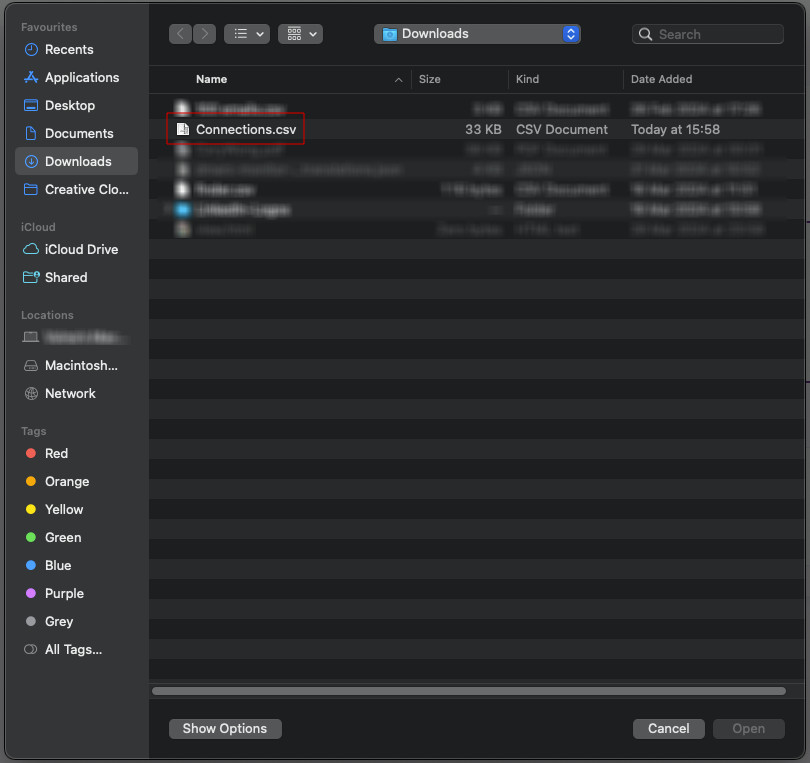
1. Once you're on the "Bulk Email Finder" page, find the option to upload your file. You'll need to upload your "Connections.csv" file, which you can export from LinkedIn.
!["Bulk ,[object Object]," file upload screen.](https://www.zerobounce.net/cdn-cgi/image/fit=scale-down,format=auto,quality=90,width=1080,metadata=none/docs/assets_next_docs/docs/api-integrations/linkedin/import_1.webp)
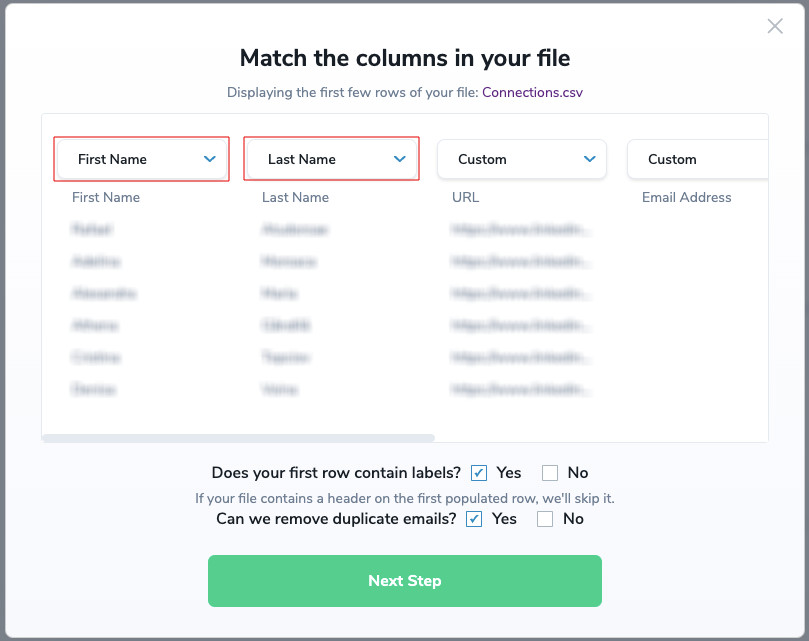
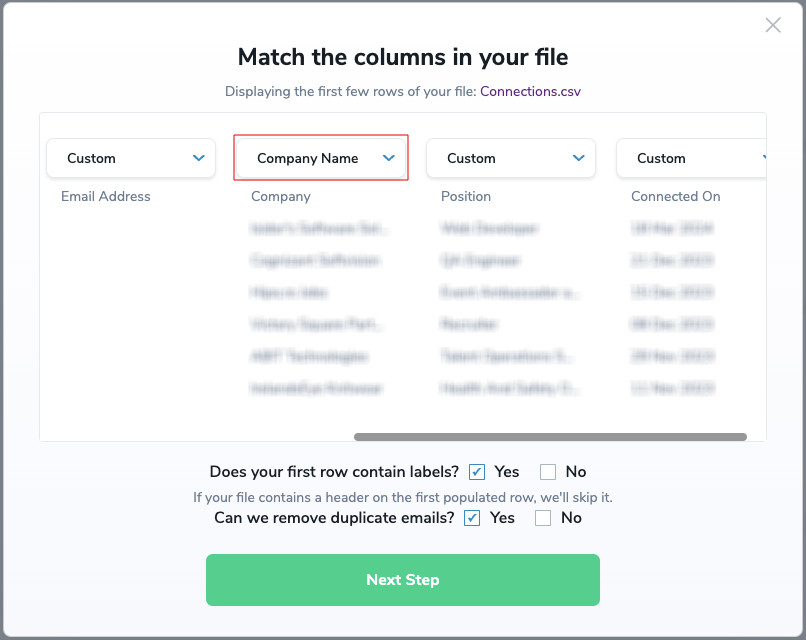
2. After uploading your file, you'll see a window where the column labeled "First Name" is automatically mapped to the field labeled "First Name", the column labeled "Last Name" is mapped to the field labeled "Last Name", and the column labeled "Company" is mapped to the field labeled "Company Name". Once these mappings are confirmed, click the "Next Step" button to proceed.
3. On the following screen, click the "Find" button to start finding emails associated with your contacts. Depending on the size of your CSV file, this process may take some time as it scans through each contact to locate their email addresses.
![Upload window of the bulk ,[object Object], file, where it displays the number of email addresses to find.](https://www.zerobounce.net/cdn-cgi/image/fit=scale-down,format=auto,quality=90,width=1200,metadata=none/docs/assets_next_docs/docs/api-integrations/linkedin/import_5.webp)
4. It's important to note that the page can be closed throughout the entire process. You can safely close the page and return later to check the status. ZeroBounce will continue working in the background to find the emails associated with your contacts.
!["Bulk ,[object Object]," screen showing that the file is processing.](https://www.zerobounce.net/cdn-cgi/image/fit=scale-down,format=auto,quality=90,width=1920,metadata=none/docs/assets_next_docs/docs/api-integrations/linkedin/import_6.webp)
If you have any questions or need additional support for the LinkedIn ZeroBounce integration, please contact customer support. The team is available 24/7.
