ZeroBounce Logo

Docs

Language Icon
  • Sign In
  • Sign Up Free

Languages

ZeroBounce ImageGetting Started
ZeroBounce ImageEmail List Validation
ZeroBounce ImageA.I. Email Scoring
ZeroBounce ImageEmail Finder
ZeroBounce ImageDomain Search
ZeroBounce ImageActivity Data
ZeroBounce ImageMulti-file upload
ZeroBounce ImageIntegrations
ZeroBounce ImageUsage Reports
ZeroBounce ImageYour ZeroBounce Account
ZeroBounce ImageChanging Your Email
ZeroBounce ImageChanging Your Password
ZeroBounce ImageTwo-Factor Authentication
ZeroBounce ImageChanging Your Time Zone
ZeroBounce ImageNotification Settings
ZeroBounce ImageAccount Assist
ZeroBounce ImageInvoices
ZeroBounce ImageDeleting Your Account
ZeroBounce ImageTeam Accounts
ZeroBounce ImageManage Users
ZeroBounce ImageCreate Team Account
ZeroBounce ImageDelete Team Account
ZeroBounce ImageAdd Team Member
ZeroBounce ImageResend Invitation Email
ZeroBounce ImageDelete Team Member
ZeroBounce ImageEdit Team Member
ZeroBounce ImageConfigure Okta SSO
ZeroBounce ImageConfigure Azure SSO
ZeroBounce ImageConfigure OpenID SSO
ZeroBounce ImageEmail Validation API
ZeroBounce ImageEmail Finder API
ZeroBounce ImageDomain Search API
ZeroBounce ImageA.I. Scoring API
ZeroBounce ImageActivity Data API
ZeroBounce ImageList Evaluator API
ZeroBounce ImageApi Dashboard
ZeroBounce ImageAPI Wrappers
ZeroBounce ImageAPI Migration
ZeroBounce ImageFAQ
ZeroBounce ImageSecuring Your Account
ZeroBounce ImageAbout ZeroBounce
ZeroBounce ImageDeliverability Tools
ZeroBounce ImageStatus Page
  • Email Validation Homepage
  • Separator
  • Docs
  • Separator
  • Your ZeroBounce Account
  • Separator
  • Team Accounts
Your ZeroBounce Account

TEAM ACCOUNTS

MANAGE USERS

By setting up a team account, you can invite multiple users to our email validationⓘ platform. You will be able to assign a role to each user that grants different access levels to the system.

Currently there are four roles,Owner, Admin, Dev, and User that can be assigned to team members.

Each team account can only have one owner. The credit balance from the team owner will be the main source shared by all team members invited.

The table below shows the permissions matrix of the team account roles and actions.

Team Accounts Permissions

  • Action
    Owner
    Admin
    Dev
    User
  • Validate (upload files)
    Yes
    Yes
    Yes
    Yes
  • Validate (download files)
    Yes. All team member's uploaded files.
    Yes. All team member's uploaded files.
    Yes. All team member's uploaded files.
    Yes. Only user's uploaded files.
  • Single Email Validator
    Yes
    Yes
    Yes
    Yes
  • Score (upload files)
    Yes
    Yes
    Yes
    Yes
  • Score (download files)
    Yes. All team member files.
    Yes. All team member files.
    Yes. All team member files.
    Yes. Only user uploaded files.
  • Email Finderⓘ
    Yes, All Team member's Email Finderⓘ Searches
    Yes, All Team member's Email Finderⓘ Searches
    Yes, All Team member's Email Finderⓘ Searches
    Yes, Only User Email Finderⓘ Searches
  • Domain Search
    Yes, All Team member's Domain Searches
    Yes, All Team member's Domain Searches
    Yes, All Team member's Domain Searches
    Yes, Only User Domain Searches
  • DMARC monitors
    Yes
    Yes
    Yes
    Yes (All team monitors, read-only)
  • Warmup Accounts
    Yes, All Team member's Warmup Accounts
    Yes, All Team member's Warmup Accounts
    Yes, All Team member's Warmup Accounts
    Yes (All team Warmup Accounts, read-only)
  • Inbox Test
    Yes, All Team member's Test
    Yes, All Team member's Test
    Yes, All Team member's Test
    Yes, Only User Test
  • Email Server Testⓘ
    Yes, All Team member's Test
    Yes, All Team member's Test
    Yes, All Team member's Test
    Yes, Only User Test
  • Blacklist monitors
    Yes
    Yes
    Yes
    Yes (Only own monitors)
  • ZB Integrations
    Yes
    Yes
    Yes
    Yes
  • API - Keys & Whitelisting
    Yes
    Yes
    Yes
    Assigned keys only.
  • API - Usage
    Yes
    Yes
    Yes
    Assigned keys only.
  • Usage
    Yes
    Yes
    Yes
    Yes (Only own usage)
  • Pay as You Go
    Yes
    Yes
    No
    No
  • Subscription
    Yes
    Yes
    No
    No
  • AutoPay
    Yes
    Yes
    No
    No
  • Manage Users
    Yes
    Yes
    No
    No
  • IP-Based Conditional Access Option
    Yes
    Yes
    Yes (read-only)
    Yes (read-only)
  • Password Expiry Interval
    Yes
    Yes
    Yes (read-only)
    Yes (read-only)
  • Verify+ from ZeroBounceⓘ
    Yes
    Yes
    Yes (read-only)
    Yes (read-only)
  • Email Validationⓘ Rules
    Yes
    Yes
    Yes
    All Team rules (read-only)
  • Account Options – Transfer Credits
    Yes
    Yes
    No
    No
  • Account Options – Delete Your Account
    Yes
    No
    No
    No
  • Billing and Invoices
    Yes
    Yes
    No
    No
  • GDPR Information
    Yes
    Yes
    No
    No

Manage Users under the Account Options is where you can create a team account and manage your team members.
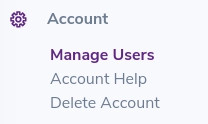
Manage users section found under your ZeroBounce account settings

CREATE TEAM ACCOUNT

To create a team account, click Create Team Account button.

The system will then convert your ZeroBounce account to a team account, and you will be assigned as the team owner.

DELETE TEAM ACCOUNT

The delete your ZeroBounce account section with its password field and delete account button Deleting your account is permanent and will remove access to ZeroBounce for you and all of your team members.
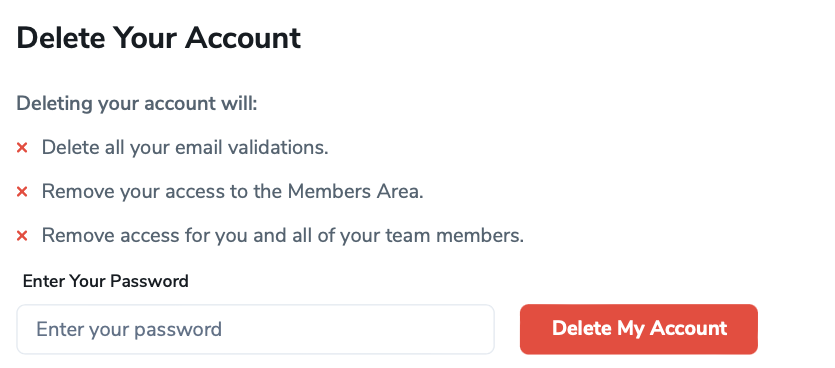
The delete your ZeroBounce account section with its password field and delete account button

ADD TEAM MEMBER

To add a new team member to your team, enter the new team member's email address, select their role, and click Save to complete the process.
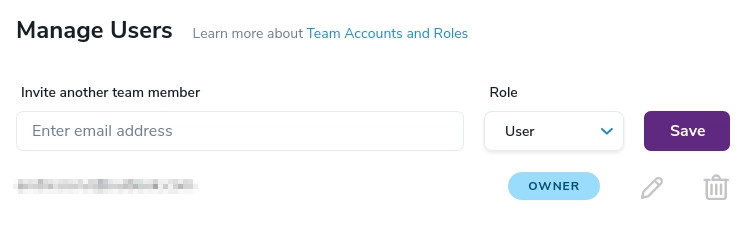
The manage users section  of your ZeroBounce account showing the team members and the invite options

Please note that if the email address you entered has already been registered with ZeroBounce and you would still like to invite this user to the team, you will need to ask the owner of that email address to sign in to ZeroBounce, then select either Change Your Email under Profile or Delete Your Account under Account options to make that email address eligible before resending the invitation.

After your changes have been saved, a team account invitation email will be sent to the email address you entered.
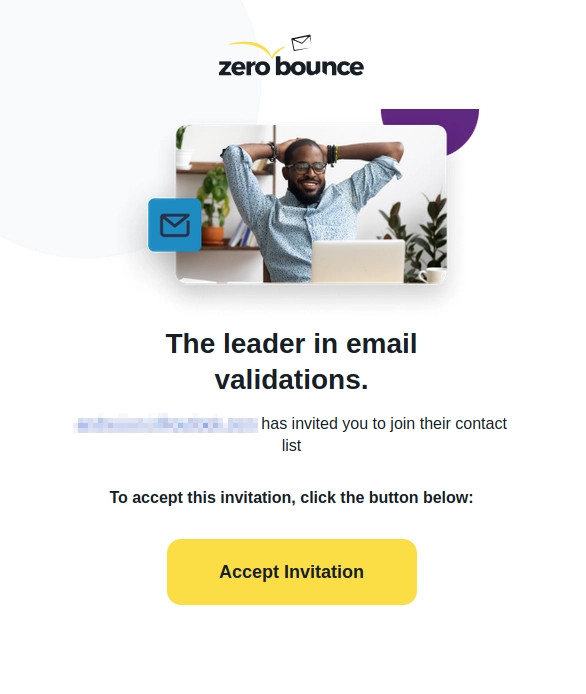
Your account invitation email received by the invited account

All new team members will need to click Accept Invitation from the Team Account Invitation email, then complete the steps on the Join Account page to join the team.

RESEND INVITATION EMAIL

If the invited team member has not confirmed their account, you can resend the invitation email by clicking the pencil button and then clicking the "Resend invitation" link.
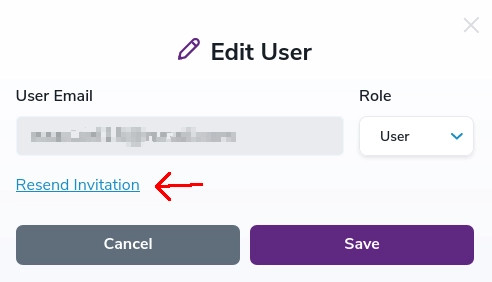
The resend invitation option in your account for a team member

DELETE TEAM MEMBER

To delete a team member from your team, click the trash can icon on the right side of that team member's email address. Deleting a team member not only removes the person from the team, but also removes the person's access to ZeroBounce.
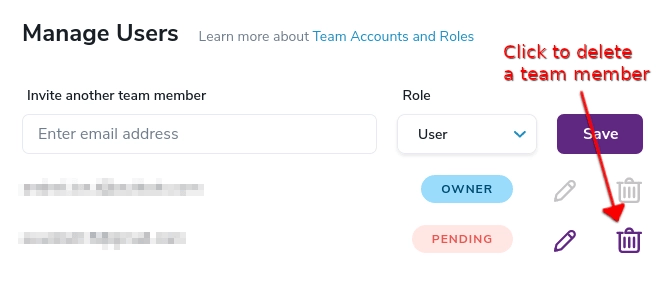
The delete button used to remove a team member or to cancel a pending invitation within your account settings

EDIT TEAM MEMBER

To edit a team member, click the pencil icon. If the new member has not been confirmed, you can change the member's email address. However, you'l need to resend the invitation email to the updated address. If the member has been confirmed, only the member's role can be updated. After entering your changes, click the Save button.
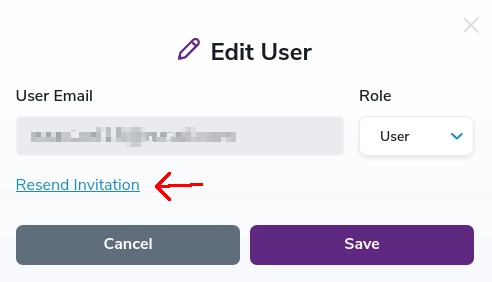
Arrow pointing to the Edit button for a team member within your account settings

To edit a team member, click the pencil icon.
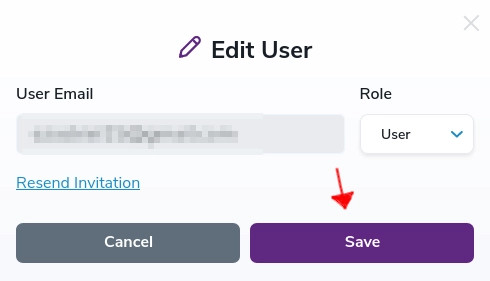
Arrow pointing to the Save button for a team member within your ZeroBounce account settings

After entering your changes, click the Save button.