ZeroBounce Logo

Docs

Language Icon
  • Sign In
  • Sign Up Free

Languages

ZeroBounce ImageGetting Started
ZeroBounce ImageEmail List Validation
ZeroBounce ImageA.I. Email Scoring
ZeroBounce ImageEmail Finder
ZeroBounce ImageDomain Search
ZeroBounce ImageActivity Data
ZeroBounce ImageMulti-file upload
ZeroBounce ImageIntegrations
ZeroBounce ImageUsage Reports
ZeroBounce ImageYour ZeroBounce Account
ZeroBounce ImageEmail Validation API
ZeroBounce ImageEmail Finder API
ZeroBounce ImageDomain Search API
ZeroBounce ImageA.I. Scoring API
ZeroBounce ImageActivity Data API
ZeroBounce ImageList Evaluator API
ZeroBounce ImageApi Dashboard
ZeroBounce ImageAPI Wrappers
ZeroBounce ImageAPI Migration
ZeroBounce ImageFAQ
ZeroBounce ImageAccount
ZeroBounce ImageUnderstanding email verification
ZeroBounce ImageUnderstanding email finder
ZeroBounce ImageUploading Files
ZeroBounce ImageBilling and Payments
ZeroBounce ImageWhat Payment Methods Does ZeroBounce Accept?
ZeroBounce ImageHow Do I Check Out as a Guest with PayPal?
ZeroBounce ImageWhere Do I Get My Invoice?
ZeroBounce ImageWhat Does My Bank Decline Code Mean?
ZeroBounce ImageHow Is Pricing Determined for Email Verification?
ZeroBounce ImageAre There Any Discounts for Bulk Verification?
ZeroBounce ImageHow to Assign and Update Payment Methods for Subscriptions
ZeroBounce ImageHow to verify your identity
ZeroBounce ImageQuestions about our services
ZeroBounce ImageData security and privacy
ZeroBounce ImagePotential Issues
ZeroBounce ImageIntegration and compatibility
ZeroBounce ImageEmail finder and enhancement
ZeroBounce ImageTroubleshooting and support
ZeroBounce ImageUpdates and innovations
ZeroBounce ImageTutorials and guides
ZeroBounce ImageAPI FAQs
ZeroBounce ImageEmail Warmup FAQ
ZeroBounce ImageSecuring Your Account
ZeroBounce ImageAbout ZeroBounce
ZeroBounce ImageDeliverability Tools
ZeroBounce ImageStatus Page
  • Email Validation Homepage
  • Separator
  • Docs
  • Separator
  • Frequently Asked Questions
  • Separator
  • Billing and Payments
  • Separator
  • How Is Pricing Determined for Email Verification
Billing and Payments

How to Assign and Update Payment Methods for ZeroBounce ONE™ and Autopay

To assign a payment method for ZeroBounce or credit Autopay, ensure that you have a payment method on file.

Then, follow the instructions below based on your current scenario.

How to assign payment methods to ZeroBounce ONE™

If you don't have an existing ZeroBounce ONE™ subscription

If you don't have a ZeroBounce ONE™ subscription, you can get started by accessing:

  • Pricing & Plans on the left side menu of your dashboard
  • Billing, accessed by hovering over your profile picture in the top-right corner

If using the latter, scroll down to Subscription & Autopay and select Update Subscription. Both methods will take you to the same screen.

Next, follow these steps:

  1. Under ZeroBounce ONE™, click Subscribe. Alternatively, set your desired values under ZeroBounce ONE™ Custom, and click Subscribe.
  2. Click Confirm.
  3. Enter a promo code (if you have one) and click Checkout.
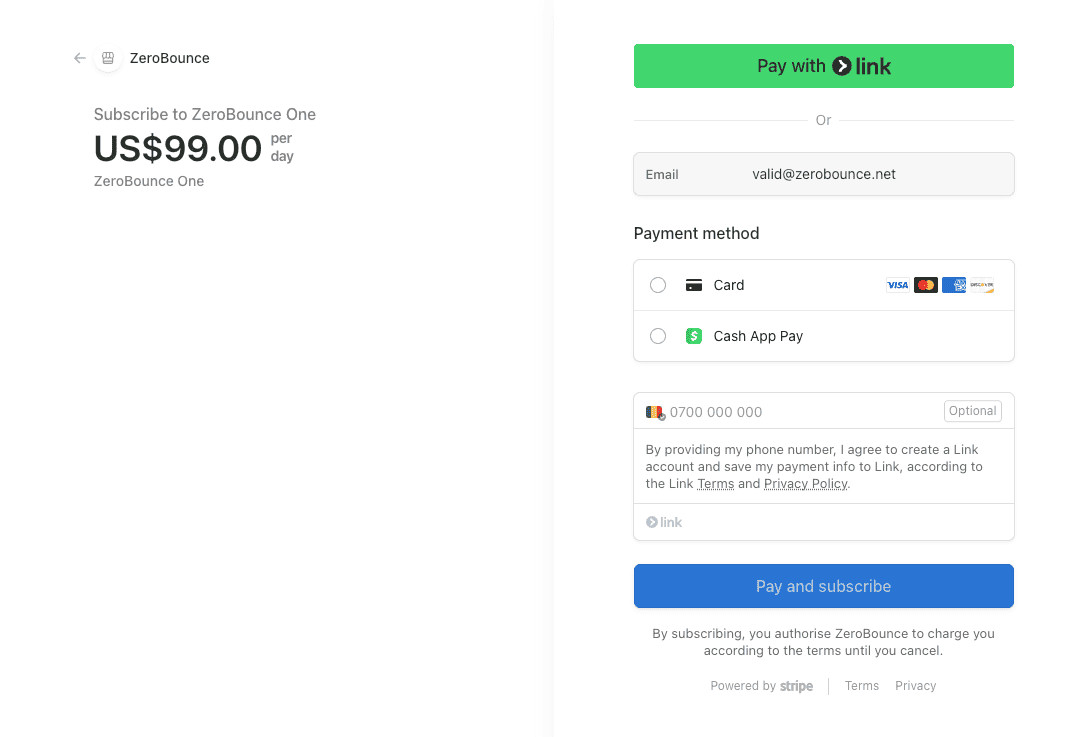
  4. Select a payment method on the right side menu. If you don't have one on file, enter one now.
    The checkout screen for a ZeroBounce ONE™ subscription plan.
  5. Click Subscribe to complete the process.

Your subscription will now appear under Billing > Subscription & Autopay. You can edit your payment method at any time from this menu.

If you don't have Autopay enabled and want to add a subscription

  1. From your profile picture in the top-right corner, go to Billing.
  2. Scroll down to Subscription & Autopay.
  3. Under Autopay, set your desired credit values in the provided fields. Click Save.
  4. Click Confirm.
  5. Select a payment method to use for Autopay. If you don't have one on file, add one now.
  6. Click Save.

Moving forward, you'll be able to edit your payment method attached to Autopay from the Billing menu.

How to update the payment method for an existing ZeroBounce ONE™ or Autopay subscription

If you already have a subscription and wish to update your payment method, follow these steps:

  1. From your profile picture in the top-right corner, select Billing.
  2. Scroll down to Subscription & Autopay.
  3. Locate your payment method under your ZeroBounce ONE™ or Autopay plan. Select Set Usage or Replace Card.
  4. Click Save Changes.

Related Articles

What Payment Methods Does ZeroBounce Accept?

How do I check out as a guest with PayPal?

Where do I get my invoice?

What does my bank decline code mean?

How is pricing determined for email verification?

Are there any discounts for bulk verification?