ZeroBounce Logo

Docs

Language Icon
  • Sign In
  • Sign Up Free

Languages

ZeroBounce ImageGetting Started
ZeroBounce ImageEmail List Validation
ZeroBounce ImageA.I. Email Scoring
ZeroBounce ImageEmail Finder
ZeroBounce ImageDomain Search
ZeroBounce ImageActivity Data
ZeroBounce ImageMulti-file upload
ZeroBounce ImageIntegrations
ZeroBounce ImageUsage Reports
ZeroBounce ImageYour ZeroBounce Account
ZeroBounce ImageEmail Validation API
ZeroBounce ImageEmail Finder API
ZeroBounce ImageDomain Search API
ZeroBounce ImageA.I. Scoring API
ZeroBounce ImageActivity Data API
ZeroBounce ImageList Evaluator API
ZeroBounce ImageApi Dashboard
ZeroBounce ImageAPI Wrappers
ZeroBounce ImageAPI Migration
ZeroBounce ImageFAQ
ZeroBounce ImageAccount
ZeroBounce ImageUnderstanding email verification
ZeroBounce ImageUnderstanding email finder
ZeroBounce ImageUploading Files
ZeroBounce ImageBilling and Payments
ZeroBounce ImageWhat Payment Methods Does ZeroBounce Accept?
ZeroBounce ImageHow Do I Check Out as a Guest with PayPal?
ZeroBounce ImageWhere Do I Get My Invoice?
ZeroBounce ImageWhat Does My Bank Decline Code Mean?
ZeroBounce ImageHow Is Pricing Determined for Email Verification?
ZeroBounce ImageAre There Any Discounts for Bulk Verification?
ZeroBounce ImageHow to Assign and Update Payment Methods for Subscriptions
ZeroBounce ImageHow to verify your identity
ZeroBounce ImageQuestions about our services
ZeroBounce ImageData security and privacy
ZeroBounce ImagePotential Issues
ZeroBounce ImageIntegration and compatibility
ZeroBounce ImageEmail finder and enhancement
ZeroBounce ImageTroubleshooting and support
ZeroBounce ImageUpdates and innovations
ZeroBounce ImageTutorials and guides
ZeroBounce ImageAPI FAQs
ZeroBounce ImageEmail Warmup FAQ
ZeroBounce ImageSecuring Your Account
ZeroBounce ImageAbout ZeroBounce
ZeroBounce ImageDeliverability Tools
ZeroBounce ImageStatus Page
  • Email Validation Homepage
  • Separator
  • Docs
  • Separator
  • Frequently Asked Questions
  • Separator
  • Billing and Payments
  • Separator
  • How to verify your identity
Billing and Payments

Stripe Identity

Stripe Identity is an identity verification service provided by Stripe that helps businesses automatically confirm the identity of their users online.

With this new feature, we aim to enhance the user experience during identity verification, which is now simplified into four easy steps.

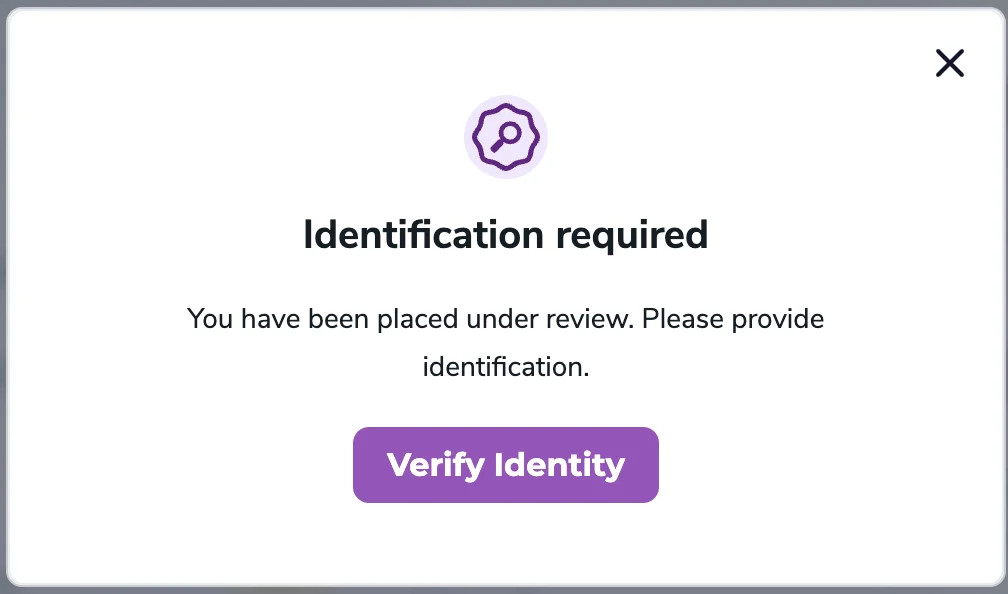
When a payment is put into review, a pop-up will be displayed, asking you to provide your identity. An email will also be sent to inform you that you need to verify your identity.

To confirm your identity, you'll need to complete the following steps:
ZeroBounce Image

Step 1. Once you click on the 'Verify Identity' button, you'll receive a prompt from Stripe asking you to upload the required documents.

Step 2. After successfully uploading the required documents, your identity verification process begins.
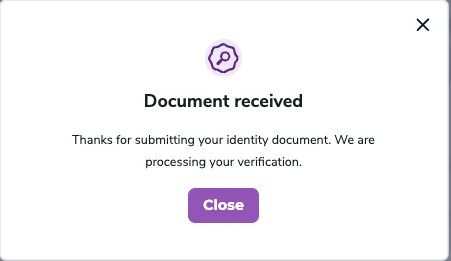
  • A pop-up will be displayed notifying you that your identity verification is in progress.
    ZeroBounce Image
  • An email is also sent in confirmation.
ZeroBounce Image

Note:
If the uploaded documents are valid, the process can take anywhere from a few minutes to a few hours.

Step 3. If the submitted documents are valid and your identity verification is successful, we'll approve your payment, and you'll receive the associated benefits.

Step 3a. If the identity verification process fails, you'll need to try again (repeat Step 2).
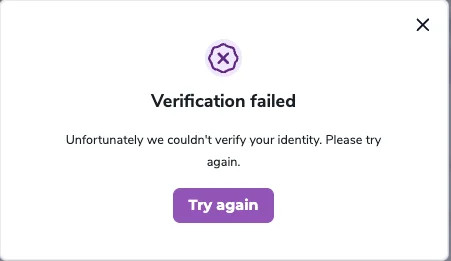
  • A pop-up appears asking you to verify your identity again.
    ZeroBounce Image
  • An email will also confirm that the process failed, and you'll need to try again using the previous process.

Step 4. If your identity verification process fails for the second time, you'll receive a prompt to contact support for further assistance.
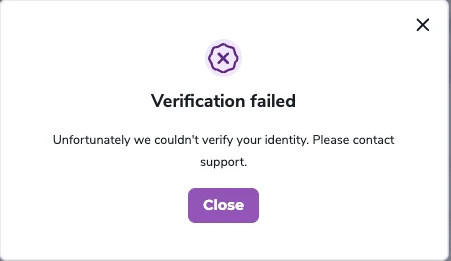
  • A pop-up appears notifying you that your identity verification failed, along with a notice to contact support.
    ZeroBounce Image
  • An email is also sent to inform you that your identity verification process has failed, along with a notice to contact our support team.